
Latest Posts From Rifat Hassan

Here we have a data set with the sales record of some products for some years in a company. We'll enter values inside the row called Product No. to number the ...
 Rifat Hassan
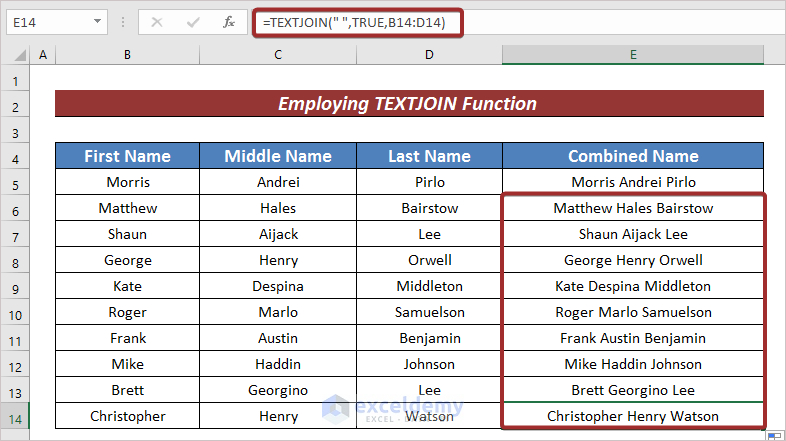
To demonstrate how to use the concatenate function, we will use a dataset with the First Name, Middle Name, and Last Name columns. We will apply ...

We’ve got a dataset with the Product ID and Product Name of some products of a company named Mars Group. The values are stored in the Cell range B5:C9. We'll ...

One of the most important features of Excel is to collect and contain data from various places into a single cell. In other words, to concatenate. Today I will ...

While working in Excel, we often need to add numbers for various purposes. After creating a data set, you may feel to edit or add numbers within the existing ...

Step 1 - Creating an Excel Table from a Dataset Create a dataset with the information of 10 City Names and their Total Population on a given day ...

In this article, we will demonstrate how to create a dependent drop down list in Excel. To explain the process, we'll use the following data set with the ...
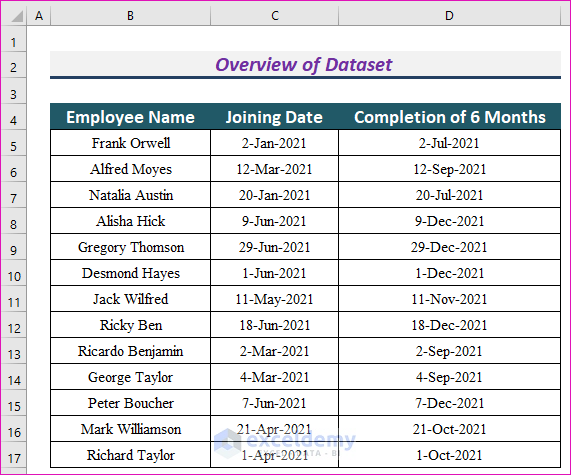
Suppose we have a dataset with the Names and Joining Dates of some employees of a company. Let's apply the EDATE and DATE functions to add 6 months to ...

What are Sequential Dates? Sequential dates are a series of dates that follow a specific interval. For instance, if you have dates like January 1, 2023, ...
The dataset showcases Names of Candidates for an interview. To AutoFill their interview dates: Method 1 - Dragging the AutoFill Handle Icon ...

What Is a Dynamic List in Excel? A dynamic list updates automatically when any value in the original data set is changed or new values are added. We have a ...

Introduction to TEXTJOIN Function in Excel Summary Concatenates a list or range of text strings into a single string using a delimiter. Can ...
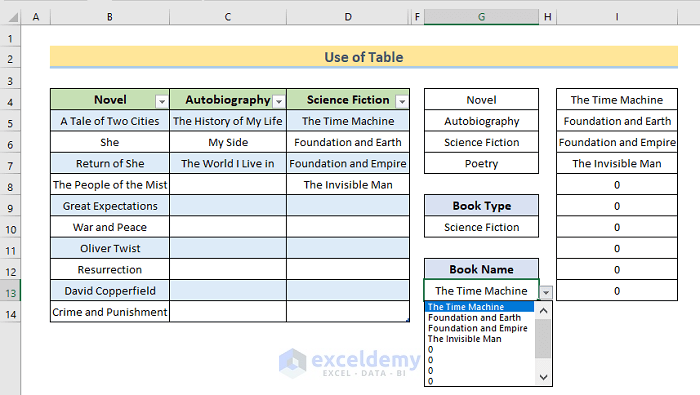
What Is Dynamic Dependent Drop-Down List? A drop-down list is a set of predefined values from which you can choose a specific value for a cell. A dynamic ...

Let’s consider the Sales Data for January in the “January” worksheet, which depicts the “Product Name” and the “Sales” in USD. We have the Sales Data ...

Today I will be showing how you can use the VLOOKUP in combination with the IF and ISNA functions of Excel. One of the most important and widely used ...
- « Previous Page
- 1
- …
- 10
- 11
- 12
- 13
- 14
- …
- 16
- Next Page »
See Our Reviews at


Hi Tim, thank you for your valuable response. You can declare the variables this way:
Dim File_Dialog as FileDialog
Set File_Dialog = Application.FileDialog(msoFileDialogFolderPicker)
Dim Sheet_Names(2) as Variant
Sheet_Names(0)=”Sheet1″
Sheet_Names(1)=”Sheet2″
Sheet_Names(2)=”Sheet3″
Dim New_File(2) as Variant
New_File(0)=”New_Sheet1″
New_File(1)=”New_Sheet2″
New_File(2)=”New_Sheet3″
But declaring variables beforehand is not mandatory in VBA. You can directly assign values to them as mentioned in the given codes.
Hi Nico,
Thanks for your response. You can use the FILTER function of Excel for your problem. Check this article for details https://www.exceldemy.com/excel-filter-multiple-criteria/.
Hi Veronika, if your problem isn’t solved yet, you can send the file to my mail or can send an image of your file. I’ll try.
Hi Arjun, the codes are absolutely flawless and there is no reason for them to not work properly. Did you insert the inputs correctly?
Hi Luis,
Thank you for your response. Hope this comes in handy for more people like you.
Hello Sam,
Thank you Sam for your response. It’s working fine now. Thank you again.
Hi Mohammed, Thanks for your response. Insert the name of the text and the color code in the 2nd and 3rd lines of the codes directly.
Hi Man, Thanks in advance. Can you please tell me where exactly the bug is? I have run the code in every way possible and there evolves no error. I think you couldn’t enter the inputs properly. Please go through the article again and then try. If it still doesn’t work, please tell me what exactly the error is.
Hi Dennis,
Thanks for your response. To skip the table name, first, remove the 4th line of the code, that is, Table_Name = InputBox(“Enter the Name of the Table: “).
Then enter the name of the table within the 6th line of the code. For example, if the name of your table is “Table1”, then the line should be: Set tbl = ws.ListObjects(“Table1”).
So the complete code will be:
Sub Add_Empty_Row()
Dim ws As Worksheet
Set ws = ActiveSheet
Dim tbl As ListObject
Set tbl = ws.ListObjects(“Table1”)
tbl.ListRows.Add
End Sub
I think the problem lies in the apostrophes. Use this code instead of yours. It works fine for me.
Sub InsertRowsfromUserInput()
Dim iRow As Long
Dim iCount As Long
Dim i As Long
iCount = InputBox(Prompt:=”How Many Rows to Insert?”)
iRow = InputBox _
(Prompt:=”Where to Insert New Rows? (Enter the Row Number)”)
For i = 1 To iCount
Rows(iRow).EntireRow.Insert
Next i
End Sub
If it still doesn’t work, after pasting the code in the VBA editor, change the apostrophes of the 5th and 7th lines manually. Hope it will work then.
Thank you Ana. It’s difficult to give any suggestions without having a glance at the workbook. Would you please kindly share your workbook with me?