

In finance and business, it’s mandatory to find the Equivalent Annual Annuity (EAA). you can find it using the basic mathematical formula but using functions in Excel, we can calculate it more quickly and smartly. This article will show you 2 relatable examples to calculate equivalent annual annuity in Excel.
What Is Equivalent Annual Annuity?
In capital budgeting, the Equivalent Annual Annuity (EAA) approach is called one of two methods that are applied to compare multiple projects with unequal periods. The EAA process can calculate the constant annual cash flow created by a project over its lifespan if it was an annuity. an investor should select the project with the higher EAA while comparing the projects with unequal periods.
Basic Formula of Equivalent Annual Annuity
When you have the current value of a product with the discount rate over a certain time period then you can form the formula to calculate the Equivalent Annual Annuity. The basic formula for calculating the Equivalent Annual Annuity (EAA) is-
Where,
NPV = Net present value.
r = discount rate.
n = time period.
How to Calculate Equivalent Annual Annuity in Excel: 2 Easy Examples
Now let’s explore two easy examples to understand how to calculate equivalent annual annuity in Excel.
Example 1: Calculate Equivalent Annual Annuity for a Single Project
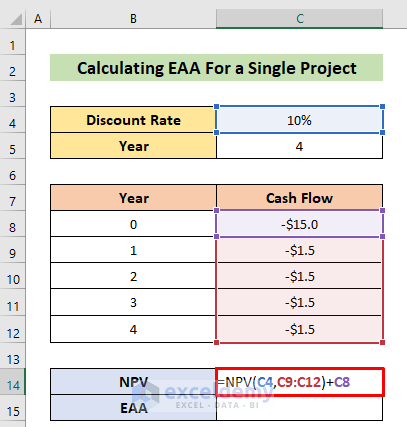
First, we’ll learn the simple process to calculate the Equivalent Annual Annuity for a single project. Let’s find the Equivalent Annual Annuity of purchasing of a swing machine that lasts for 4 years with the following costs as shown in the dataset below, the discount rate is 10%.

Steps:
- Firstly, we’ll calculate the net present value using the NPV function, so insert the following formula in Cell C14–
=NPV(C4,C9:C12)+C8- Then just hit the ENTER button for the output.
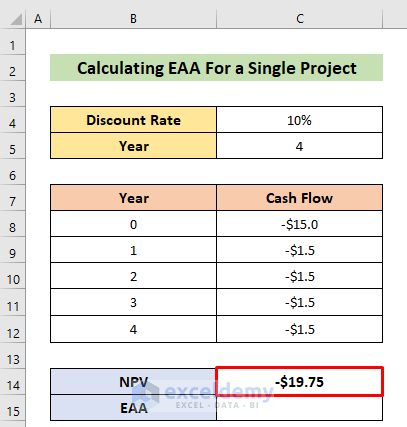
Soon you will get the net present value as shown in the image below.
- Next, type the following basic mathematical formula to find the Equivalent Annual Annuity-
=-(C4*C14)/(1-(1+C4)^-C5)Note: as the NPV is negative here, the formula will give a negative result. To avoid it, we used minus before the formula.
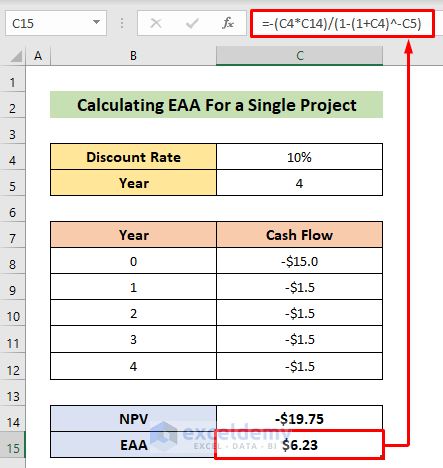
- Or, we can calculate the Equivalent Annual Annuity using the PMT function, both will result in the same. So, insert the following formula to get the Equivalent Annual Annuity-
=PMT(C4,C5,C14)- Finally, just press the ENTER button to get the result.

Here’s our Equivalent Annual Annuity.

Example 2: Calculate Equivalent Annual Annuity of Two Projects for Comparison
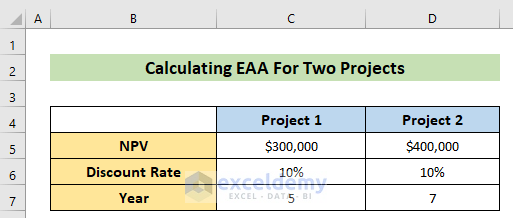
After calculating the Equivalent Annual Annuity (EAA), we should choose the project with a higher Equivalent Annual Annuity (EAA). Let’s compare two projects that have NPV of 300000 and 400000, periods- of 5 years and 7 years and both projects have the same discount rate of 10%.
Steps:
- In Cell C9, type the following formula for the Equivalent Annual Annuity (EAA) of the first project-
=-PMT(C6,C7,C5)- Next, hit the ENTER button for the output.
Note: The PMT function returns a negative result by default, so we used minus before the formula to avoid a negative result.
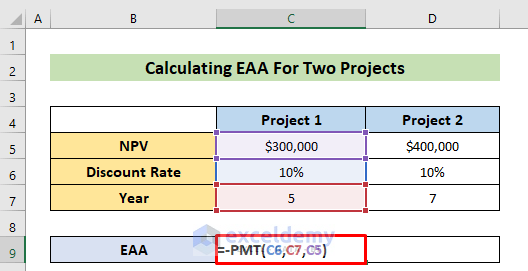
- After that, drag the Fill Handle icon in the right direction to get the Equivalent Annual Annuity (EAA) of the second project.

Here’s our Equivalent Annual Annuity (EAA) for the two projects. Have a look, the second project has the higher Equivalent Annual Annuity (EAA), so we should choose this project.

Read More: How to Calculate Deferred Annuity in Excel
Advantages of Calculating Equivalent Annual Annuity
- It helps to determine in which project we should invest.
- Minimizes the risk of facing any loss.
- While reinvesting, it also helps to take decisions.
Download Practice Workbook
You can download the free Excel workbook from here and practice independently.
Conclusion
That’s all for the article. I hope the above procedures will be good enough to calculate equivalent annual annuity in Excel. Feel free to ask any question in the comment section and please give me feedback.
Related Articles
- How to Calculate Annuity Factor in Excel
- How to Calculate Growing Annuity in Excel
- How to Do Ordinary Annuity in Excel
- How to Calculate Annuity Payments in Excel
- How to Calculate Annuity Due in Excel
<< Go Back to Excel Annuity Formula | Excel Formulas for Finance | Excel for Finance | Learn Excel
Get FREE Advanced Excel Exercises with Solutions!

