

Assume you have a large currency report with a lot of USD in it, and you want to convert the USD to your local currency, such as the rupee. Regardless of whether you are familiar with currency conversion rates or not, I will demonstrate the conversion in a basic manner in this post. For illustration purposes, this post will discuss the topic of how to convert dollar into rupees in Excel .
Currency Conversion Formula in Excel
The rate at which two trading nations exchange commodities or other marketable goods is referred to as the exchange rate. It is the price of converting one currency into another. Therefore, the following relationship may be used to compute the exchange rate:
Exchange Rate= Foreign Currency / Equitable amount of Money in Domestic Currency
How to Convert Dollar into Rupees in Excel: 2 Simple Methods
Nowadays, the trade around the world has converted our globe into a global village. So, international business is seeing a boom that has not been observed before. This connectivity and trade-related aspects made currency conversion more frequent. Here is a sample dataset to demonstrate the conversion from the dollar into rupees in Excel.
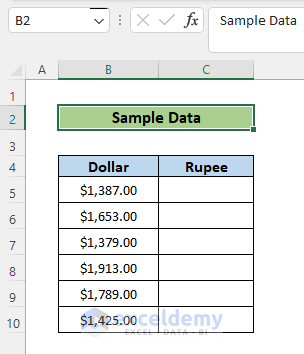
1. Dollar to Rupee Conversion Using a Simple Formula
In this method, we are going to convert a list of Dollars into Indian Rupee. For this, we have to know the exchange rate of the current dollar to the Rupee exchange rate.
📌 Steps:
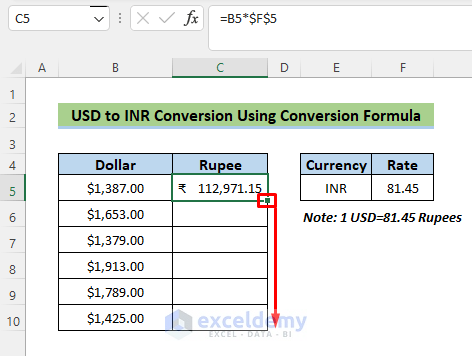
- First of all, in cell C5, enter the following formula:
=B5*$F$5- The recent Dollar to Rupee conversion rate is 81.45.
- For that reason, the Dollar in cell B5 is multiplied by the conversion rate of 81.45 in cell $F$5.
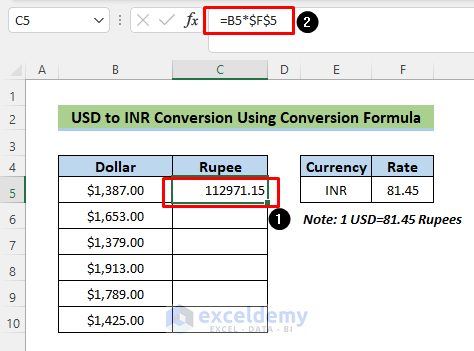
- Notice cell C5 is in general format, but this can be converted into Rupee by changing the format.
- To do so, follow the steps: go to Home tab >> Accounting Number Formats >> More Accounting Formats.
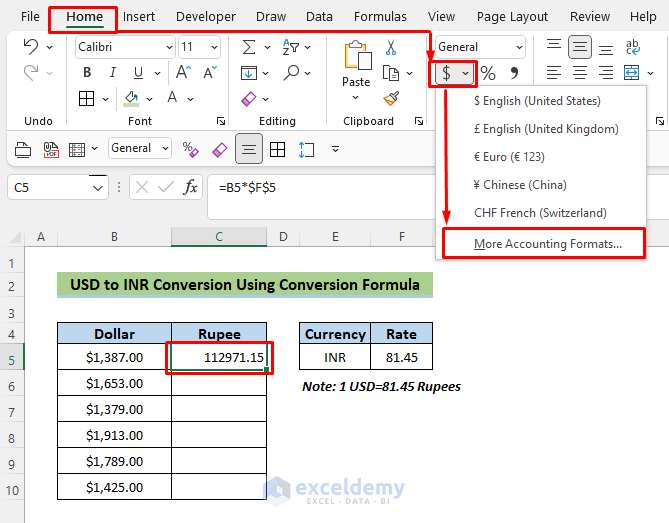
- So, the following Format Cells will appear in Excel.
- From Category, we will select Accounting and in the drop-down menu of Symbol, we will select English(India).
- After that, we will press OK.
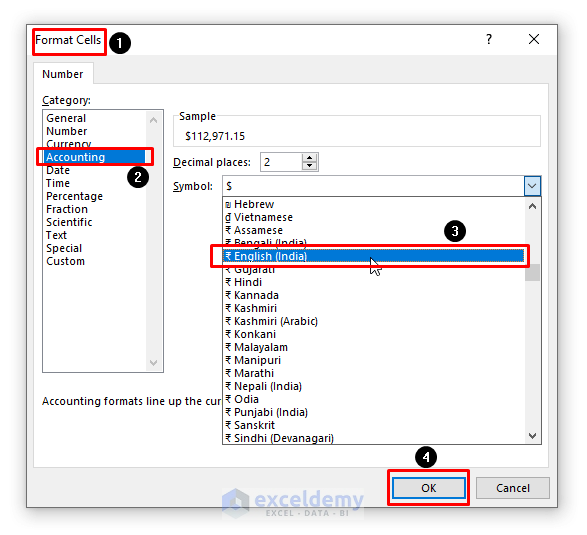
- Now we have done the main job but by dragging down the fill handle we can complete our task like the following image.
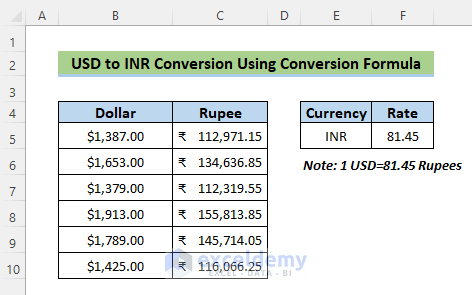
- Finally, we have a full dataset of Dollar Rupee conversion that is shown below.
Note:
Don’t forget to use absolute reference in the formula when referencing rate.
2. Change Dollar to Rupees Using Excel VLOOKUP Function
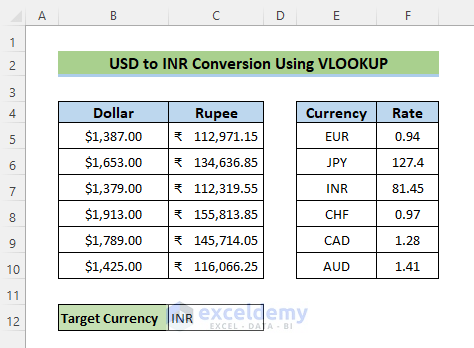
In the previous method, we have completed a simple task like converting Dollar to Rupee but in this method, we will accomplish a task by finding and converting. For that, we have to use the VLOOKUP function. Let’s explore the method.
📌 Steps:
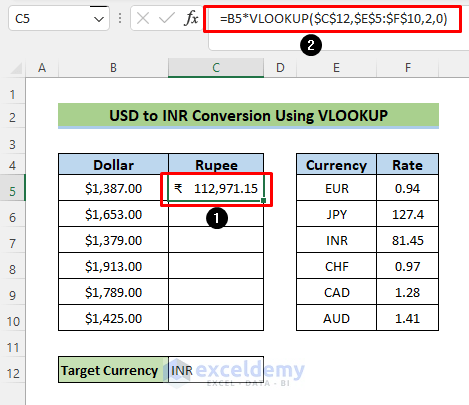
- Insert the following formula in cell C5:
=B5*VLOOKUP($C$12,$E$5:$F$10,2,0)
- In cell B5, the currency is in Dollar format but the requirement is Rupee.
- However, the conversion table has many data like 1 Dollar=127. 4 Japanese Yen or 1 Dollar = 81. 45 Rupee and so on.
- VLOOKUP($C$12,$E$5:$F$10,2,0) finds the value in $C$12 which is INR; from the range, $E$5:$F$10 the function will lookup for INR and returns the value from column 2. And lastly, 0 in the VLOOKUP means an exact match with INR.
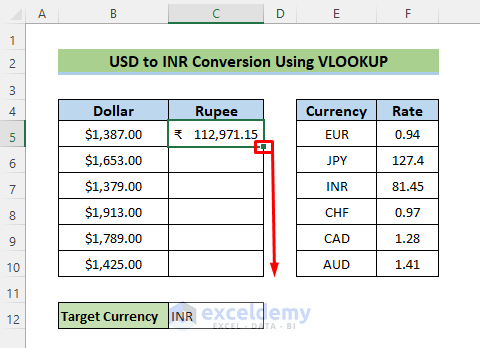
- At this moment, drag the fill handle to complete the series.
- Our final data table is here fully converted from Dollar to Rupee.
Download Practice Workbook
You can download the practice workbook from the following download button.
Conclusion
Follow these steps and stages to convert dollars into rupees in Excel. You are welcome to download the workbook and use it for your own practice. If you have any questions, concerns, or suggestions, please leave them in the comments section.


