

This is an overview.
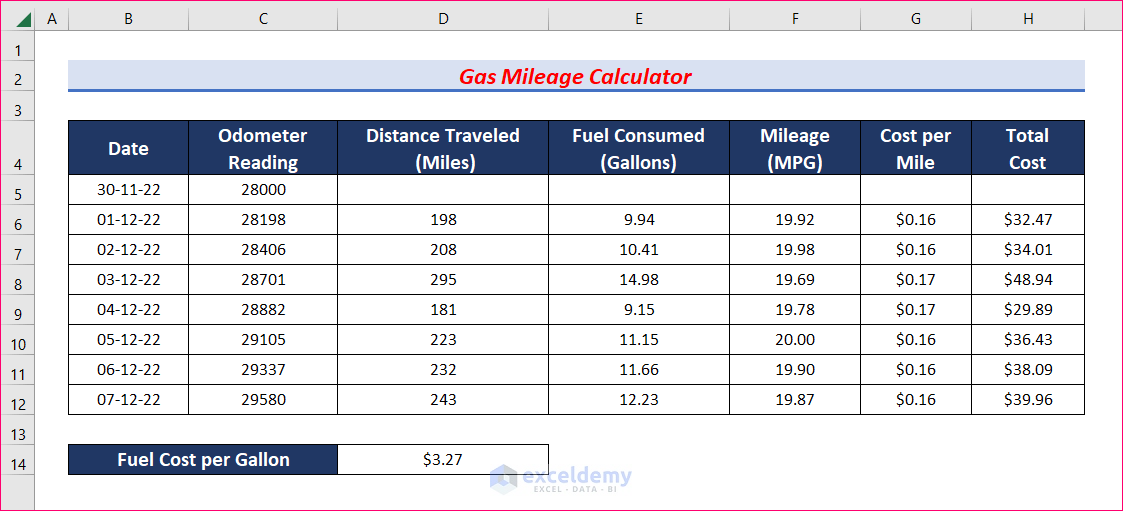
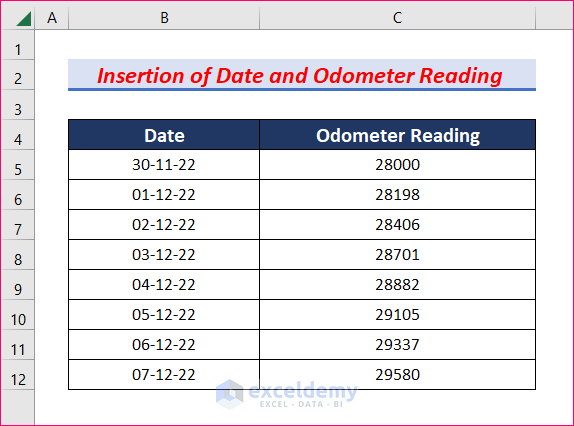
Step 1 – Enter the Date and the Odometer Reading
- Insert two columns: Date and Odometer Reading.
- Enter the dates and the odometer reading for each date.
Read More: How to Create ZIP to ZIP Mileage Calculator in Excel
Step 2 – Calculate the Distance Traveled
- Insert the column Distance Traveled.
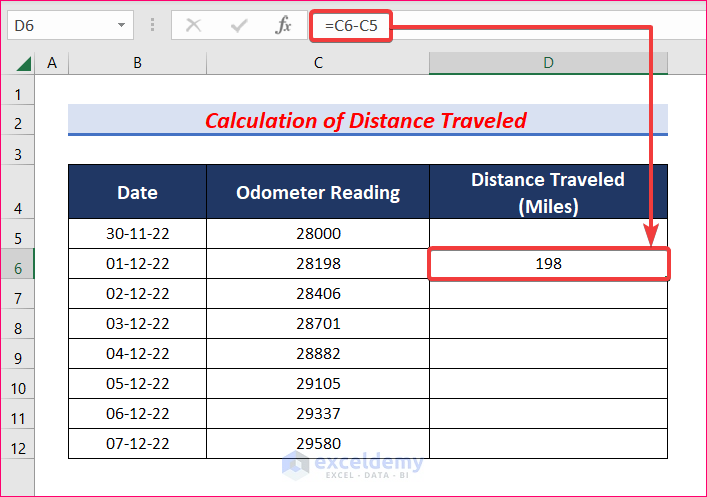
- Select D6 and enter the following formula.
=C6-C5- Press Enter to get the distance traveled on 01-12-2022.
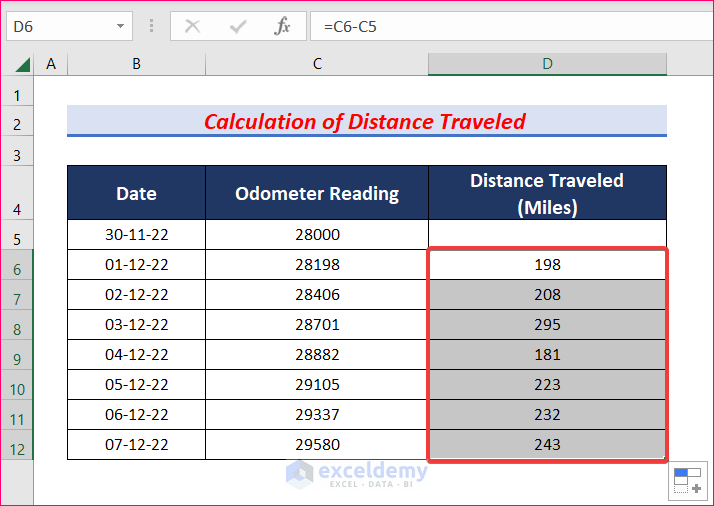
- AutoFill this formula to the rest of the cells in column D.
You will get the distance traveled for 7 days.
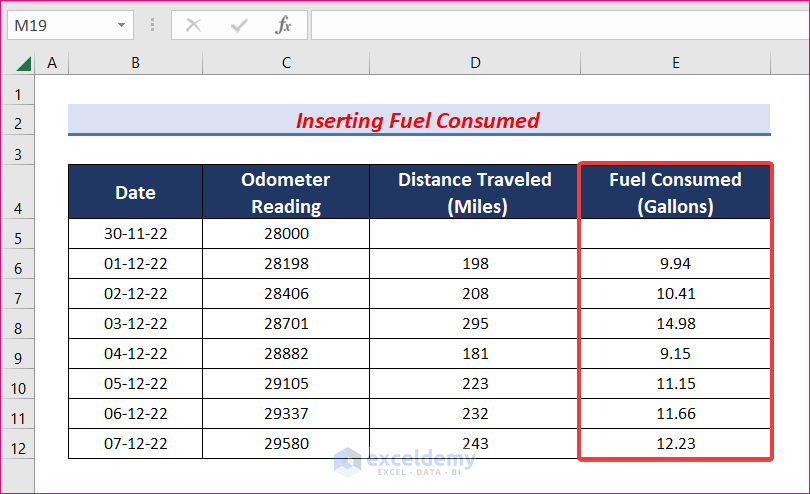
Step 3 – Enter the Consumed Fuel
- Insert the column Fuel Consumed.
- Enter the consumed fuel in gallons for each date.
Read More: How to Make Daily Vehicle Mileage and Fuel Report in Excel
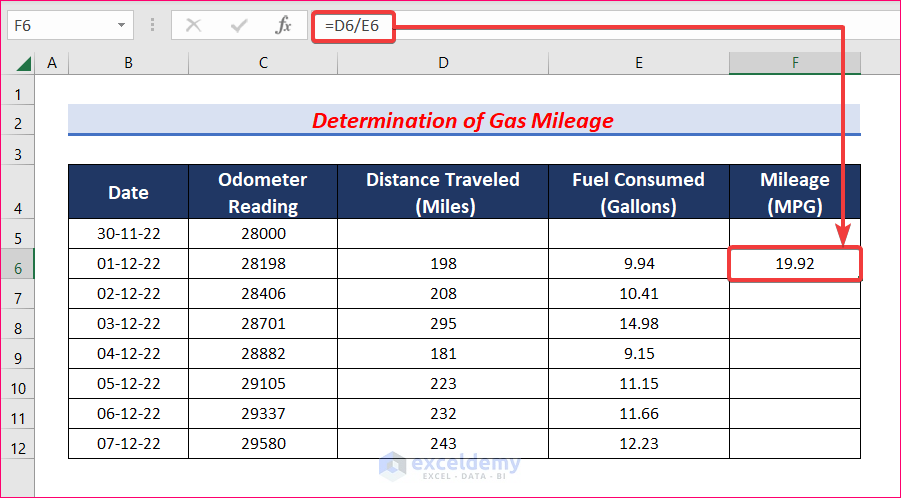
Step 4 – Determine the Gas Mileage
- Select F6 and use the following formula.
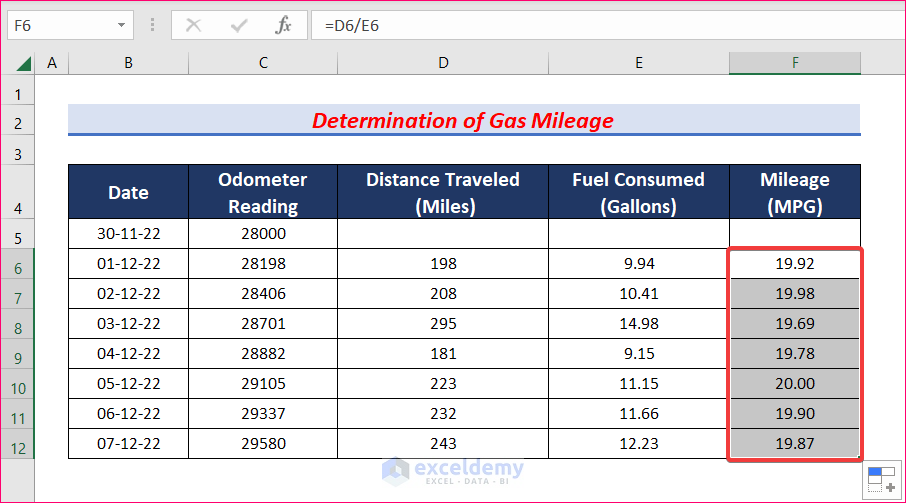
=D6/E6- Press Enter.
- AutoFill the formula to see the Mileage.
Step 5 – Calculate Cost Per Mile
- Enter the Fuel Cost per Gallon.
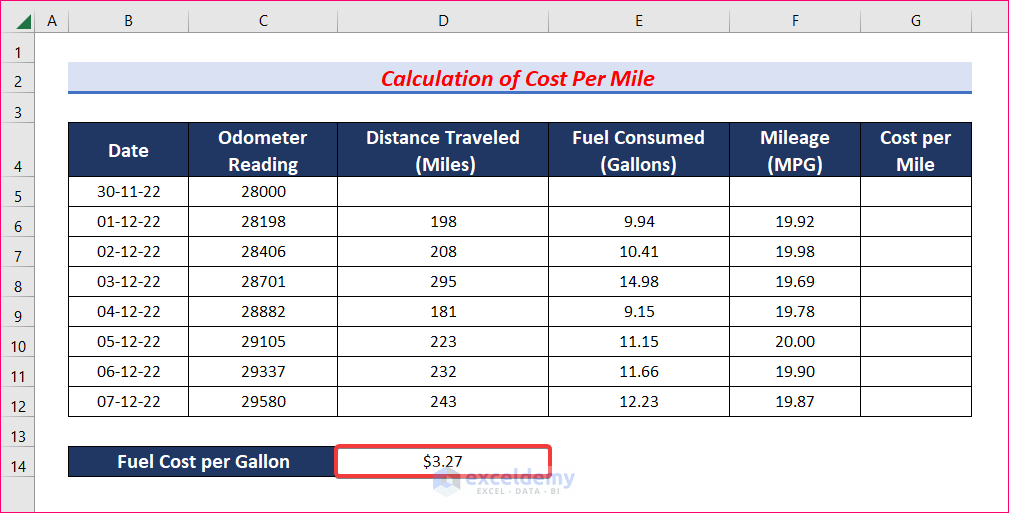
- Select G6 and use the formula below.
- Press Enter.
=E6*$D$14/D6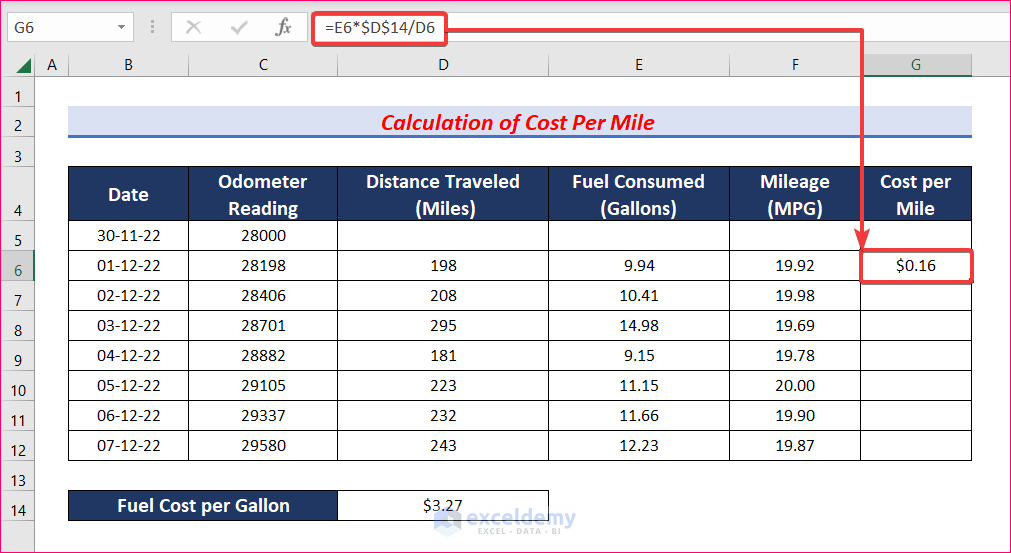
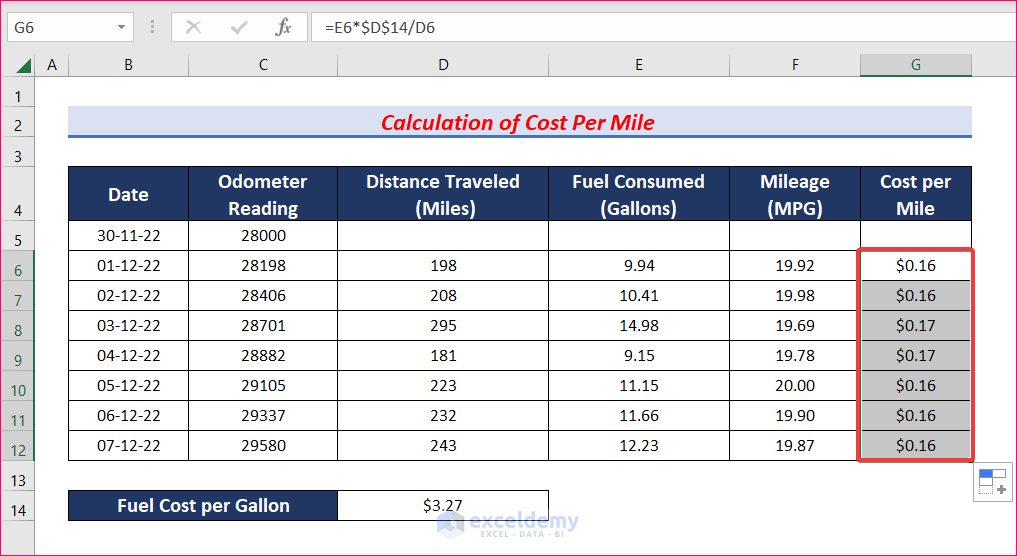
- AutoFill the formula to see the Cost per Mile.
Step 6 – Calculate the Total Cost
- Select H6 and use the following formula.
=D6*G6- Press Enter.
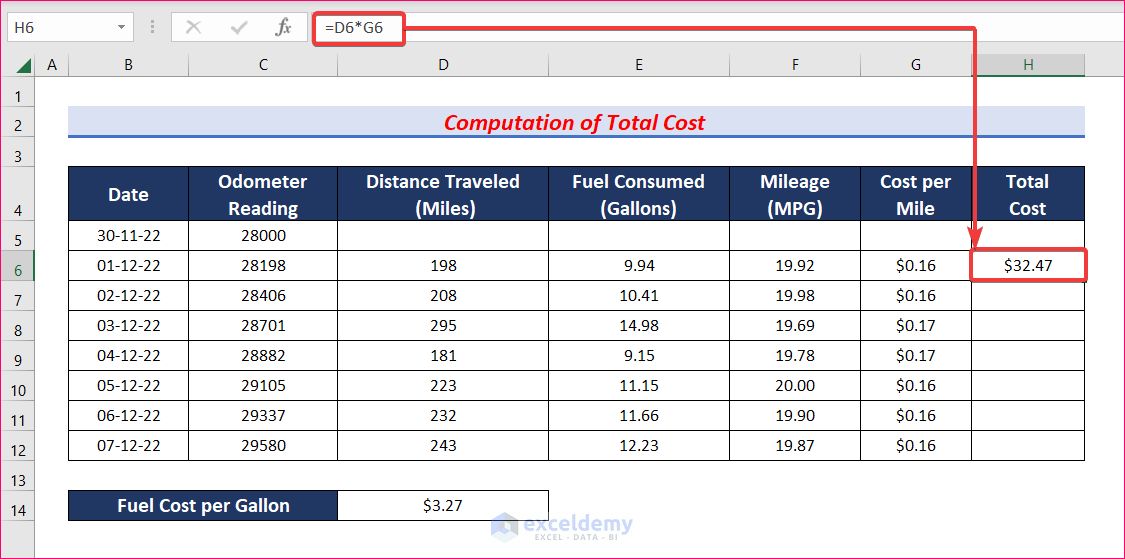
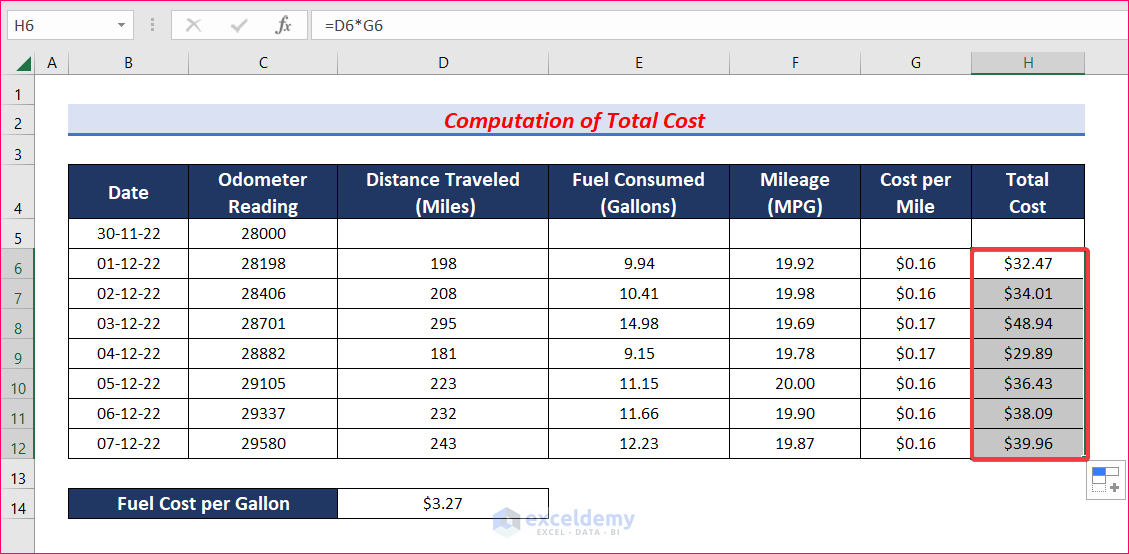
- AutoFill the formula to see the total cost for the 7 days.
Notes
- Use cell references.
Download Practice Workbook
<< Go Back to Excel Mileage Calculator | Excel Templates
Get FREE Advanced Excel Exercises with Solutions!

