

Emailing 5 to 10 people at a time is usually manageable. Emailing 30, 50, or 500 people with slightly different names, dates, offers, reminders, or follow-up notes is where the process becomes slow and error-prone. That is where Excel and VBA become a powerful combination. With a well-structured worksheet and VBA code, you can turn spreadsheet rows into personalized Outlook emails, complete with custom subject lines, body text, and optional attachments.
In this tutorial, we will show how to build an Excel Email Generator by using VBA to create personalized Outlook messages from spreadsheet rows. The goal is to automate personalized Outlook emails based on the data stored in each row.
Step 1: Setting Up Your Excel Spreadsheet
Structure your data so VBA can read it easily. We will assume a simple worksheet named “Data” with the following columns, starting in row 2 and using row 1 for headers:
Create a worksheet like this:
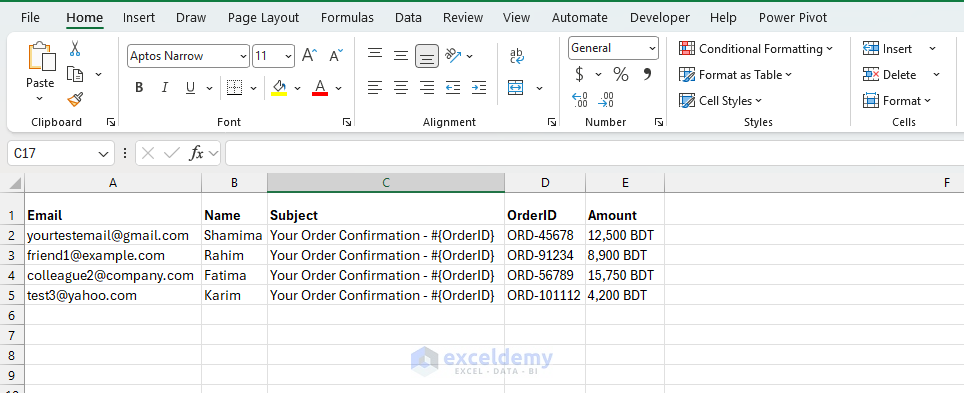
These columns can be adjusted for your use case, but keep the headings clear and consistent.
Step 2: Designing Your Email Template
Before writing any VBA code, decide how the email should look.
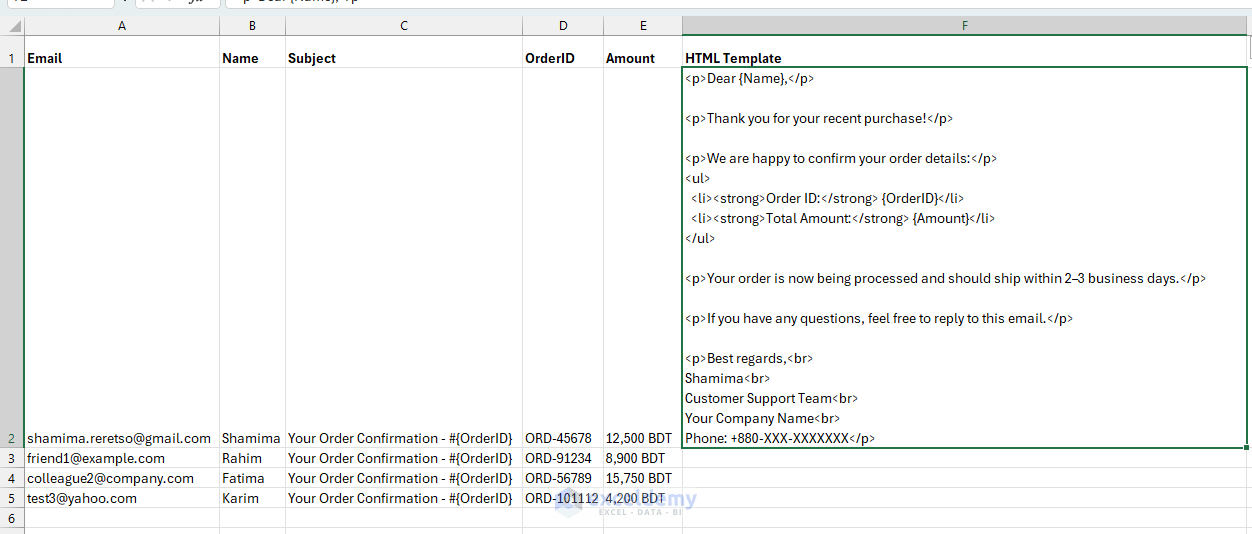
Here is a simple order confirmation template:
Subject Template:
Your Order Confirmation - #{OrderID}
Body Template:
<p>Dear {Name},</p>

<p>Thank you for your recent purchase!</p>
<p>We are happy to confirm your order details:</p>

<ul>
<li><strong>Order ID:</strong> {OrderID}</li>
<li><strong>Total Amount:</strong> {Amount}</li>
</ul>

<p>Your order is now being processed and should ship within 2–3 business days.</p>
<p>If you have any questions, feel free to reply to this email.</p>


<p>Best regards,<br>
Shamima<br>
Customer Support Team<br>
Your Company Name<br>
Phone: +880-XXX-XXXXXXX</p>
- The placeholders in braces are values pulled from each Excel row.
- In VBA, you will replace those placeholders with actual cell values.
If your template is complex, you can store it in a separate worksheet or read it from a file. For simplicity, we will store it in a cell.
Step 3: Understanding the Outlook Reference
Before writing any code, it helps to understand how Excel can connect to Outlook’s object library.
- Open the VBA Editor.
- Go to the Developer tab >> select Visual Basic or press Alt + F11.
- Go to the Tools menu >> select References.
- Scroll down and check “Microsoft Outlook XX.X Object Library” if you want to use early binding and Outlook-specific object types.
- Click OK.
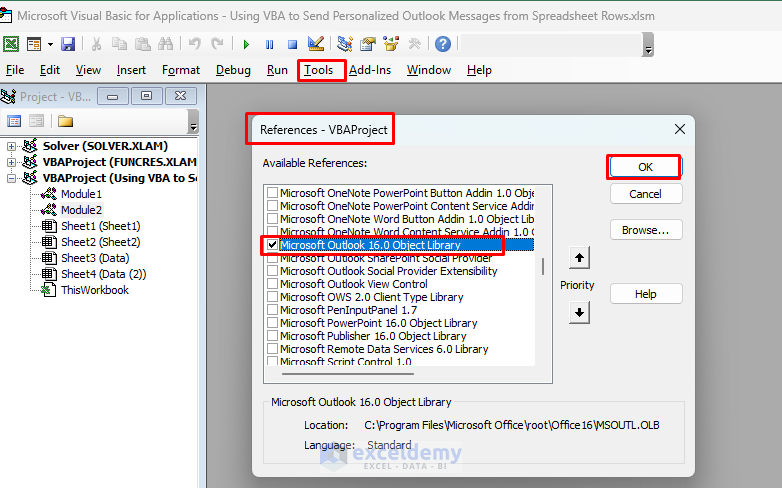
This reference gives VBA access to Outlook’s full object model, including mail items, attachments, and folders. However, the code examples in this tutorial use late binding with CreateObject(“Outlook.Application”), so setting the Outlook reference is optional for the code shown here.
Security Note: Automating emails can trigger Outlook security prompts. In many environments, this behavior depends on Outlook security settings and organizational policies. Always test your macro in a safe environment before using it with real recipients.
Step 4: Writing VBA Code To Generate Personalized Outlook Emails
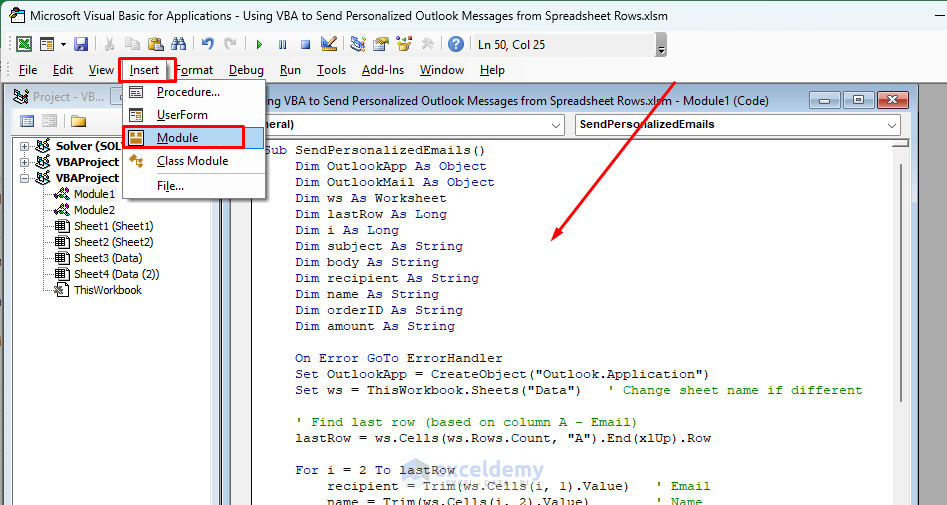
- Go to the Developer tab >> select Visual Basic.
- Go to the Insert menu >> select Module.
- Paste your VBA code into the new module.
- This script loops through the rows and creates emails through Outlook.
VBA Code:
Sub SendPersonalizedEmails()
    Dim OutlookApp As Object
    Dim OutlookMail As Object
    Dim ws As Worksheet
    Dim lastRow As Long
    Dim i As Long
    Dim subject As String
    Dim body As String
    Dim recipient As String
    Dim customerName As String
    Dim orderID As String
    Dim amount As String

    On Error GoTo ErrorHandler
    Set OutlookApp = CreateObject("Outlook.Application")
    Set ws = ThisWorkbook.Sheets("Data")   ' Change sheet name if different

    ' Find last row (based on column A - Email)
    lastRow = ws.Cells(ws.Rows.Count, "A").End(xlUp).Row

    For i = 2 To lastRow
        recipient = Trim(ws.Cells(i, 1).Value)      ' Email
        customerName = Trim(ws.Cells(i, 2).Value)   ' Name
        subject = Trim(ws.Cells(i, 3).Value)        ' Subject
        orderID = Trim(ws.Cells(i, 4).Value)        ' OrderID
        amount = Trim(ws.Cells(i, 5).Value)         ' Amount

        ' Skip row if no valid email
        If recipient = "" Or InStr(recipient, "@") = 0 Then GoTo NextRow

        ' Personalize subject
        subject = Replace(subject, "#{OrderID}", orderID)

        ' Build body directly from cell values
        body = "Dear " & customerName & "," & vbCrLf & vbCrLf & _
               "Thank you for your order." & vbCrLf & vbCrLf & _
               "Here are your order details:" & vbCrLf & _
               "Order ID: " & orderID & vbCrLf & _
               "Amount: " & amount & vbCrLf & vbCrLf & _
               "We appreciate your business and will contact you if any further action is needed." & vbCrLf & vbCrLf & _
               "Best regards," & vbCrLf & _
               "Customer Support Team"

        ' Create & send email
        Set OutlookMail = OutlookApp.CreateItem(0)  ' olMailItem

        With OutlookMail
            .To = recipient
            .Subject = subject
            .Body = body

            .Display     ' Shows the email so you can review it manually
            '.Send       ' Uncomment when you're ready to send automatically
        End With

        Set OutlookMail = Nothing

NextRow:
    Next i

    MsgBox "All emails processed. Check Outlook for the displayed messages.", vbInformation

CleanUp:
    Set OutlookMail = Nothing
    Set OutlookApp = Nothing
    Exit Sub

ErrorHandler:
    MsgBox "An error occurred: " & Err.Description, vbCritical
    Resume CleanUp
End Sub
This VBA code connects to Outlook and loops through each used row in the worksheet. It reads values such as name, email, subject, order ID, and amount. Then it builds a personalized subject and body by using those values directly. Finally, it can display the email, save it as a draft with a small modification, or send it. For most business workflows, starting with .Display is best because it lets you review each message before it goes out.
Step 5: Turning Your Message Into A Reusable Template System
Hardcoding one email body works, but a more flexible Excel Email Generator stores the template inside a worksheet. Add a cell for the email template, then paste the base template into that cell as text. Use placeholders in curly braces for dynamic replacement:
- Insert the code into another Module.
VBA Code:
Sub SendPersonalizedEmails_Template()
    Dim OutlookApp As Object
    Dim OutlookMail As Object
    Dim ws As Worksheet
    Dim lastRow As Long
    Dim i As Long
    Dim emailTemplate As String
    Dim subject As String
    Dim body As String
    Dim recipient As String
    Dim customerName As String
    Dim orderID As String
    Dim amount As String

    On Error GoTo ErrorHandler
    Set OutlookApp = CreateObject("Outlook.Application")
    Set ws = ThisWorkbook.Sheets("Data")   ' Change sheet name if different

    ' Find last row (based on column A - Email)
    lastRow = ws.Cells(ws.Rows.Count, "A").End(xlUp).Row

    ' Get template from cell F2 (adjust cell reference if you placed it elsewhere)
    emailTemplate = ws.Range("F2").Value

    If emailTemplate = "" Then
        MsgBox "Email template is empty. Please add it to cell F2.", vbExclamation
        Exit Sub
    End If

    For i = 2 To lastRow
        recipient = Trim(ws.Cells(i, 1).Value)
        customerName = Trim(ws.Cells(i, 2).Value)
        subject = Trim(ws.Cells(i, 3).Value)
        orderID = Trim(ws.Cells(i, 4).Value)
        amount = Trim(ws.Cells(i, 5).Value)

        ' Skip row if no valid email
        If recipient = "" Or InStr(recipient, "@") = 0 Then GoTo NextRow

        ' Personalize subject
        subject = Replace(subject, "#{OrderID}", orderID)

        ' Personalize body
        body = emailTemplate
        body = Replace(body, "{Name}", customerName)
        body = Replace(body, "{OrderID}", orderID)
        body = Replace(body, "{Amount}", amount)
        ' Add more Replace() lines for other placeholders if needed

        ' Create & send email
        Set OutlookMail = OutlookApp.CreateItem(0)  ' olMailItem

        With OutlookMail
            .To = recipient
            .Subject = subject
            .HTMLBody = body
            '.CC = "[email protected]"
            '.Attachments.Add "C:\Invoices\" & orderID & ".pdf"   ' Optional

            .Display     ' Shows the email so you can review it manually
            '.Send       ' Uncomment when you're ready to send automatically
        End With

        Set OutlookMail = Nothing

NextRow:
    Next i

    MsgBox "All emails processed. Check Outlook for the displayed messages.", vbInformation

CleanUp:
    Set OutlookMail = Nothing
    Set OutlookApp = Nothing
    Exit Sub

ErrorHandler:
    MsgBox "An error occurred: " & Err.Description, vbCritical
    Resume CleanUp
End Sub
- Click the Run icon to preview the templated emails.
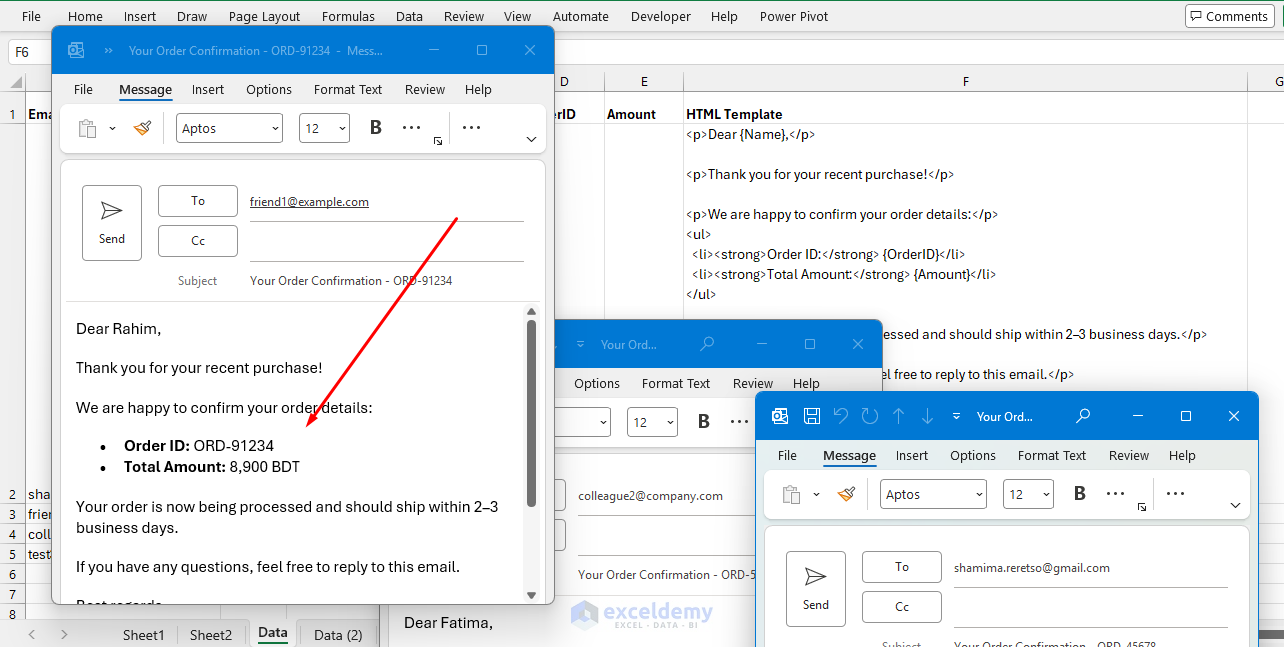
Key Code Explanations:
- Outlook Setup: CreateObject(“Outlook.Application”) creates an Outlook instance by using late binding, which is more flexible across Office versions.
- Looping Through Rows: The macro finds the last row dynamically and iterates from row 2 to skip the headers.
- Template Personalization: The Replace function swaps placeholders such as {Name} with row-specific data. This is the core of a VBA-driven template system. Add more Replace lines for additional fields.
- Email Creation: Use .HTMLBody for rich formatting such as bold text and links. If your template is plain text, use .Body instead.
- Sending: .Send sends the message automatically, while .Display opens it for review, which is useful during testing.
- Error Handling: The examples include basic error handling and skip rows with missing email addresses. In production, you may want to add logging and more detailed validation.
Step 6: Testing And Running The Macro
- Save your workbook as an .xlsm file.
- Fill in sample data. Use your own email address for testing to avoid sending unwanted messages.
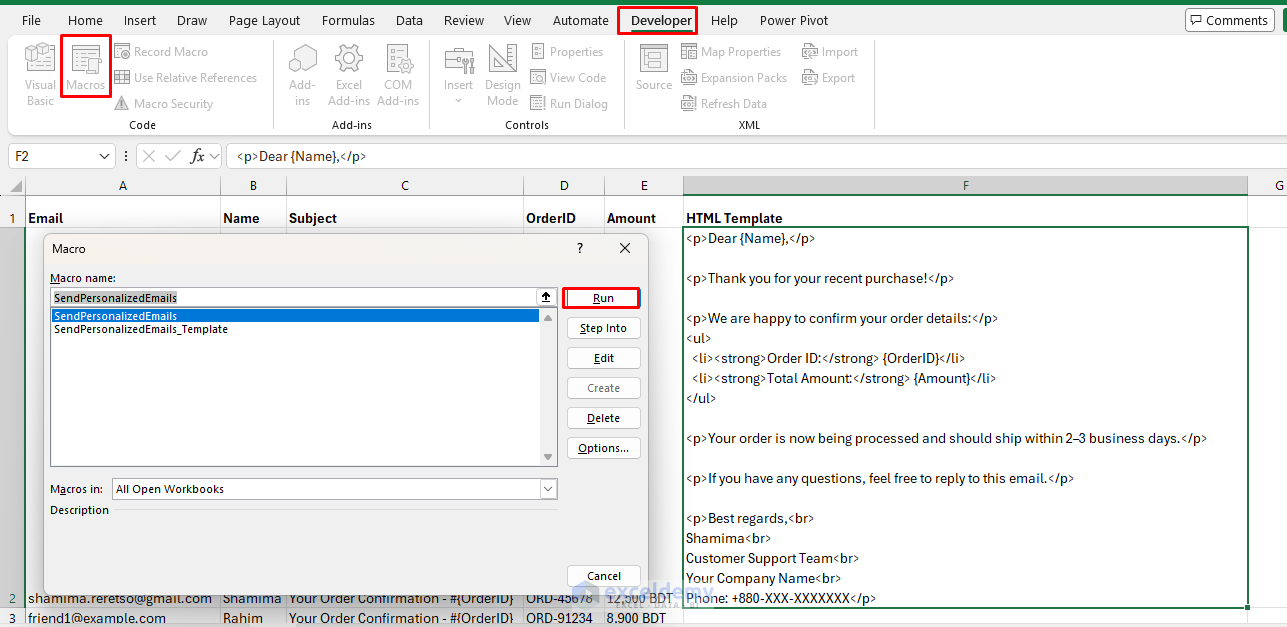
- Assign the macro to a button or go to the Developer tab >> select Macros.
- Select SendPersonalizedEmails or SendPersonalizedEmails_Template >> click Run.
- Outlook may prompt for permission. If it does, allow access only after confirming your test setup.
- Check the displayed messages or your Sent Items folder in Outlook, depending on whether you used .Display or .Send.
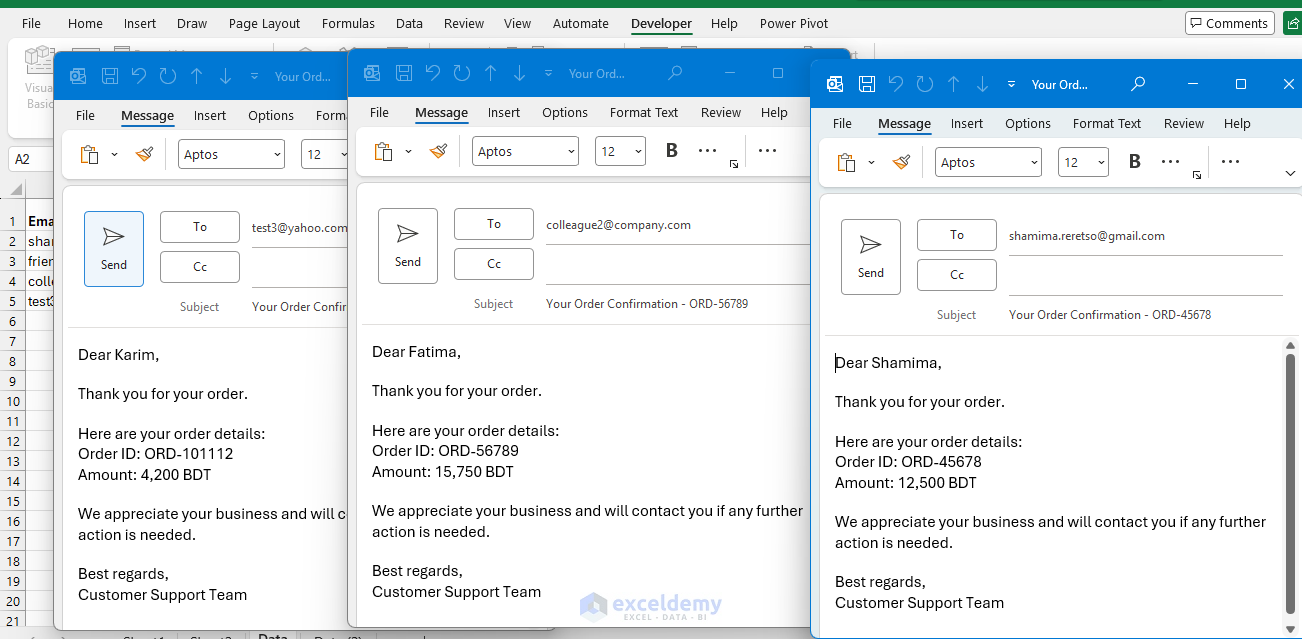
Testing Tip: Start with .Display instead of .Send so you can preview emails without sending them.
Customizing Advanced Templates
- Multiple Placeholders: If you have more columns, such as a due date, add variables like dueDate = ws.Cells(i, 6).Value and use body = Replace(body, “{DueDate}”, dueDate).
- Conditional Content: Use If statements for dynamic sections:
If customField = "VIP" Then
    body = body & "<p>Exclusive offer for you!</p>"
End If
- Template From A File: Instead of storing the template in a cell, read it from a text or HTML file:
Dim filePath As String
filePath = "C:\Template.html"

Open filePath For Input As #1
emailTemplate = Input$(LOF(1), 1)
Close #1
- HTML Enhancements: You can embed images or links in the template, such as <img src=”https://example.com/logo.png”> or <a href=”{Link}”>Click here</a>, and then replace {Link} dynamically.
Troubleshooting Common Issues
- Outlook Not Found: Make sure Outlook is installed on your system.
- Security Prompts: Outlook can restrict programmatic access. This is controlled by Outlook and organizational security settings, not just Excel macro settings.
- Errors On Send: Add error handling such as:
On Error GoTo ErrorHandler
' ... code ...
ErrorHandler:
    MsgBox "Error: " & Err.Description
- Performance: For large lists of emails, you can add a short delay between messages:
Application.Wait Now + TimeValue("00:00:01")
- HTML Rendering Issues: Test the template carefully and make sure placeholders do not interfere with the HTML structure.
This setup scales well for bulk personalized messaging. You can extend it further by adding attachments, logging sent emails back to Excel, or storing multiple templates for different scenarios.
Conclusion
By following these steps, you can build an Excel Email Generator that uses VBA to create personalized Outlook messages from spreadsheet rows. This is a practical example of how VBA can turn a worksheet into a lightweight email automation tool. Instead of writing repetitive Outlook messages by hand, you can create reusable templates and let Excel fill in the personalized details from each row. That makes the process faster, more consistent, and easier to scale. Once you build the basic version, you can expand it with HTML formatting, multiple templates, conditional logic, attachment handling, and status tracking to create a complete personalized email system.
Get FREE Advanced Excel Exercises with Solutions!


Thanks for the Code for email generation using VBA. Please let me know can we attach file also.
Hello Vijay Panchal,
Thanks for your comment. Yes, you can attach files to the Outlook email using VBA. Simply add the Attachments.Add line before .Display or .Send, for example:
If each recipient needs a different attachment, you can also store the file paths in an Excel column and use the corresponding cell value in .Attachments.Add.
Regards,
ExcelDemy