

The article will show you the difference between Accounting and Currency format in Excel. These two number formats seem similar to each other, although they have some differences. Their similarities might confuse someone who is new to Excel, so I’m going to provide a brief discussion on the differences between the Accounting and the Currency format. Please stay tuned…
Difference Between Accounting and Currency Format in Excel: 4 Key Comparisons
Here, we will give you a description with some statements that emphasize the dissimilarities between Accounting and Currency formats. Let’s go through it.
1. Default Alignment
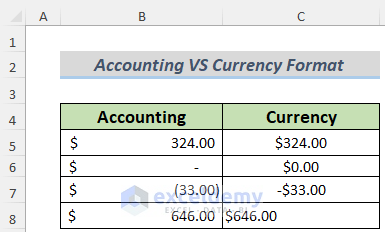
In the Accounting format, the currency symbol stays at the left edge of the cell by default, nearest to the border. You will find a space between the symbol and value when you format a number in this format. On the other hand, the Currency format aligns this currency symbol right beside left to the value in the cell. And there is no space between the symbol and value.

Read More: How to Add Currency Symbol in Excel
2. Displaying Zero
In the Accounting format, the number 0 (zero) is displayed as a dash or hyphen (–). But the Currency format shows zero as $0.00.

Read More: Currency with 2 Decimal Places in Excel
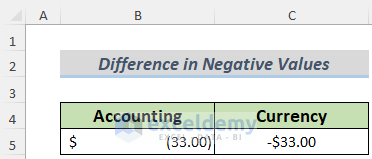
3. Displaying Negative Values
The Accounting format shows the negative values in brackets. For instance, we will see -33 as $ (33.00) in this format. On the contrary, the Currency format shows the negative values just by putting a minus symbol before the dollar/currency sign.
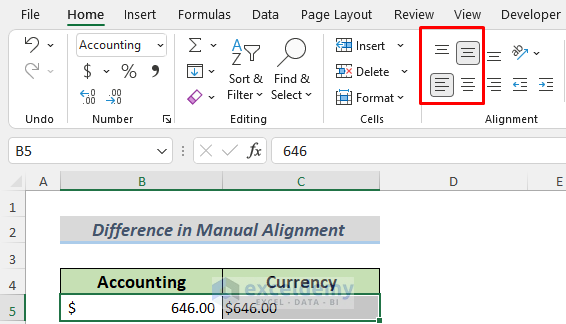
4. Manual Alignment
You cannot make any displacement of a value in the Accounting format in a cell by the Alignment command. The value and the currency symbol will always be in the same position regarding your command. As a result, this number format does not allow you flexibility in formatting. But, you can align a value in the Currency format by command. Hence, this is more suitable for formatting a cell.
Excel Accounting and Currency Format Differences in a Nutshell
Earlier you’ve seen the differences in a broader way, for your convenience, I’m providing you the comparison in a tabular form.
| SL. | Accounting Format | Currency Format |
|---|---|---|
| 1. | The currency symbol stays at the left edge of the cell by default, nearest to the border of it. | The Currency format aligns the currency symbol right beside the left to the value in the cell. |
| 2. | You will find a space between the symbol and value when you format a number in this format. | There is no space between the symbol and value in the Currency format. |
| 3. | Zero is displayed as a dash or hyphen (–). | The Currency format shows zero as $0.00. |
| 4. | The Accounting format shows the negative values in parentheses. | The Currency format shows the negative values with a minus symbol before the dollar/currency sign. |
| 5. | You cannot make any displacement of the value and the symbol in the Accounting format inside a cell by the Alignment command. | You can align a value in the Currency format by command according to your wish, meaning you can place a value in the middle or right, or left edge of a cell. |
| 6. | The value and the currency symbol will always be in the same position regarding your command. This number format does not allow you flexibility in formatting. | As your command can move the value, this formatting is more suitable for formatting a cell. |
Download Practice Workbook
Conclusion
I hope you have a clear idea of the basic differences between the Accounting and Currency formats in Excel after reading this article. If you have any questions or feedback regarding this article, please share them in the comment box. This will help me enrich my upcoming articles. Stay tuned!
Related Articles
- List of Currency Symbols in Excel
- Convert Currency to Words in Excel
- How to Convert Currency to Number in Excel
- [Solved]: Currency Format Not Working in Excel
- How to Change Currency Symbol in Excel
<< Go Back to Currency Format | Number Format | Learn Excel
Get FREE Advanced Excel Exercises with Solutions!

