


When your data grows beyond Excel’s practical limits — where Excel can no longer comfortably manage thousands of rows, complex relationships, and multi-user access — Microsoft Access becomes the next step. Microsoft Access is an excellent tool for managing large datasets that outgrow Excel’s practical limits. Access gives you relational database power while staying within the familiar Microsoft Office ecosystem. Importing copies the data into Access for full control and optimization, while linking keeps the data in Excel for live updates.
In this tutorial, we will show a step-by-step, practical guide to importing and linking large Excel datasets in MS Access. This guide walks you through everything you need to know about importing and linking large Excel datasets in Access.
Understanding Importing vs Linking
Before moving data from Excel to Access, it is important to understand the difference between importing and linking.
Importing Data
- Creates a copy of the Excel data inside Access.
- Changes made in Excel will not update the Access table.
- Best for static datasets or archived reports.
Linking Data
- Creates a connection to the Excel file instead of copying it.
- Changes made in Excel are reflected in Access when the linked table is refreshed.
- Useful when Excel files are frequently updated.
Choosing the right method depends on whether your Excel file will continue to change.
1. Preparing Your Excel Dataset
Poor preparation is the number one cause of import failures with large files. This is the step most people skip, and it causes many of the import errors they encounter. Spend time here, and the rest of the process will be much smoother.
Cleaning Up Your Spreadsheet Structure:
Access expects your Excel data to look like a database table, not a formatted report. Before importing, make sure your spreadsheet follows these rules:
- Row 1 must contain column headers only. No merged cells, no titles, and no blank rows above your headers. Access will treat Row 1 as field names.
- Merged cells confuse the import engine and often result in blank fields or shifted data.
- Blank columns can interrupt how Access interprets the data range.
- No summary or total rows at the bottom. These will be imported as data records.
- One table per sheet. If a sheet has multiple separate data blocks, split them into separate sheets before importing.
Cleaning Large Datasets:
- Remove duplicates.
- Go to the Data tab >> select Remove Duplicates.
- Use Excel’s TRIM() function to eliminate extra spaces.
- Split non-atomic data (for example, “First Last” or “City, State”) into separate columns.
- Delete blank rows, blank columns, and unnecessary sheets.
- Avoid formulas if possible; convert them to values.
- Remove sensitivity labels if present, since Access may not import labeled files correctly.
Standardizing Your Data Types:
Access is stricter about data types than Excel. Mixed data in a single column — for example, some cells containing numbers and others containing text like “N/A” — can cause Access to misclassify the column type or drop values entirely.
- Replace all “N/A”, “—”, or placeholder text with truly empty cells, or use a consistent sentinel value like 0 or -1 if appropriate.
- Make sure date columns contain only dates formatted consistently. Excel dates stored as text will not import as date values.
- Ensure consistent data types in each column, especially the first several rows, because Access uses sampled rows to infer field types.
- Format entire columns in Excel (for example, Text for IDs that look like numbers and Date for date fields).
- Fix error values such as #NUM! and #DIV/0!; they typically become nulls in Access.
Defining a Named Range (Optional but Recommended for Large Files)
For large datasets, defining a named range in Excel gives you precise control over exactly which cells Access reads.
- Select the exact data range.
- Go to the Formulas tab >> select Define Name.
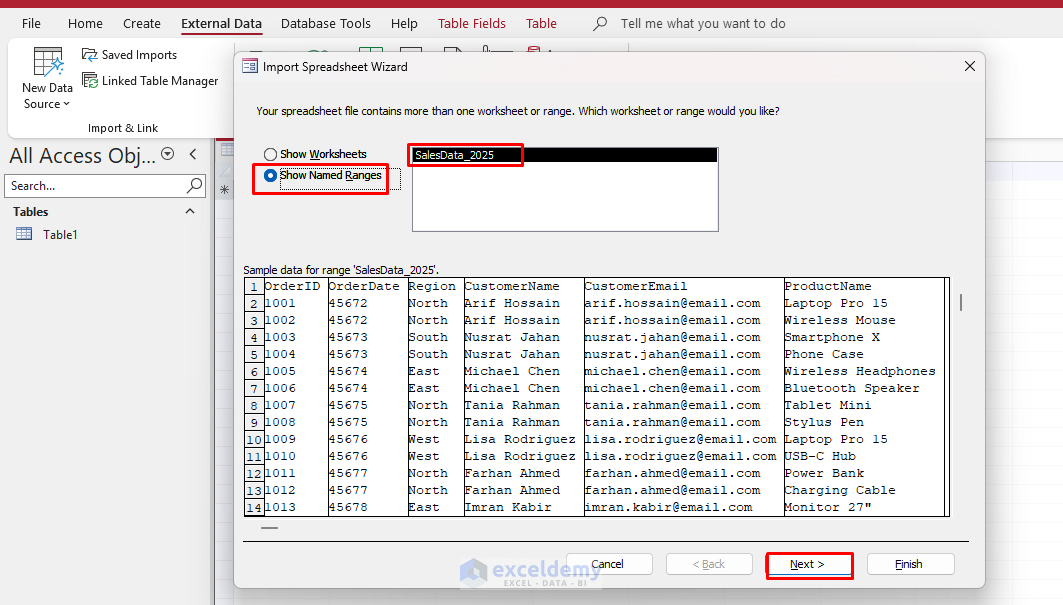
- Give it a clear name like “SalesData_2025”.
Access can target this named range directly during import, which helps avoid stray data outside your table.
Naming Your Sheets Meaningfully: When you import from Excel, Access uses the sheet name as the default table name. A sheet named “Sheet1” results in a table named “Sheet1,” which is not very helpful. Rename your sheets to something descriptive like “Customers,” “SalesTransactions,” or “ProductInventory” before you begin.
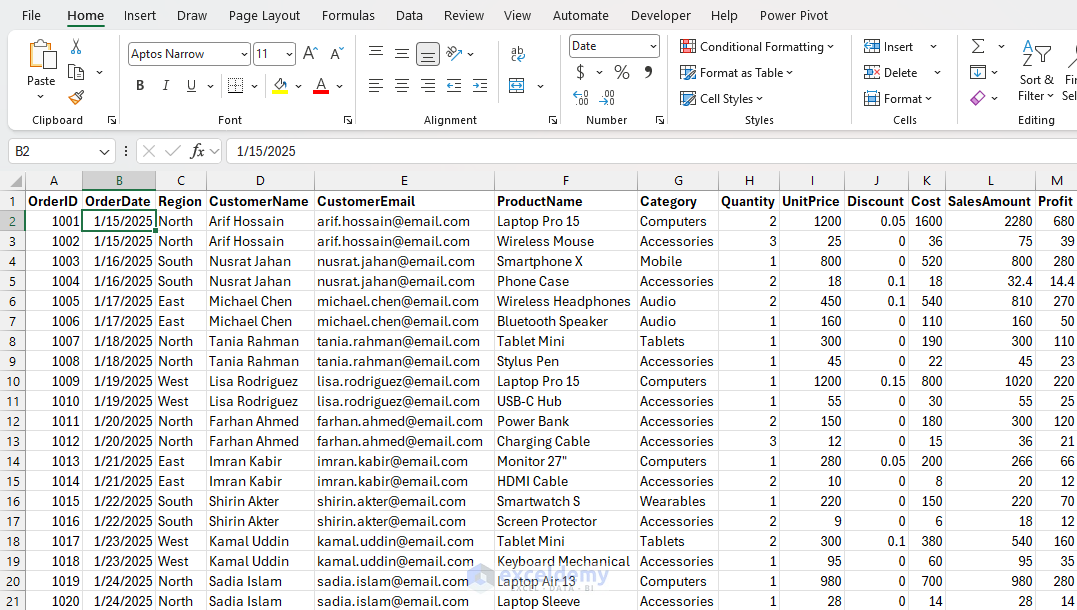
All of these preparations will dramatically reduce errors with large datasets.
2. Importing Large Excel Datasets
Importing creates a static copy in Access. It is ideal for one-time migration, building relationships, and running complex queries.
Steps:
- Open your Access database.
- Go to the External Data tab >> select New Data Source >> select From File >> select Excel.
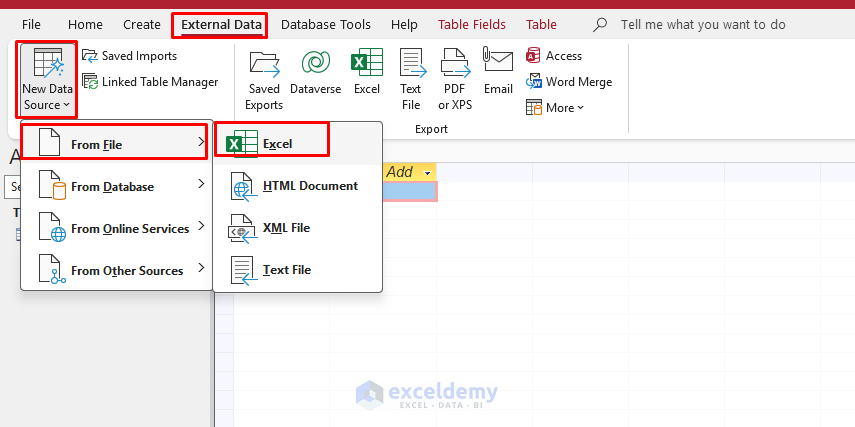
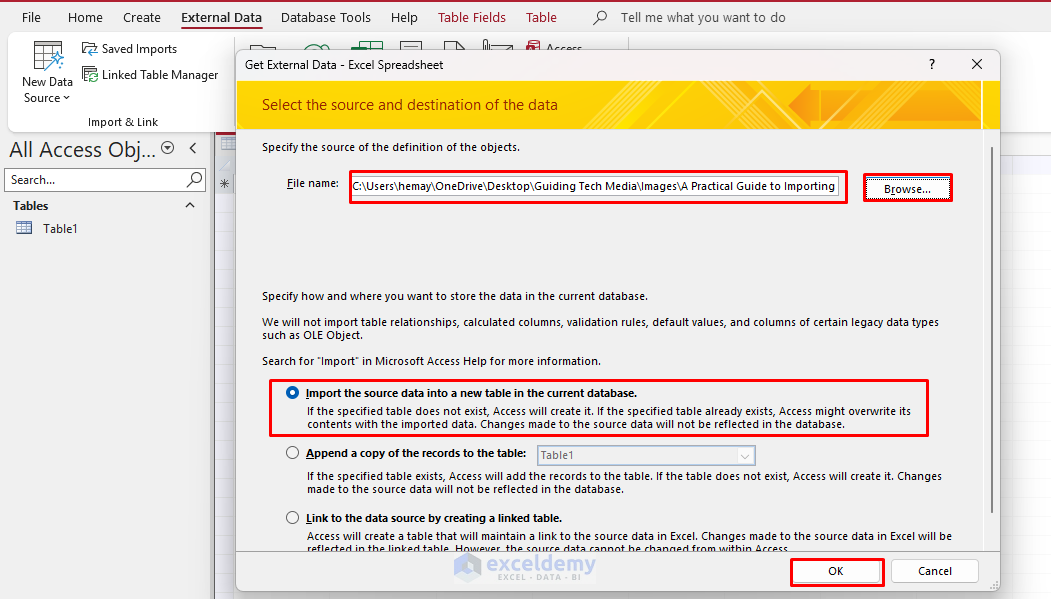
- Click Browse to select your Excel file, then click Open.
- Choose Import the source data into a new table in the current database.
- Click OK.
- Select Show Worksheets or Show Named Ranges >> choose your dataset.
- Click Next.
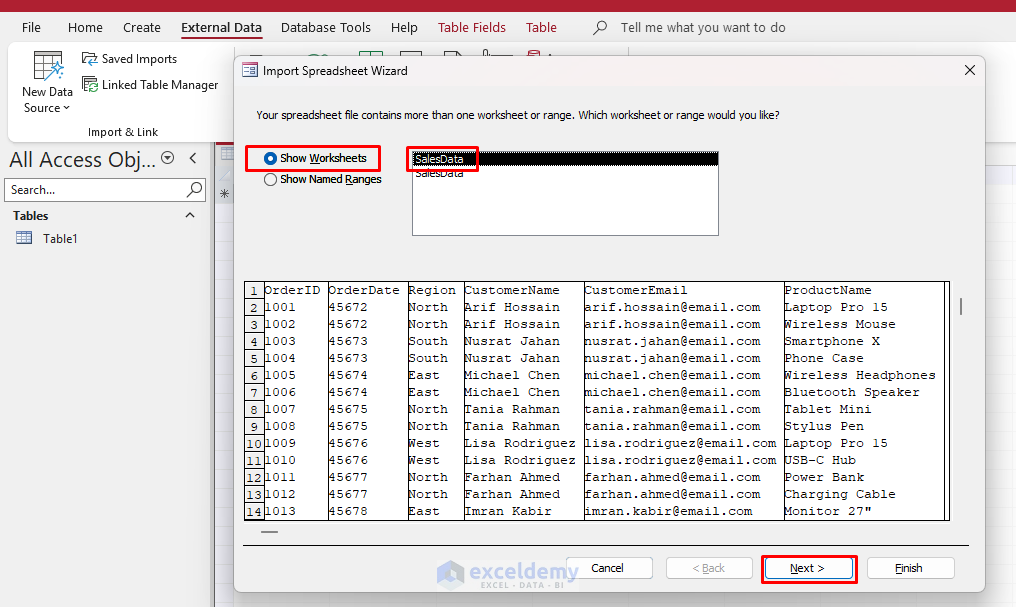
- Check First Row Contains Column Headings.
- Click Next.
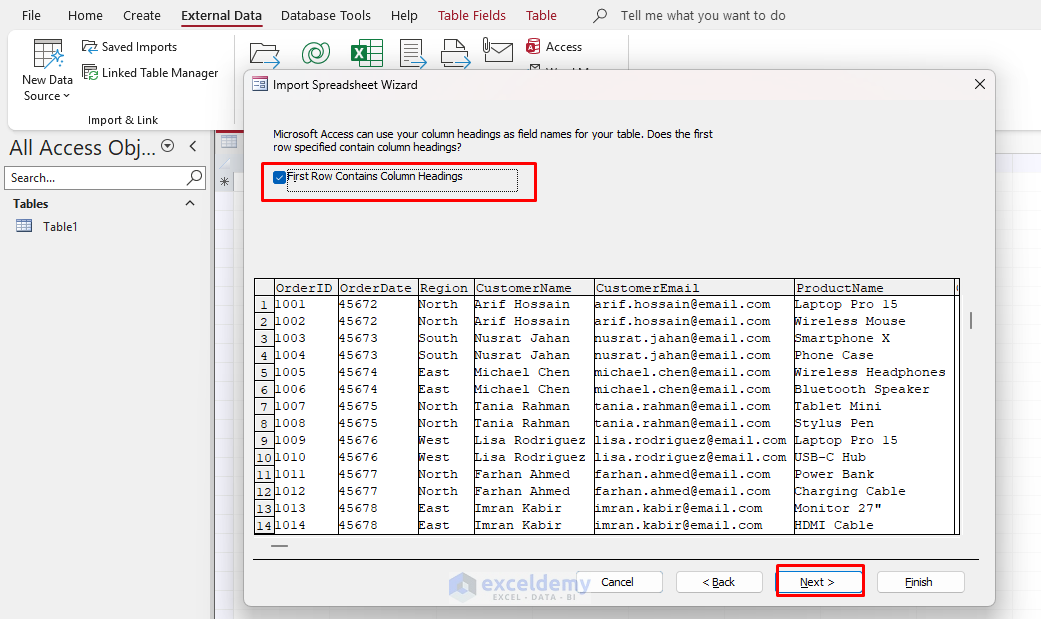
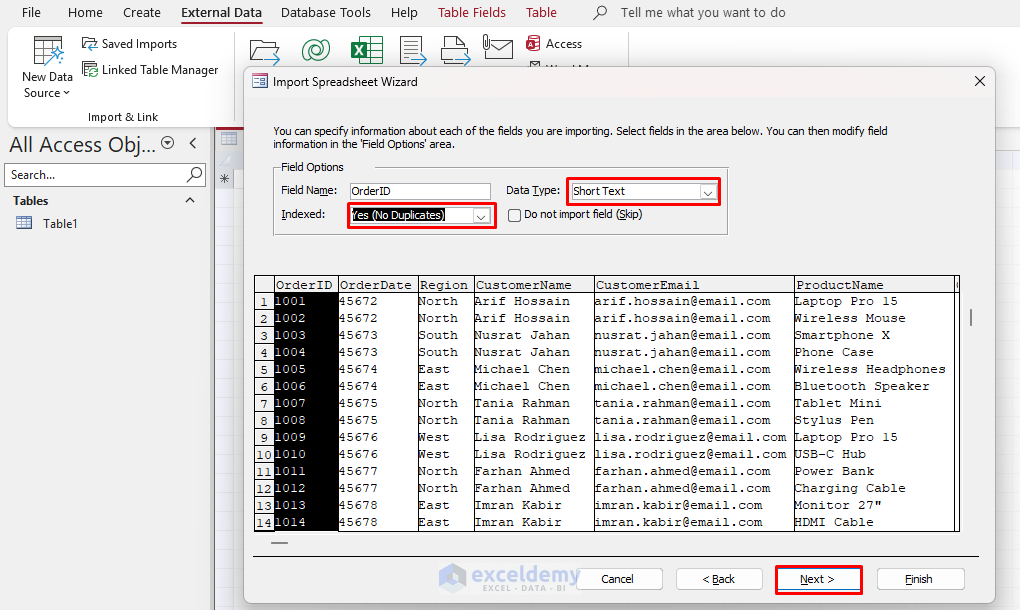
- In the next screen, review and adjust each field:
- Change the data type if needed.
- Set Indexed to Yes (No Duplicates) for primary-key-style fields.
- Skip any columns you do not need.
- Click Next.
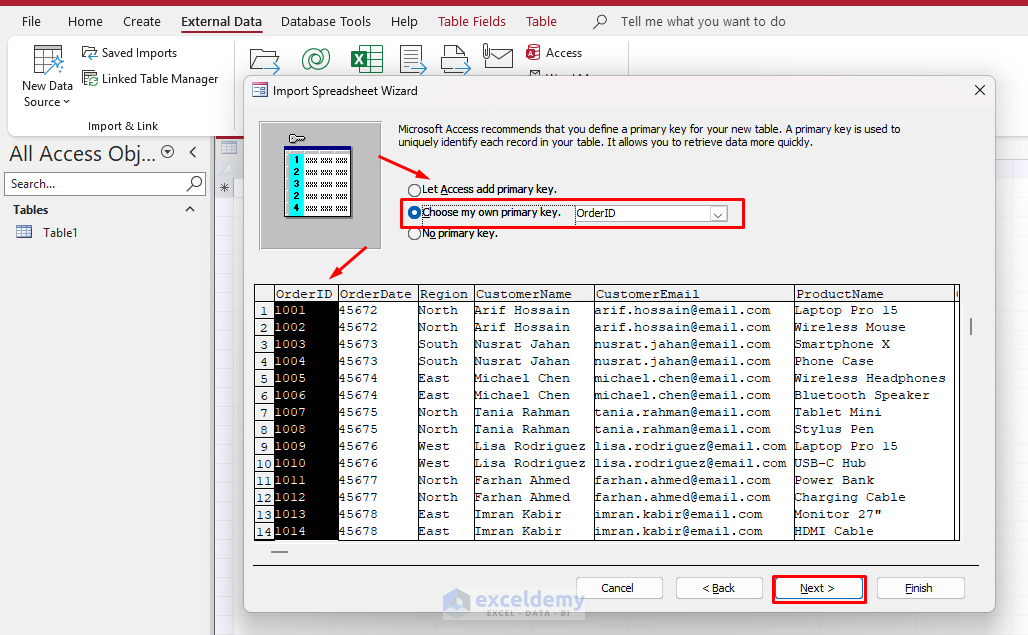
- Choose Let Access add primary key.
- Click Next.
- Name the new table (for example, “Imported_SalesData”) >> click Finish.
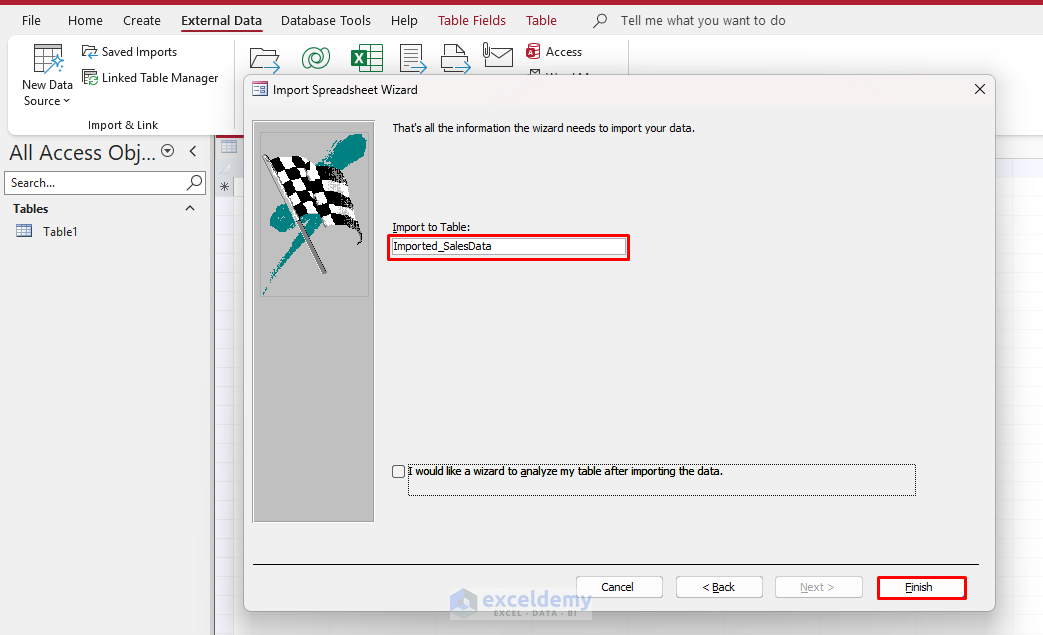
- Save the import steps for future use, which is especially helpful for recurring large imports.
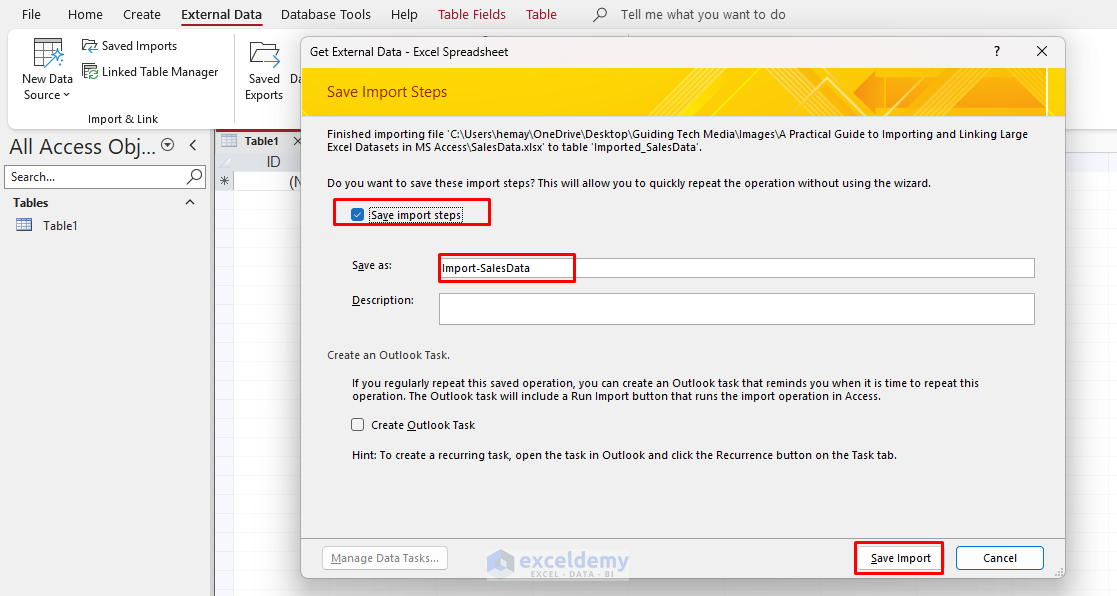
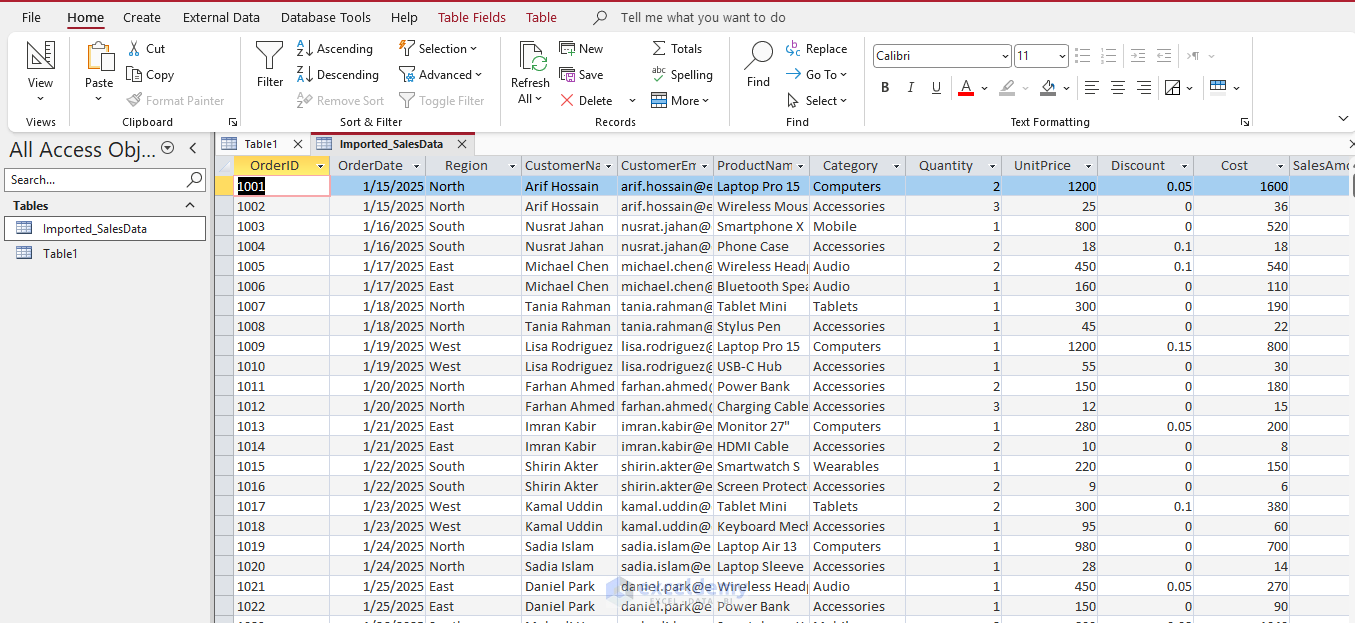
- The data is now imported into Access from Excel.
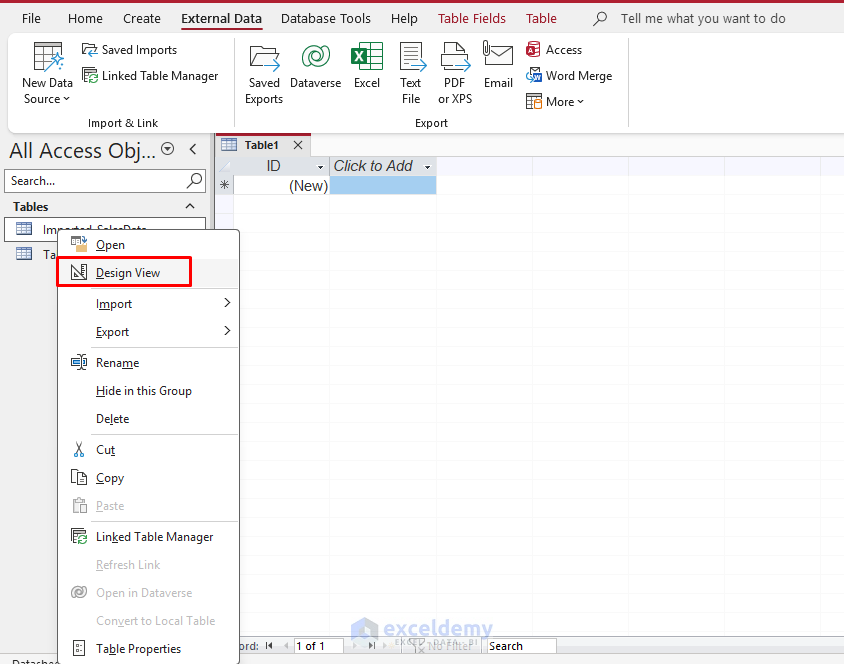
After the import, open the table in Design View to fine-tune field sizes and indexes.
Normalizing Large Flat Data:
Large Excel sheets are usually flat. You can use Access’s Table Analyzer Wizard to split a dataset into related tables.
- Go to the Database Tools tab >> select Analyze Table.
- Click Next.
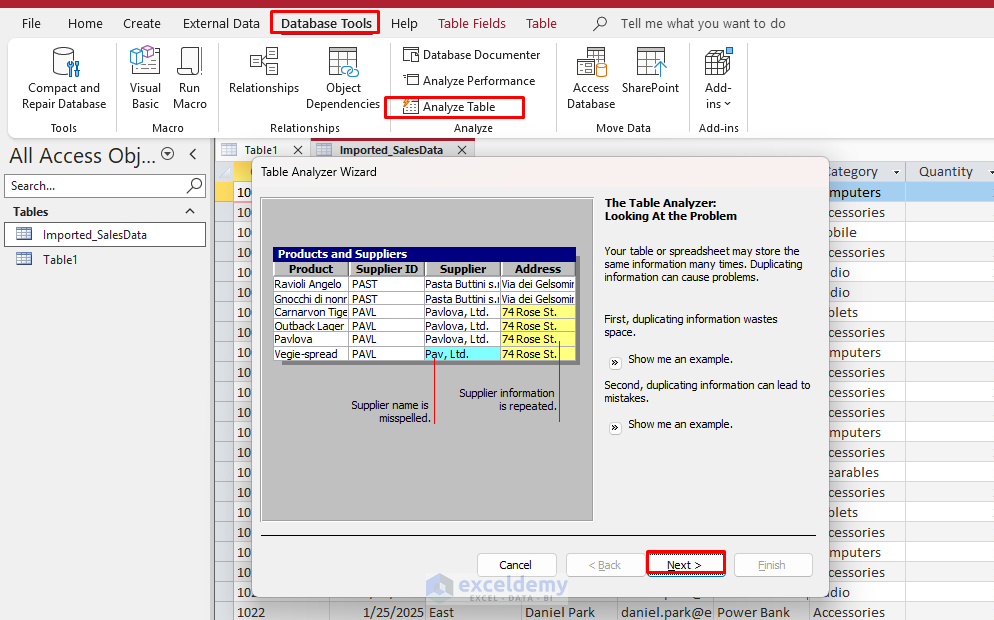
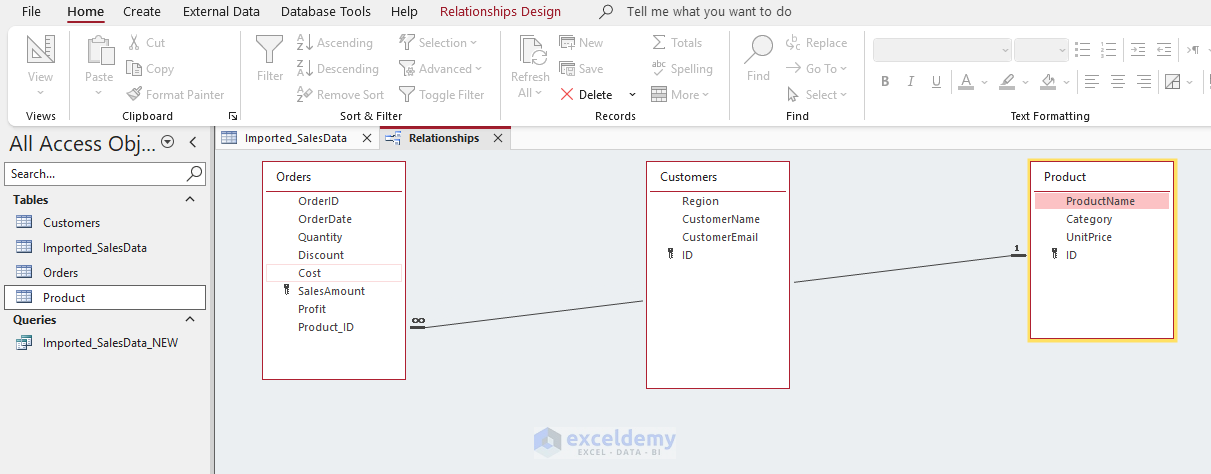
- It can automatically split data into related tables, create primary and foreign keys, and build relationships.
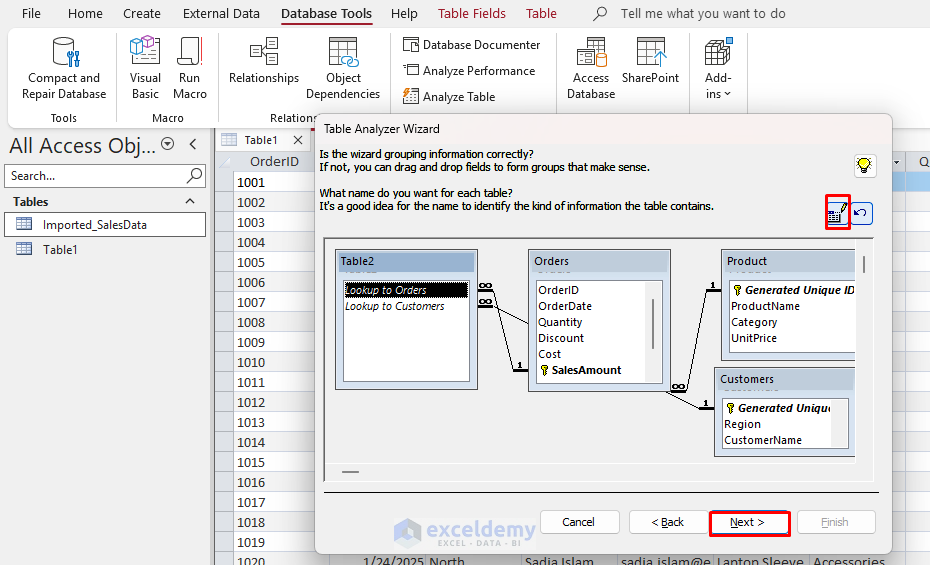
- This can turn a slow, oversized flat table into a more efficient set of relational tables.
3. Linking Large Excel Datasets (Live Connection)
Linking is ideal when Excel remains the source of truth, such as when data is updated by other users. The process starts the same way as importing.
Steps:
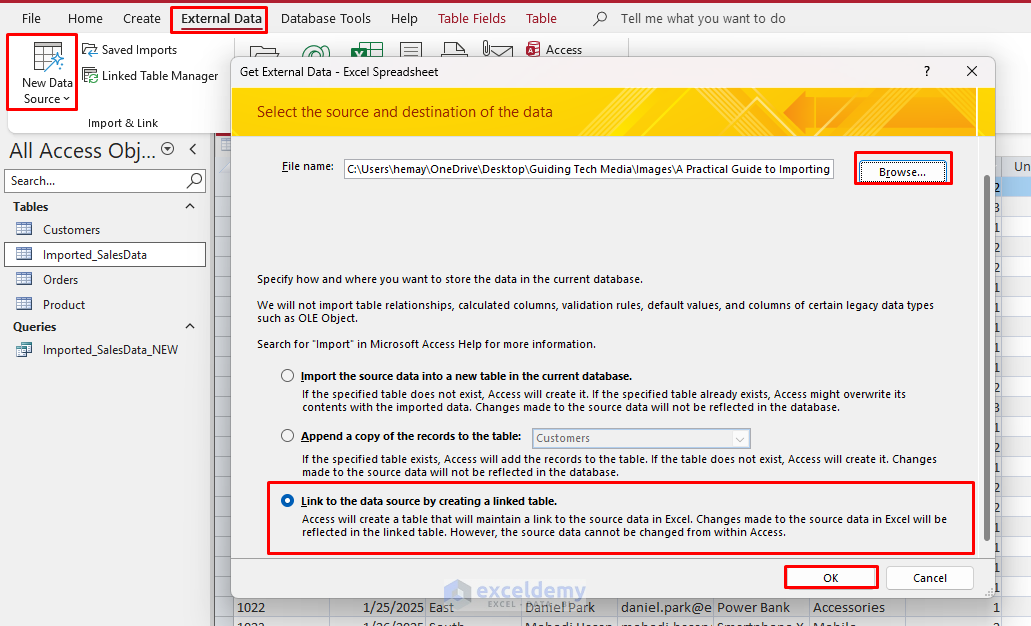
- Go to the External Data tab >> select New Data Source >> select From File >> select Excel.
- Click Browse to select your Excel file, then click Open.
- Choose Link to the data source by creating a linked table.
- Click OK.
- Select the worksheet or named range.
- Click Next.
- Check First Row Contains Column Headings.
- Click Next.
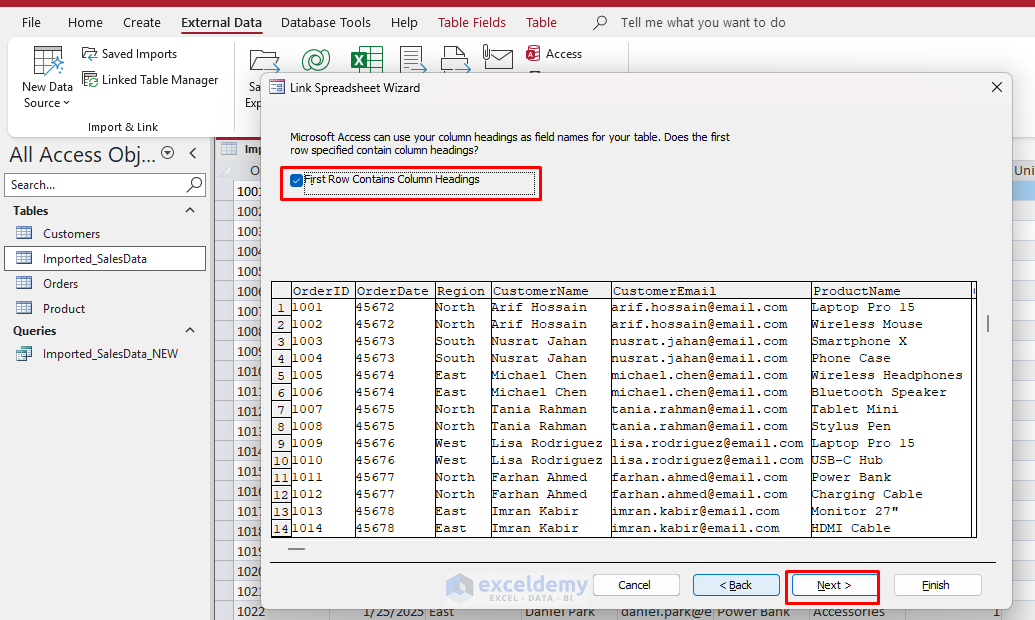
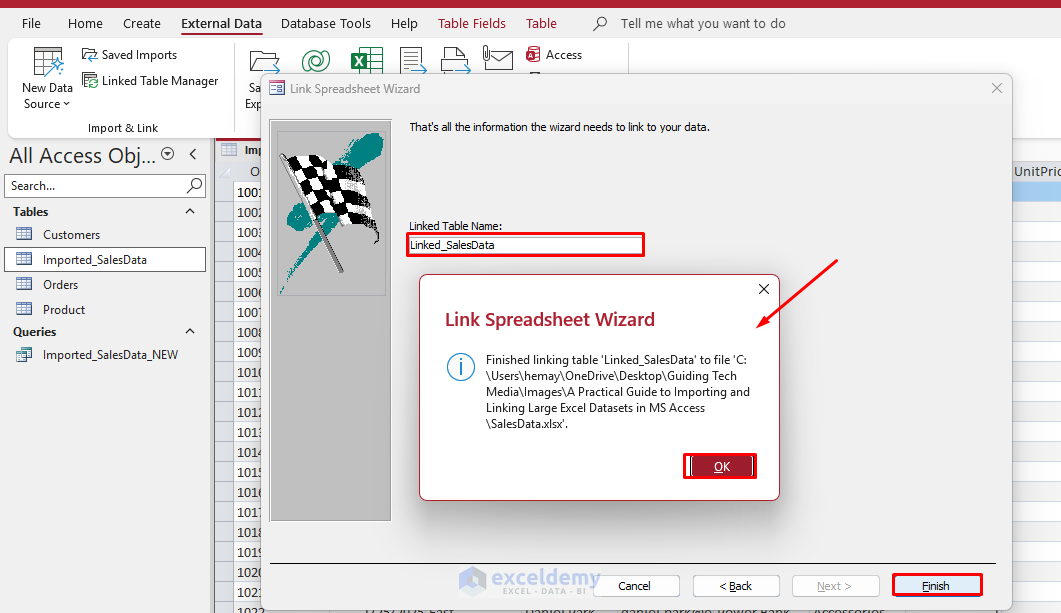
- Name the linked table and click Finish.
- A message bar will appear to confirm the link.
- Click OK.
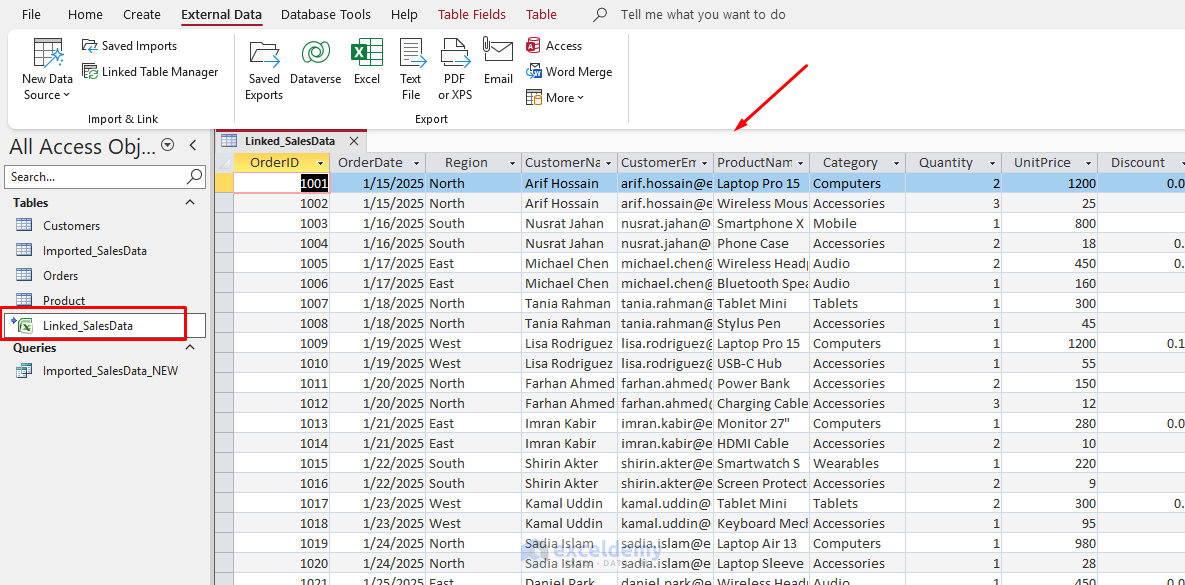
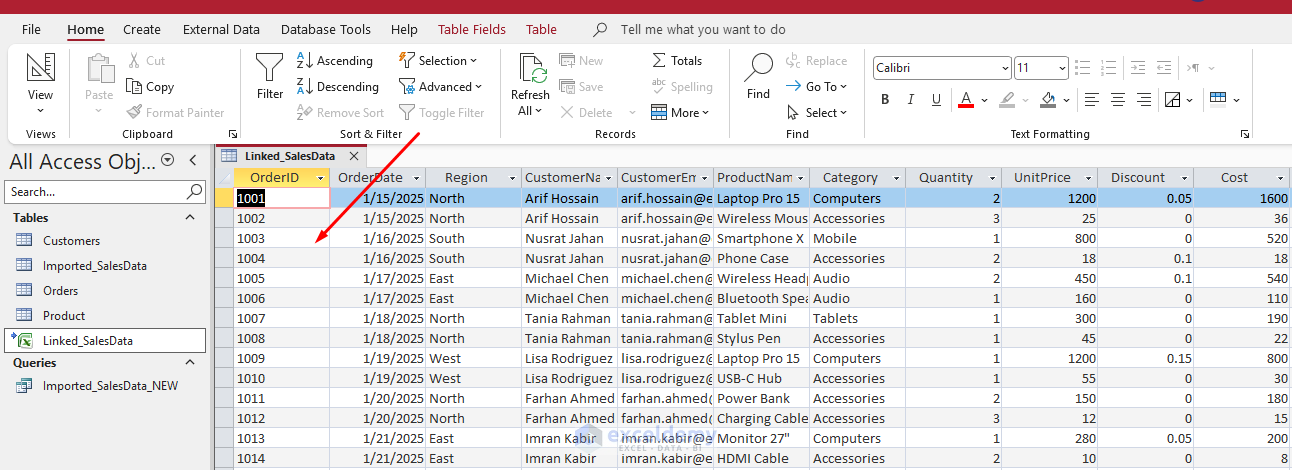
Access creates a linked table, recognizable in the Navigation Pane by a small Excel icon with an arrow overlay. Changes made in Excel can then be viewed through Access without importing a separate copy of the data.
- Microsoft Access cannot modify the design of a linked Excel table.
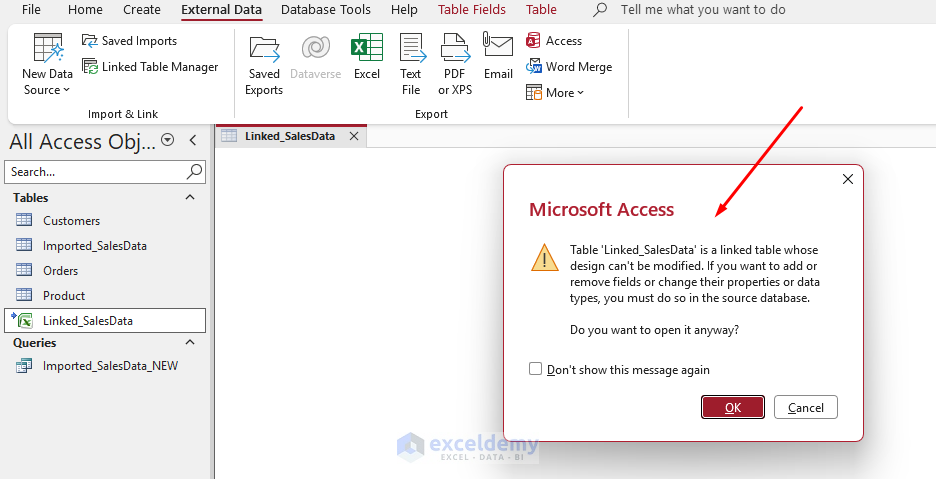
- It also cannot save certain structural property changes back to the Excel source.
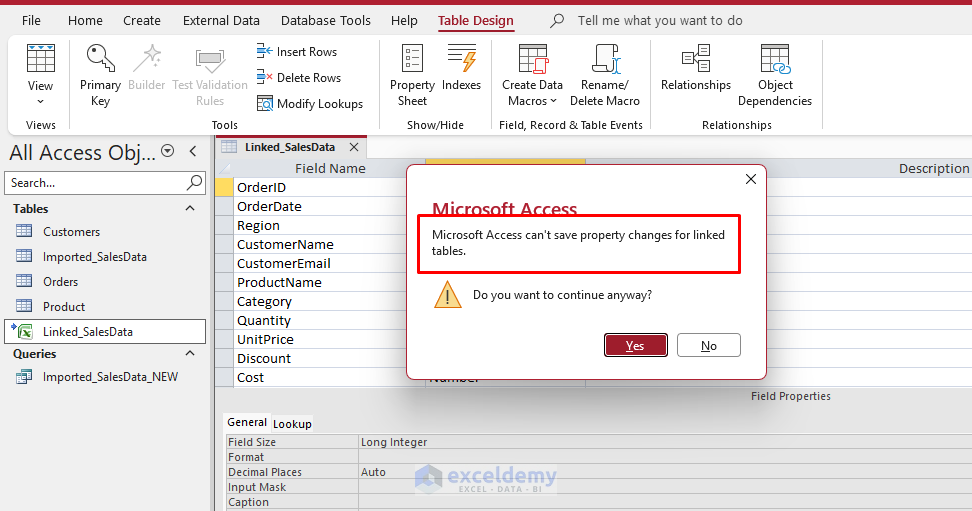
- You can adjust some display-related field properties for a linked table, but broader design changes must be made in Excel. This works best when the Excel file is not open by another user, the file is not read-only, and the linked range does not span multiple sheets.
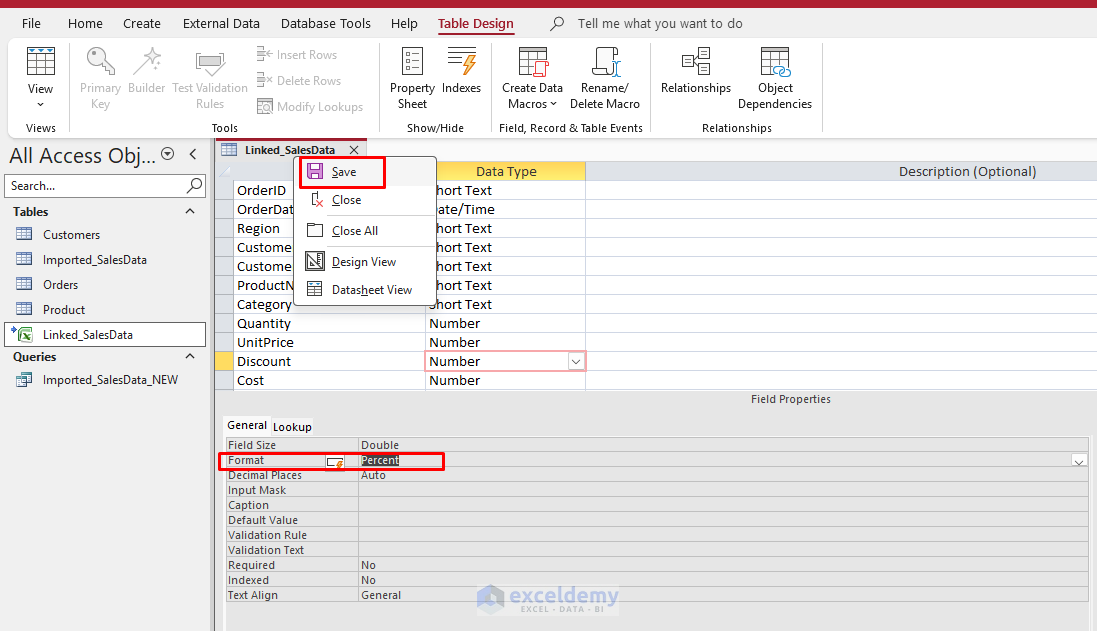
- Here, the format of the Discount column has been updated.
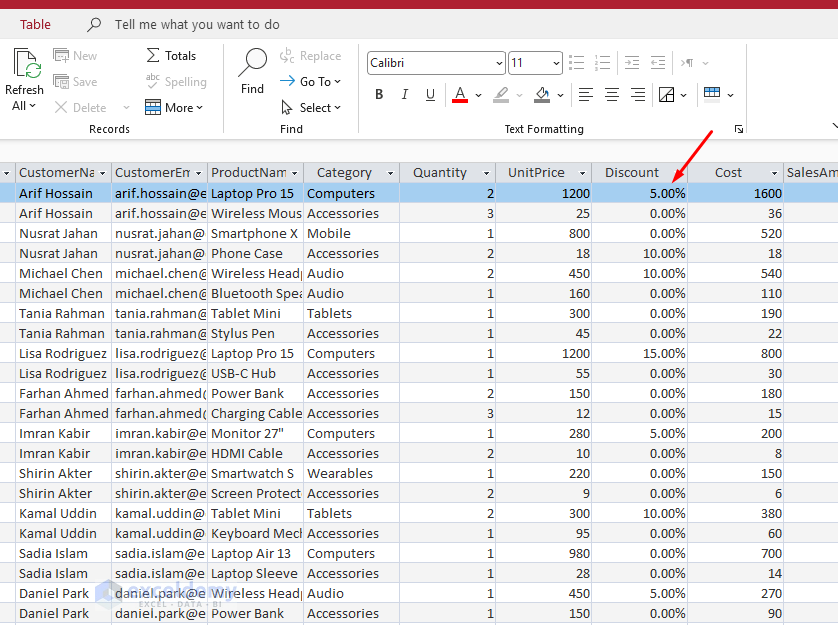
For large-scale editing, it is usually better to edit the source data in Excel directly and let Access read the updated data.
- If OrderID is stored as a number and you cannot work with it as needed in Access, you must change the data type in Excel.
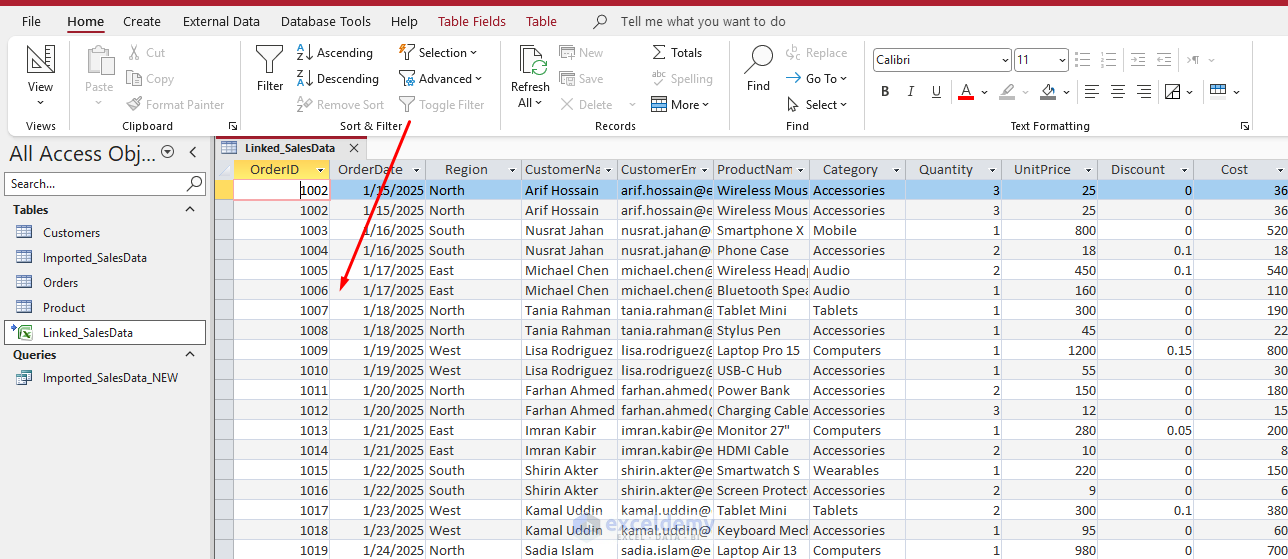
- Open the source Excel file.
- Change the data type from Number to Text.
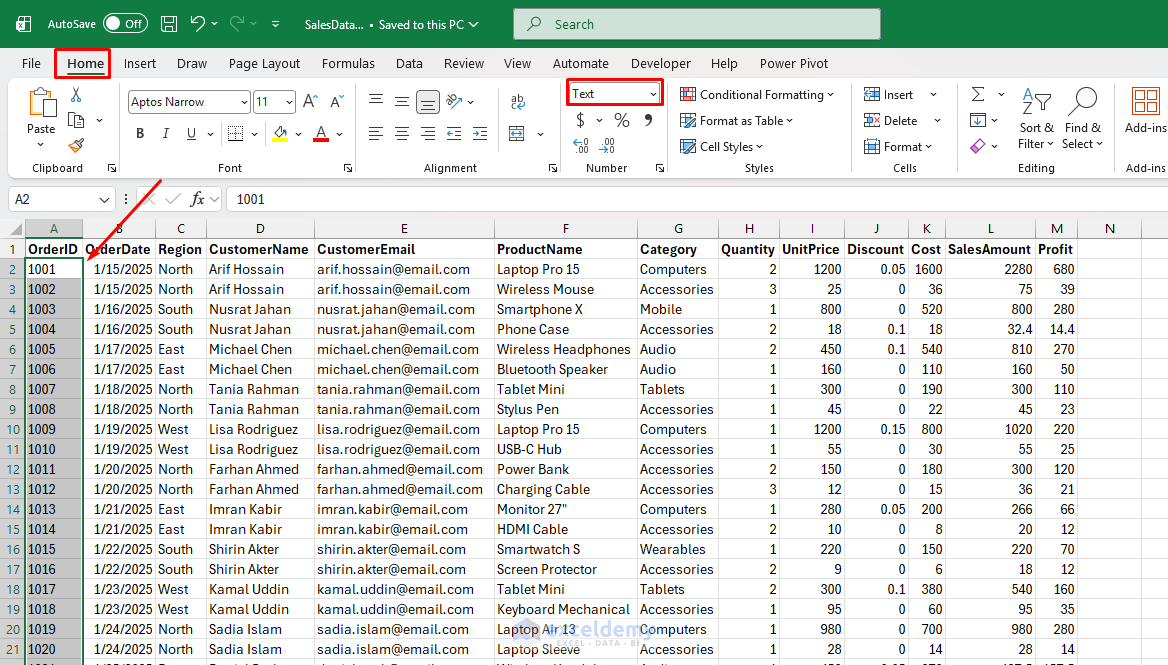
- Now the linked table is updated in Access after the source workbook is refreshed or reopened.
When Linking Works Best
Linking is useful, but it has limitations. It works best when:
- The Excel file structure stays stable.
- The workbook path does not change often.
- Another team updates the spreadsheet outside Access.
- You want to query data without duplicating it.
However, linking is less ideal when:
- The workbook is frequently renamed or moved.
- Users change column order or header names.
- Performance is slow on very large linked ranges.
- You need strict relational integrity inside Access.
In those cases, importing is more reliable.
When to Link vs. Import for Large Data:
- Link: No duplication, near-real-time visibility into source updates, and a smaller Access file.
- Import: Full edit control, faster queries, and stronger relational features.
Best Practices for Large Datasets
- Performance Tips:
- Index frequently filtered or sorted fields. Index important fields such as CustomerID and OrderID. Indexes can improve query performance dramatically.
- Use queries instead of opening the full table.
- Split very large imports across multiple sheets and append them later by using queries in Access.
- Avoid Calculated Columns: Excel formulas can cause inconsistencies during import. Convert formulas to values before importing.
- Appending Data: Use the same wizard and select Append a copy of the records (headings must match exactly).
- File Size Limits: Access databases have a practical file-size ceiling of about 2 GB. For millions of rows, consider linking or moving to SQL Server.
- Avoid SELECT * on Large Tables: Never run open-ended queries like SELECT * FROM LargeTable through forms or reports.
- Always filter your data to the specific records you need.
- A query returning 800,000 rows to populate a form is almost never the right approach.
- Automation: Save import specifications or create macros for recurring large updates.
- Hybrid Workflow: Import once, then use Excel for PivotTables, charts, or reports based on Access queries.
Troubleshooting Common Issues
- Error Log Table Created: Review it after import because it shows the row, field, and error type.
- #Num! in Linked Tables: This is often caused by mixed data types in a column. Format the entire column consistently in Excel.
- Truncated Data: Increase the field size in Design View or use Long Text.
- Type Conversion Failures: Ensure consistent data in Excel’s first several sampled rows.
- Dates Imported as Numbers (like 45291): Excel stores dates as serial numbers internally. If the column is not formatted as a date in Excel, Access may import the serial number instead.
- Import Stops at 255 Columns: Reduce the number of columns below 255. Access has a hard limit of 255 fields per table. If your Excel sheet has more columns, you must split it. Testing with a smaller sample first can help isolate problems.
- Import is Very Slow: Large Excel files require Access to parse the full structure of the .xlsx file. Saving the Excel file as .csv first is often much faster for large imports.
- Sensitivity Label Error: Remove the label in Excel before importing.
Migrating Between Apps (Full Round-Trip)
After importing or linking, you can export any Access table or query back to Excel.
- Go to the External Data tab >> select Export >> select Excel.
- Keep a linked table for ongoing hybrid use: analyze in Access and visualize in Excel.
Conclusion
By following the guide above, you can import and link large Excel datasets in MS Access more effectively. Importing and linking Excel data in Access becomes much easier once you understand the core difference between the two approaches and prepare your source data correctly. Moving large datasets from Excel to Access allows you to shift from simple spreadsheets to structured database management. By properly preparing Excel data, choosing between importing and linking, and optimizing large datasets, you can build more efficient and reliable data workflows. Whether you need a static archive or a live connection to Excel data, Microsoft Access provides the tools needed to handle large datasets with greater flexibility and performance.
Get FREE Advanced Excel Exercises with Solutions!


Please share data file for better practice.
Hello Usman,
Hope you are doing well. Here is the practice dataset: Practice Dataset
Download and start practising.
Regards,
ExcelDemy