

Power BI is well-known for its interactive nature. Clicking one chart filters or highlights the others on the same page. However, this behavior can sometimes be distracting — one click and half your report dims, changes, or becomes confusing.
In this tutorial, we show how visual interactions work in Power BI and how to stop charts from “talking” to each other.
What Are Visual Interactions in Power BI?
In Power BI, by default, every visual interacts with every other visual on the same page. This is often useful, but you may want some visuals to remain fixed. The solution is to edit visual interactions and tell Power BI which visuals should listen and which should ignore selections. Whenever you click a data point in a Power BI visual, three things can happen to other visuals on the page:
- A filter icon (funnel) means this visual will be cross-filtered when you click
- A highlight icon (circle with highlight) means this visual will be cross-highlighted
- A circle with a line (no) or blank icon means no interaction
Imagine a simple sales table called SalesData and a report with charts, slicers, KPI cards, and more. Click “East” in a Region chart and you’ll see other visuals change. That’s visual interaction in action.
Method 1: Turn Off Interactions For One Specific Visual (Most Common)
- Open your report page in Power BI Desktop or the service (Edit mode)
- Click the visual you want to act as the “controller” (the one you’ll click on)
- Go to the Format tab >> select Edit interactions
- All other visuals now show small icons in their top-right corner

- For each visual you want to stop from reacting, click the None icon (circle with a slash). Repeat for every visual you don’t want affected

- Click Edit interactions again or press Esc to exit the mode
- Now, clicking the controller visual will not affect the visuals you set to None

Method 2: Disable Cross-Filtering For A Specific Visual Pair Using Bookmarks
Sometimes you want more granular control (e.g., Visual A affects B and C, but B and C never affect anything). The easiest permanent solution is Edit interactions as shown above. If you need dynamic control (turn interactions on/off with a button), use a bookmark-based approach.
Quick Bookmark Trick (No DAX Needed)
- Go to the View tab >> open the Bookmarks pane
- Go to the Format tab >> select Edit interactions
- Configure interactions the way you want them
- Create a bookmark and name it Interactions On

- Now set all interactions to None
- Create another bookmark and name it Interactions Off

- Add two buttons on the page and assign them to switch between the two bookmarks
Users can now toggle interactions on demand.
Method 3: Set Default To “None” For New Visuals (Report-Level, Future Additions)
If you’re building the report from scratch or are okay with report-wide changes:
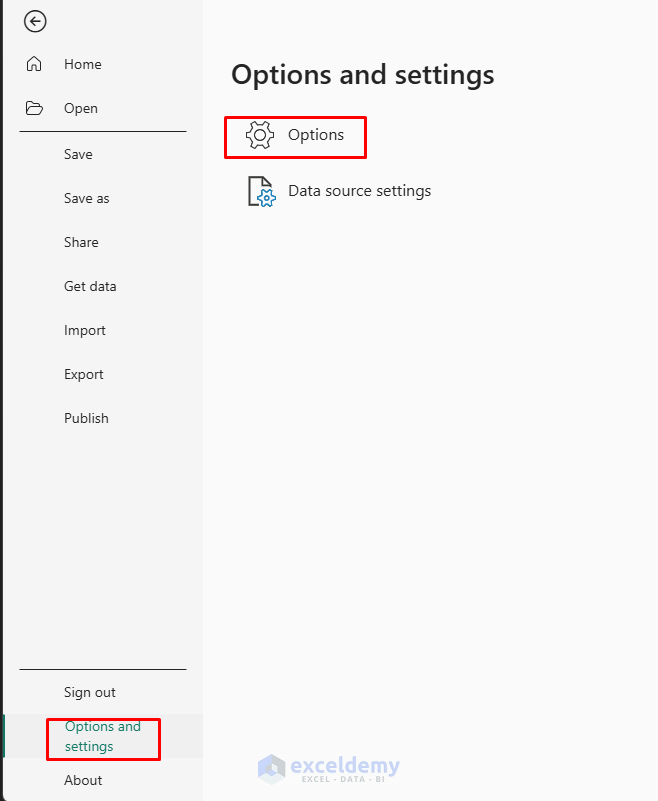
- Go to the File tab >> select Options and settings >> select Options
- Under Current File (left sidebar) >> select Query reduction
- Check the option to disable cross-highlighting/filtering by default
- Click OK and refresh the report page

New visuals you add will default to None interactions with everything else. Existing visuals aren’t automatically updated; you’ll need to recreate them (or manually edit as above) for the change to apply.
Limitations: This is report-wide and affects all pages, not page-specific. It’s best for dashboards where you want everything independent by default.
Explore Some Practical Examples
Example 1: Stop One Chart From Affecting Another
Suppose when you click a region in the Pie chart, you want the Category chart to change, but the Line chart to stay fixed.
Steps:
- Select the Pie chart (source visual)
- Go to the Format tab >> select Edit interactions
- Look at the Line chart. You will see a filter or highlight icon above it
- Click the None icon above the Line chart
- Leave the other visuals as filter/highlight (whichever you prefer)
- Exit Edit interactions mode

Test The Interactions:
- Click East in the Pie chart
- Other visuals update based on the selected region
- The Line chart remains unchanged (not filtered)

Example 2: Make A Slicer Control Only Specific Visuals
Slicers are powerful, but sometimes you want them to affect only a few visuals. For example, you want the Category slicer to control just the Product chart and the Line chart, but not the Region chart.
Steps:
- Click the Category slicer
- Go to the Format tab >> select Edit interactions
- For the Product chart, keep Filter selected
- For the Line chart, keep Filter (or Highlight) selected
- For the Region chart, click the None icon
- Exit Edit interactions

- Changing the Category slicer updates the Product and Line visuals
- The Region chart continues to show all regions as a global overview

This is a very common pattern in professional dashboards.
Cross-Filter vs. Cross-Highlight: Which One To Use?
If you see two different icons while editing interactions (Filter and Highlight):
- Filter replaces the visual with only the selected data
- Highlight keeps everything but emphasizes the selected part and dims the rest
Tips:
- Use Filter when you want the visual to show only the selected subset (e.g., tablet sales by region)
- Use Highlight when you want to show context plus focus—e.g., all sales by region while highlighting Furniture within it
- Use None when you want to completely block the interaction
You can mix styles: one visual might be filtered, another highlighted, and a third completely independent.
Conclusion
By following the above methods, you can stop charts from talking to each other. Controlling visual interactions in Power BI gives you precise control over your report’s behavior. You can strategically disable interactions and guide users through data while maintaining important context and reference points. Decide the story first to balance interactivity and stability. Sometimes the clearest communication is letting charts speak independently rather than all at once.
Get FREE Advanced Excel Exercises with Solutions!

