

In this tutorial, we will show you how to trigger Power BI or Power Automate actions from Excel buttons.
Why Trigger Power BI or Power Automate from Excel?
- Automate repetitive tasks directly from your spreadsheet.
- Refresh Power BI dashboards on demand.
- Send Excel data to Teams, Outlook, or SharePoint instantly.
- Launch approval workflows without leaving Excel.
- Turn Excel into a lightweight “app” with workflow buttons.
What You’ll Need (Prerequisites)
- Microsoft 365 account with Excel for the web (for Office Scripts).
- Access to Power Automate (included in Microsoft 365).
- Power BI Service (free or Pro, depending on your dataset sharing needs).
Note: An Office Script button in Excel runs the associated Office Script, but it does not automatically trigger a Power Automate cloud flow. To trigger Power Automate directly from an Excel button, an additional trigger mechanism, such as an HTTP request, is required.
Trigger a Power Automate Flow from an Excel Button Using VBA
Step 1: Create a Power Automate Flow
- Go to Power Automate.
- Select Create >> select Instant Cloud Flow.

- Name the flow: Trigger from Excel Button.
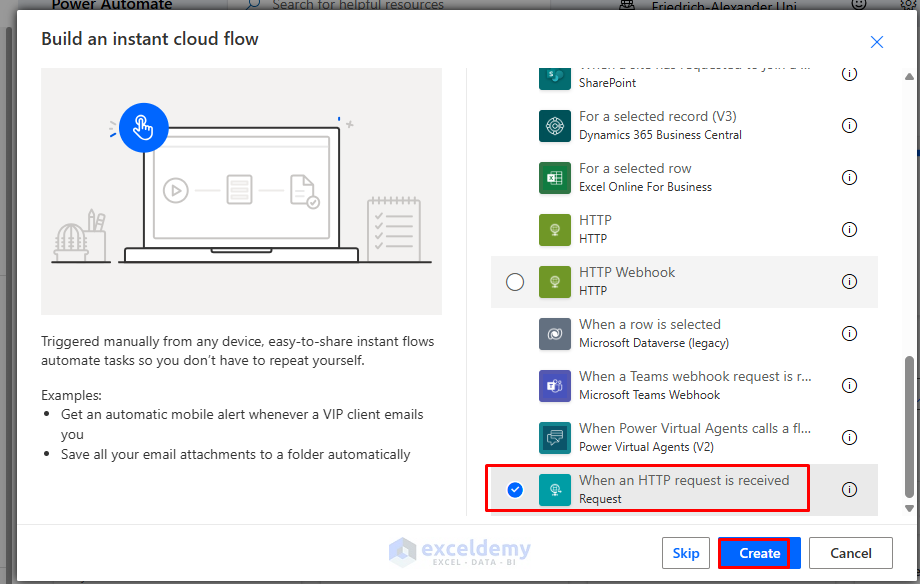
- Choose When an HTTP request is received as the trigger.
- Click Create.
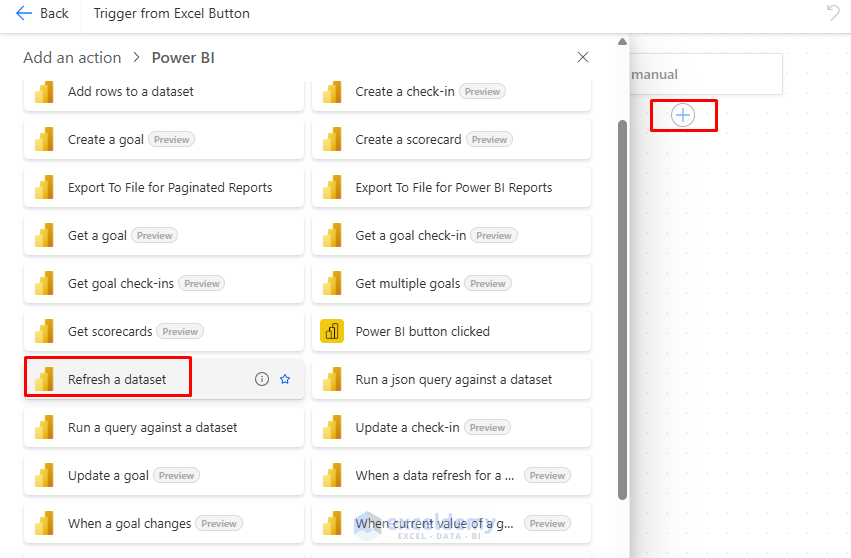
- Click on the Plus (+) icon to add an action:
- Select Power BI >> Select Refresh a dataset.
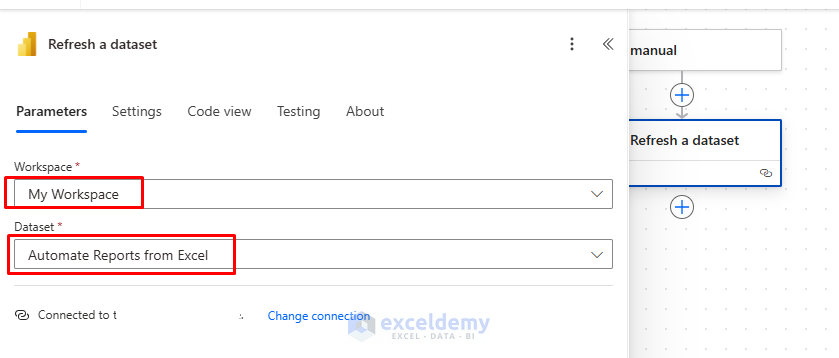
- In Parameters
- Select Workspace
- Select Dataset.
- Add another action:
- Send an email (V2)
- In Parameters
- Insert To
- Type Subject
- Type Body

- Now Save the flow.
Get the Flow’s URL (HTTP Trigger):
- After saving the flow, the ‘When an HTTP request is received’ step will generate a unique URL.
- Copy this URL to use in your VBA code.

Step 2: Create a Button in Excel
- Open Excel.
- Go to the Developer tab >> select Insert >> select Button (Form Control).
- Draw the button on your sheet.

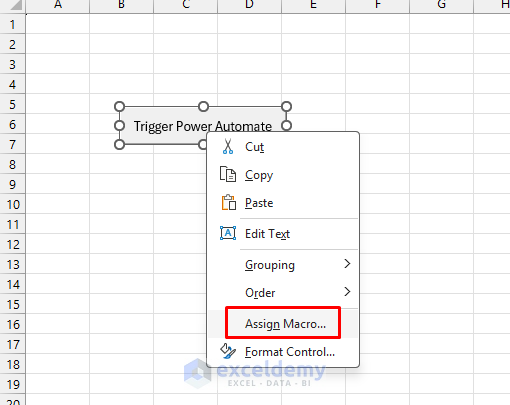
- Right-click >> select Assign Macro.
Step 3: Add VBA Code to Call the Flow
- Paste this VBA code (replace with your Flow URL):
Sub TriggerFlow()

    Dim objHTTP As Object
    Dim URL As String

    URL = "Insert URL from your Flow"

    Set objHTTP = CreateObject("MSXML2.XMLHTTP")

    objHTTP.Open "POST", URL, False
    objHTTP.setRequestHeader "Content-Type", "application/json"
    objHTTP.Send "{}"

    If objHTTP.Status >= 200 And objHTTP.Status < 300 Then
        MsgBox "Power Automate flow triggered successfully!"
    Else
        MsgBox "Flow trigger failed. HTTP status: " & objHTTP.Status
    End If

End Sub

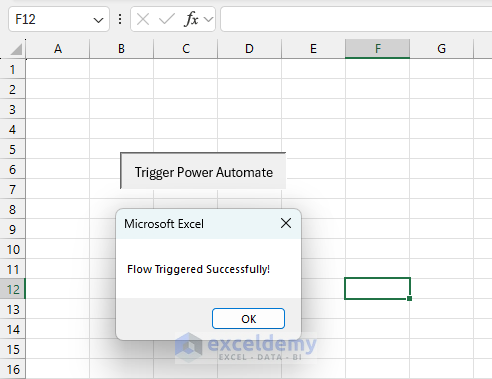
- Click the ‘Trigger Power Automate’ button to call your Power Automate flow.
- A success message will appear when the flow is triggered successfully.
Conclusion
By following the above steps, you can trigger Power BI or Power Automate actions from Excel buttons. Triggering Power Automate from an Excel button requires a genuine flow trigger. VBA sends an HTTP POST request to a Power Automate flow using the When an HTTP request is received trigger. Once triggered, the flow can refresh a Power BI semantic model, send emails, post Teams messages, start approval processes, or perform other automated actions.
This approach provides a direct way to connect an Excel button with Power Automate and extend Excel beyond workbook-level automation.
Get FREE Advanced Excel Exercises with Solutions!


Was anyone able to get Method 1 to work? When I click the button in excel for the web the Power Automate Flow is not triggered.
Hello RandomGuy,
Yes, Method 1 should work in Excel for the web (Microsoft 365), as Power Automate is now fully supported there. Just make sure that:
1. Your workbook is saved in OneDrive or SharePoint.
2. You’ve connected the button to the correct Power Automate flow.
3.You’re signed in with the same Microsoft account used for the flow.
If you’re using the desktop app, it must also be connected online—otherwise, the automation won’t trigger.
Regards,
ExcelDemy
Method one doesn’t work for me either and also appears to be how you would trigger an excel script from the web – in Power Automate, the flow is described as “Schedule and Office script to run in Excel”
Hello Steve,
Method 1 is indeed based on Office Scripts in Excel for the web, which is why Power Automate shows the trigger as “Schedule and Office Script to run in Excel.” This method does not behave like a traditional instant “button trigger” and works only under specific conditions (Excel for the web, OneDrive/SharePoint storage, correct account and script setup).
If this approach doesn’t trigger the flow in your case, we recommend using Method 2 or Method 3 from the article, which are more reliable for triggering Power Automate or Power BI actions directly from Excel.
Thanks for pointing this out, it helps clarify this limitation for other readers as well.
Regards,
ExcelDemy
How do you pass a dynamic file Identifier into Run script in Power Automate for Method 1? I’m creating a template file for others to use, but it means the file can’t be hard-coded in PA.
Hello Harry,
You can make it dynamic by using the file’s Identifier from the trigger or a previous action instead of hard-coding it. For example, if the Excel file is uploaded or selected dynamically, use outputs from actions like When a file is created, Get files (properties only), or List rows present in a table to pass the current file Identifier into the Run script action.
In the Run script step:
1. Click the File field
2. Choose Enter custom value
3. Insert the dynamic Identifier token from your earlier step
This way, the flow works with any copy of the template file without needing to edit the Power Automate flow each time.
Reagrds,
ExcelDemy
This method 1 cannot work, as the only thing your office script does is write to the console.
You show creating a recurring PA flow that runs an excel script and refreshes PBI datasets.
This essentially means, your flow will automatically trigger, e.g. once a day, and start the office script that says “Excel button clicked! Triggering Power Automate…” and then refresh the dataset.
But what the user wants is to trigger the flow by clicking the excel button. Ofcourse, when users actually click the button, it will only write the line to the console, but clicking the button will not trigger the flow, as that is tim-based.
In short, your solution shows starting an office script from Power Automate, not the other way round…
Hello C,
Thank you for pointing this out. You are correct; the previous version showed Power Automate running the Office Script rather than the Excel button triggering the flow.
We have updated the article to correct this issue. We appreciate your detailed feedback.
Regards,
ExcelDemy