


Keeping your Power BI reports up-to-date with the latest Excel data can be time-consuming if done manually. Power BI makes it easy to automatically refresh Excel data, ensuring your dashboards always display the latest information, whether your file lives on your computer, OneDrive, or SharePoint.
In this tutorial, we will show how to refresh Excel data in Power BI automatically.
Step 1: Prepare Your Excel File
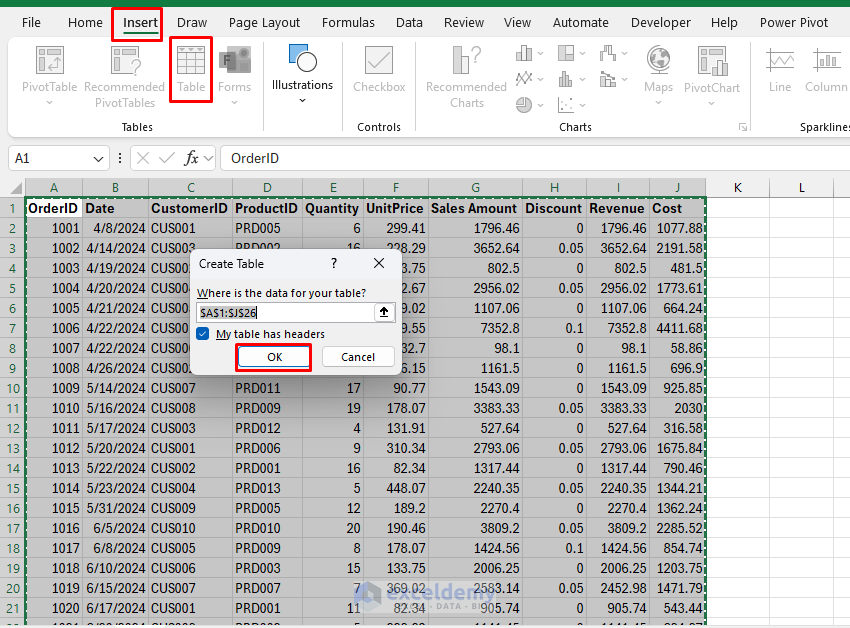
- Keep data in a Table: Make sure your data in Excel is formatted as a table.
- Select your data.
- Go to the Data tab >> select Table.
- Check My table has headers.
- Click OK.
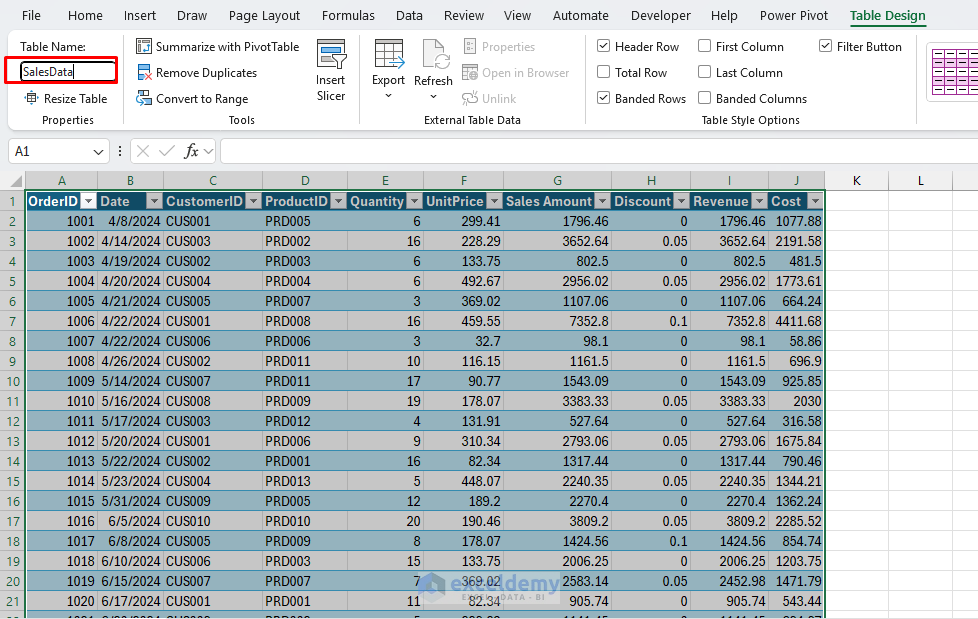
- If you want, you can rename it using the Table Design option.
- This makes it easier for Power BI to recognize updates.
- Store the file in a refresh-friendly location:
- Recommended: Save your file to OneDrive for Business or SharePoint Online for seamless automatic refreshes.
- If local: You’ll need a Data Gateway.
Step 2: Upload Excel File to SharePoint (Recommended Method)
To store your Excel file on SharePoint:
- Log into your SharePoint site.
- Navigate to the desired document library.
- Click Upload and select your Excel file from your computer.
- Once uploaded, click on the uploaded file to open it online.
- Click File >> select Info and copy the file link (Copy path).
https://company.sharepoint.com/sites/YourSite/Shared%20Documents/YourExcelFile.xlsx
Step 3: Connect Excel to Power BI
- Open Power BI Desktop.
- Go to the Home tab >> select Get Data >> select Web.
- Paste the SharePoint file URL from Step 2.
- Important: Adjust the URL by removing any additional text after .xlsx.
Modified URL:
https://company.sharepoint.com/sites/YourSite/Shared%20Documents/YourExcelFile.xlsx
- Select OK.
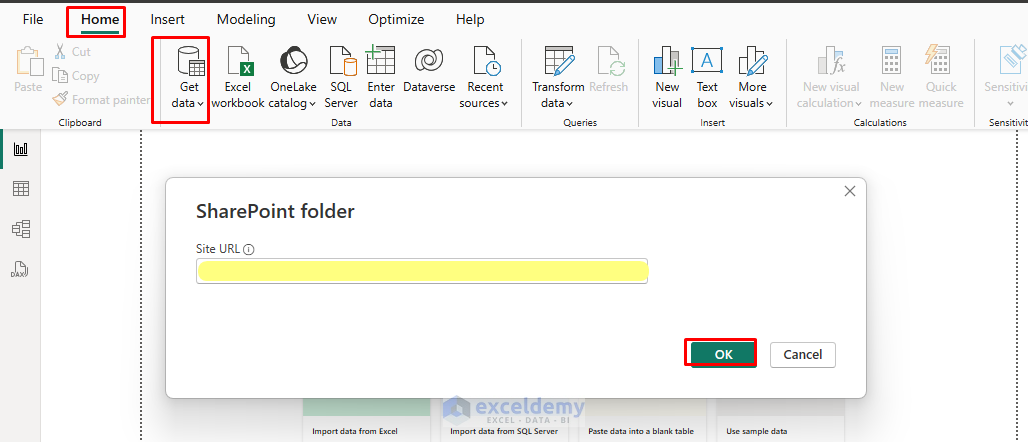
- Power BI will prompt you to log into your Microsoft account if you’re not already signed in.
- Import data as a dataset or connect to it directly (for cloud files, direct connection is best for automatic refresh).
Load Your Data into Power BI:
- Choose the tables or sheets you want.
- Click Load.

Your Excel data is now imported into Power BI.
Step 4: Set Up Automatic Data Refresh in Power BI Service
After creating visuals in Power BI Desktop, follow these steps:
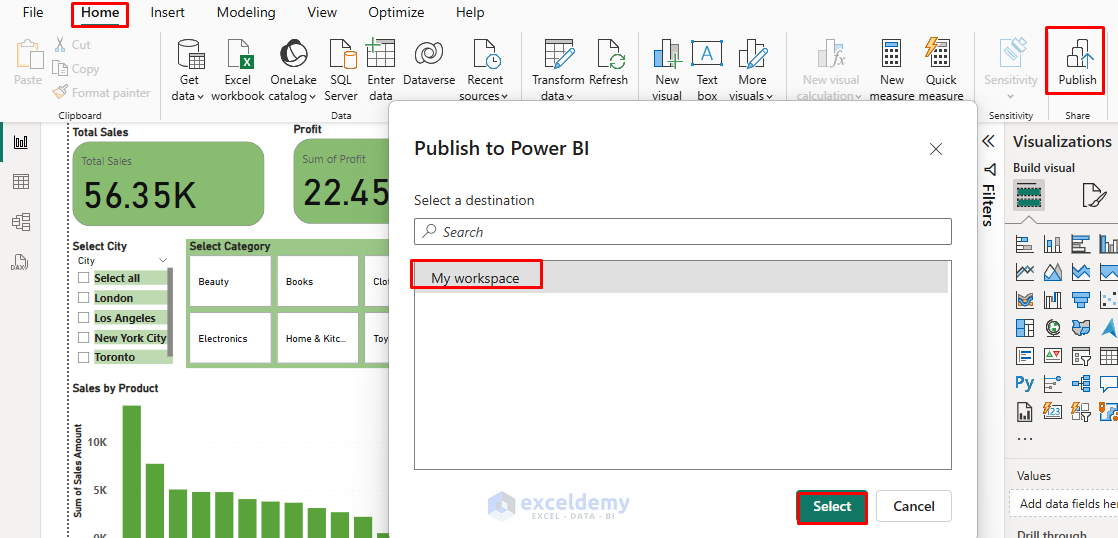
- Go to the Home tab >> select Publish.
- Select the destination workspace.
Configure Scheduled Refresh:
- Log into Power BI Service.
- Click on My Workspace.
- Select your file Semantic model.
- Hover your mouse over the desired Semantic model.
- Click on the three dots (“…”) at the end of that row.
- In the dropdown, click Settings.

- Click Settings (gear icon) >> Scheduled refresh.
- Turn on Keep your data up to date.
- Click Add another time to set the desired refresh frequency (e.g., daily, hourly).
- Click Apply.
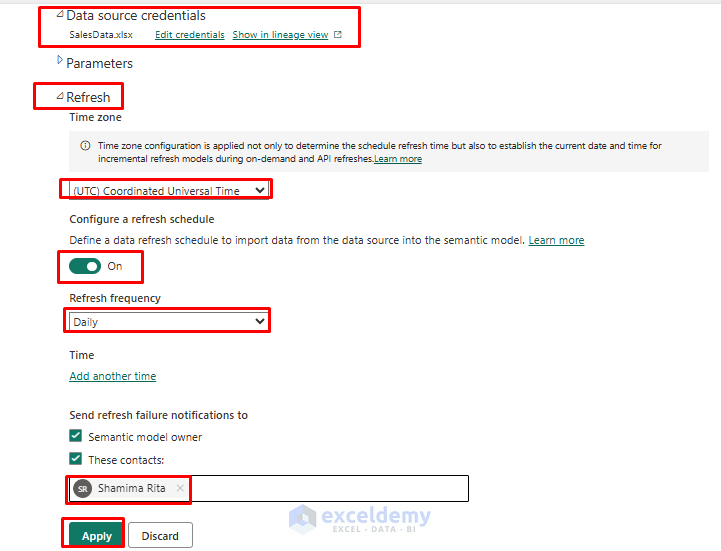
Power BI will now automatically update your Excel data based on your defined schedule.
For Local Excel Files (Stored on Your Computer or Local Server)
- Install and configure the Power BI Gateway on a computer that can access your file at all times.
- Download Gateway: Power BI Gateway Download
- In Power BI Service,
- Hover your mouse over the desired Semantic model.
- In the dropdown, click Settings.
- Under the dataset, configure the Gateway connection so Power BI can access your local file.
- This will take you to the settings page for your dataset, where you can:
- Manage the Gateway connection.
- Configure data source credentials
- Set up a scheduled refresh
- See refresh history, and more.

Limitations: Direct file connections require the file path to remain constant and may not work with cloud storage.
Troubleshooting Common Issues
- Authentication errors: Re-enter credentials via Data source credentials in the dataset settings.
- Link not working: Verify you provided the correct SharePoint link and remove any query parameters after .xlsx.
Conclusion
By following these steps, you can refresh Excel data in Power BI automatically. Your Power BI reports will always reflect the latest Excel data, reduce manual tasks, and ensure accuracy. Save your Excel file to OneDrive or SharePoint, and connect it to Power BI, and you get automatic, near-real-time updates to your dashboards. For local files, a Power BI Gateway plus a scheduled refresh keeps things synced.
Get FREE Advanced Excel Exercises with Solutions!

