


Image by Editor
Excel’s cell comments feature is great for adding context to your data, especially while collaborating with other team members. Sometimes you need to consolidate multiple comments from multiple teams into a readable summary. An auto-generated summary from cell comments in Excel can significantly streamline your documentation and reporting.
In this tutorial, we will show how to make Excel auto-generate a summary based on cell comments.
Step 1: Prepare Your Excel Sheet
Let’s imagine we’re managing a team project with different tasks assigned to team members. Let’s add comments to provide additional context about each task.
Add Comments to Cells:
Now, add comments to provide more context:
- Select cell B2.
- Go to the Review tab >> from Comments >> select New Comments.
- Type: Client requested additional scope during the kickoff meeting. May need extra time.

- Add a comment to cell B3 (Design mockups):
- Type: Need to schedule a review meeting with the marketing team before finalizing.
- Add a comment to cell C4 (Mike):
- Type: Mike will be on vacation next week. Arranged for backup support from Dave.
- Add a comment to cell D3 (Completed):
- Type: Finished ahead of schedule, used new cloud provider, which simplified setup.
- Add a comment to cell E5 (5/30/2025):
- Type: This deadline is firm due to Q2 reporting requirements.

- You can see all the comments in a list, but not in a summarized table.
- Go to the Review tab >> select Show comments.

Step 2: Create the VBA Macro
Now let’s set up the macro to summarize these comments.
To open the VBA Editor;
- Go to the Developer tab >> select Visual Basic.

- Select Insert >> select Module.
- Copy and paste this code into the module.

Sub GenerateCommentsSummary()
    Dim wsSource As Worksheet
    Dim wsSummary As Worksheet
    Dim cmt As CommentThreaded
    Dim SummaryRow As Integer

    ' Set references to the worksheets
    Set wsSource = ActiveSheet

    'Create summary worksheet
    Set wsSummary = Worksheets.Add(After:=Worksheets(Worksheets.Count))
    wsSummary.Name = "Comment_Summary"

    'Set headers as your expected result
    wsSummary.Range("A1").Value = "Cell Reference"
    wsSummary.Range("B1").Value = "Cell Value"
    wsSummary.Range("C1").Value = "Related Task"
    wsSummary.Range("D1").Value = "Comment"

    'Make headers bold
    wsSummary.Range("A1:D1").Font.Bold = True

    SummaryRow = 2

    'Extract Threaded Comments
    For Each cmt In wsSource.CommentsThreaded
        wsSummary.Cells(SummaryRow, 1).Value = cmt.Parent.Address(False, False)
        wsSummary.Cells(SummaryRow, 2).Value = cmt.Parent.Value
        wsSummary.Cells(SummaryRow, 3).Value = wsSource.Cells(cmt.Parent.Row, 2).Value 'Assumes "Task Name" in Column B
        wsSummary.Cells(SummaryRow, 4).Value = cmt.Text
        SummaryRow = SummaryRow + 1
    Next cmt

    'Autofit column width
    wsSummary.Columns("A:D").AutoFit

End Sub
Explanation:
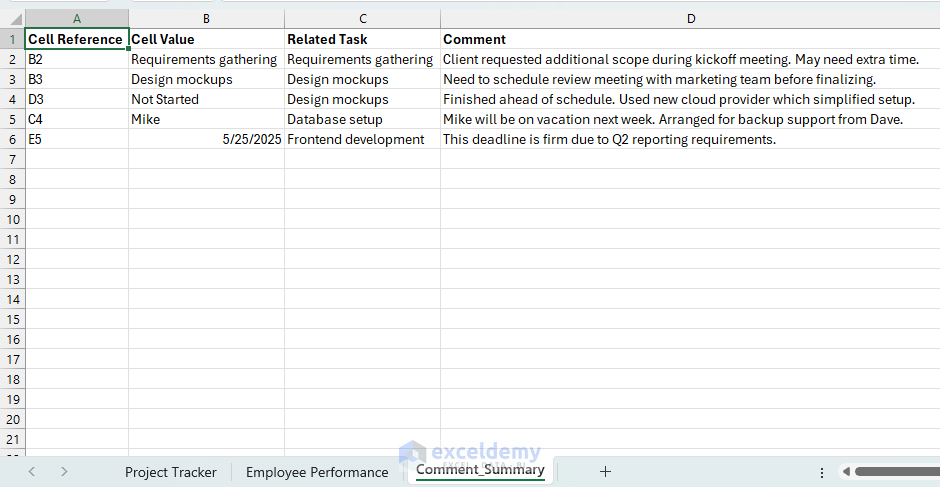
- Creates a new sheet named Comment_Summary.
- Loops through all threaded comments in the active sheet.
- Records cell reference, cell value, related task (from Column B), and comment text.
- Adds headers and auto-fits columns for a clean summary.
Note:
- Traditional Comments (now called Notes): These can be extracted via the .Comments property in VBA.
- Threaded Comments: Introduced recently in Excel 365, which are accessible via .CommentsThreaded.
- If Comment_Summary already exists, it will cause an error. You can fix this by adding a unique sheet name.
Step 3. Create a Button to Run the Macro
- Return to your spreadsheet.
- Go to the Developer tab >> click Insert >> select Form Controls >> select Button.

- Draw the button on your worksheet.
- When prompted, select the GenerateCommentSummary macro.
- Click OK.

- Right-click the button >> select Edit Text.

- Rename it Generate Comment Summary.

Running the Macro:
- Click on the button.
- It will create a new sheet called Comment_Summary (or clear it if it already exists).
- Extracts all comments from your project sheet.
Benefits:
- Quick overview of comments across all worksheets.
- Saves significant time by automating manual tasks.
Now, whenever you update or add comments, simply re-run the macro to refresh your summary sheet effortlessly.
- Create another sheet with comments.
- Insert the button with the VBA macro.
- Click the button it will auto-generate a summary from cell comments.

- A new comments summary sheet is auto generated.

Conclusion
By using VBA macros, you can successfully auto-generate a summary based on cell comments. It can summarize your cell comments, significantly improving productivity, data clarity, and documentation quality. By implementing this solution, you can transform Excel’s simple comments feature into a powerful communication and reporting tool.
Get FREE Advanced Excel Exercises with Solutions!

