


When you’re managing multilingual data in Excel, language detection can be incredibly useful for multilingual datasets, customer feedback analysis, or content categorization.
In this tutorial, we’ll show how to detect language automatically in Excel cells using Power Query or VBA.
Power Query to Detect Language Automatically
Power Query is a powerful built-in tool in Excel that allows you to import, clean, and transform data, and even make API calls. You can use the DetectLanguage API, LibreTranslate API, or any paid API with Power Query.
Step 1: Get Your Free API Key
- Go to DetectLanguage.com
- Sign up (free) and copy your API key from the dashboard.

Step 2: Prepare Your Data Table
Insert your language list in Excel.
- Select the data range.
- Go to the Insert tab >> select Table.
- Check My table has headers.
- Click OK.

- Rename your table:
- Go to the Table Design tab >> select Table Name >> insert Language_List.

Step 3: Using Power Query to Detect language
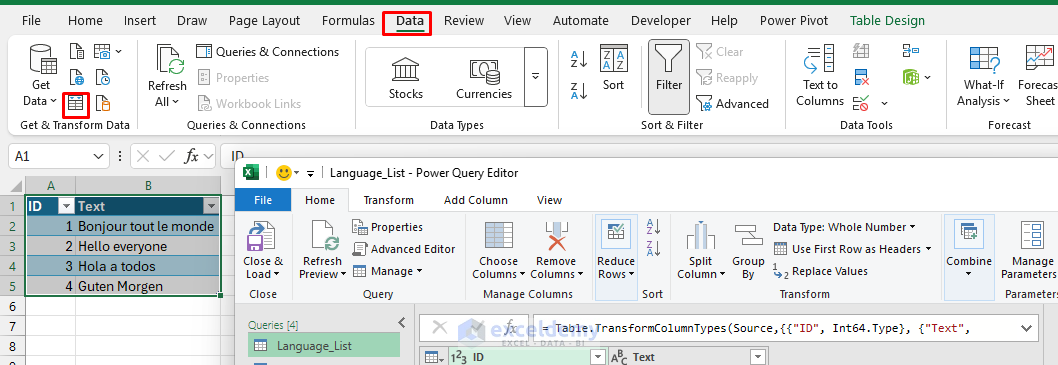
- Select any cell in your table.
- Go to the Data tab >> select From Table/Range.
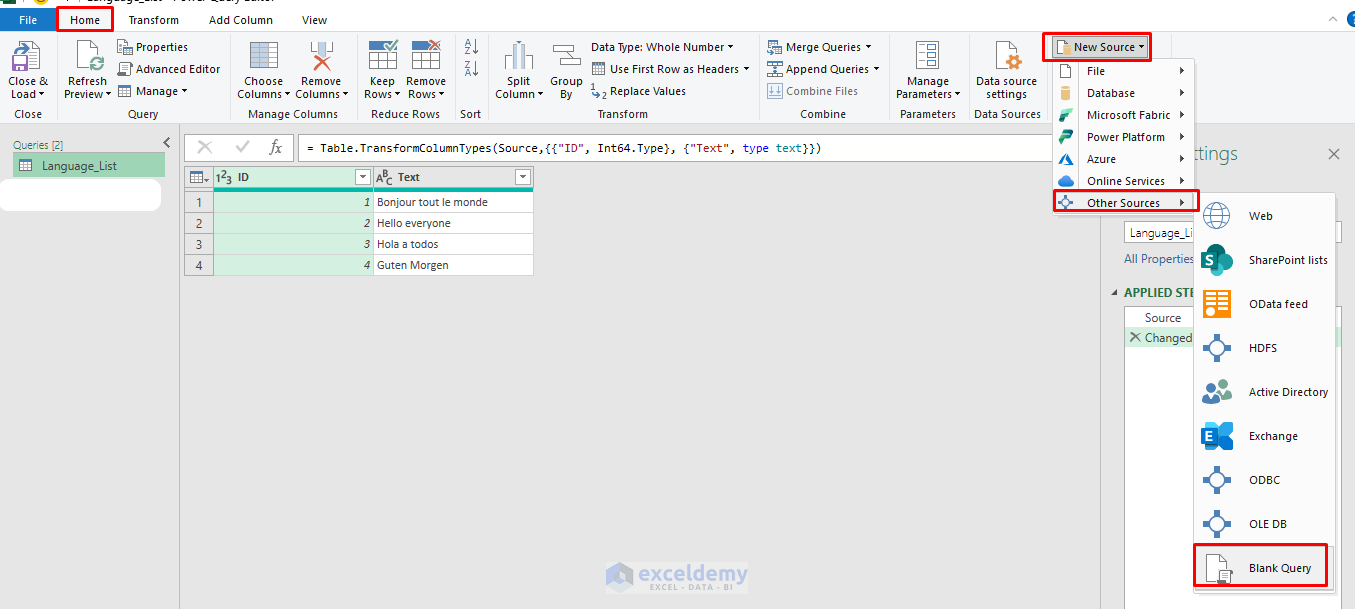
- Go to the Home tab >> select New Source >> select Other Sources >> select Blank Query.
- Name it Auto Detect Language.
- Go to the Home tab >> select Advanced Editor.
- Copy and paste the following code.
- Click Done.
let
    APIKey = "YOUR_API_KEY",  // <-- Replace this

    Source = Excel.CurrentWorkbook(){[Name="Language_List"]}[Content],

    AddJson = Table.AddColumn(Source, "JsonBody", each
        Text.ToBinary("q=" & Uri.EscapeDataString([Text]))
    ),

    AddResponse = Table.AddColumn(AddJson, "Response", each
        Json.Document(
            Web.Contents("https://ws.detectlanguage.com/0.2/detect", [
                Headers = [
                    #"Authorization" = "Bearer " & APIKey,
                    #"Content-Type" = "application/x-www-form-urlencoded"
                ],
                Content = [JsonBody]
            ])
        )
    ),

    ExtractLang = Table.AddColumn(AddResponse, "Language", each try [Response][data][detections]{0}[language] otherwise "error"),
    Final = Table.SelectColumns(ExtractLang, {"ID", "Text", "Language"})
in
    Final
- Replace “YOUR_API_KEY” with your actual key.

- Click Close & Load. You’ll see a Language column with detected language codes (en, fr, etc.).

Using VBA to Detect Language Automatically
You can use VBA to automatically detect language. In VBA, you can call from free to paid all types of API or create user-specific functions to detect language.
- Go to the Developer tab >> select Visual Basic.

- From Insert >> select Module.
- Copy-paste the following VBA code.
VBA Code:
Function Detect_Language(text As String) As String
    On Error GoTo handleErr
    Dim http As Object
    Dim url As String
    Dim response As String
    Dim apiKey As String

    apiKey = "YOUR_API_KEY" ' <-- Replace with your API key! url = "https://ws.detectlanguage.com/0.2/detect?q=" & URLEncode(text) Set http = CreateObject("MSXML2.XMLHTTP") With http .Open "GET", url, False .setRequestHeader "Authorization", "Bearer " & apiKey .send response = .responseText End With ' Parse JSON result for "language" code Dim startPos As Integer Dim endPos As Integer startPos = InStr(response, """language"":""") + Len("""language"":""") If startPos > Len("""language"":""") Then
        endPos = InStr(startPos, response, """")
        Detect_Language = Mid(response, startPos, endPos - startPos)
    Else
        Detect_Language = "unknown"
    End If
    Exit Function

handleErr:
    Detect_Language = "ERROR: " & Err.Description
End Function

' Helper for URL encoding (supports most basic Unicode)
Function URLEncode(str As String) As String
    Dim i As Long
    Dim ch As String
    Dim encoded As String
    For i = 1 To Len(str)
        ch = Mid(str, i, 1)
        Select Case AscW(ch)
            Case 48 To 57, 65 To 90, 97 To 122 ' 0-9, A-Z, a-z
                encoded = encoded & ch
            Case Else
                encoded = encoded & "%" & Hex(AscW(ch))
        End Select
    Next i
    URLEncode = encoded
End Function

- Save the code and go back to the Excel sheet.
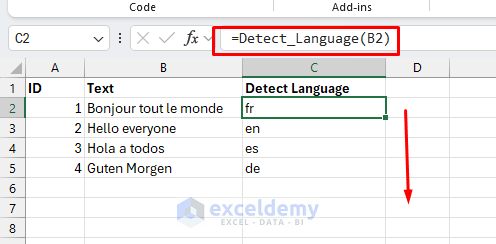
- Select cell C2 and insert the following UDF function.
=Detect_Language(B2)
This custom function automatically detects the language and returns the language code.
Bonus: Using DETECTLANGUAGE Function in Excel (Microsoft 365 & Web Only)
If you are using Excel for Microsoft 365 or Excel for the web, you can use the built-in DETECTLANGUAGE function to identify the language of any cell’s text automatically. This feature is available only for Microsoft 365 subscribers and in Excel Online, rolled out from late 2022 onward.
- Select a cell and insert the following formula.
=DETECTLANGUAGE(B2)
It fetches the result from the Web.

This function auto detects the language.

Availability: The DETECTLANGUAGE function is available only in:
- Excel for the web (Excel Online).
- Microsoft 365 (some desktop builds, but not all users).
- Not available in Excel 2019, Excel 2016, or earlier perpetual license versions.
Conclusion
Following the above methods, you can automatically detect language in Excel cells. By using Power Query, you can easily supercharge your multilingual data processing workflow. Power Query is preferred for most users, offering more stability, scalability, and direct data transformation. VBA is best for light, local, and quick use.
Get FREE Advanced Excel Exercises with Solutions!

