

This article will show you how you can select all the cells that contain data within a worksheet using Excel VBA.
Excel VBA: Select All the Cells with Data within a Worksheet (Quick View)
Sub Select_All_Cells_with_Data()

Set Rng = ActiveSheet.UsedRange

Rng.Cells(1, 1).Select

For i = 1 To Rng.Rows.Count
    For j = 1 To Rng.Columns.Count
        If Rng.Cells(i, j) <> "" Then
            Union(Selection, Rng.Cells(i, j)).Select
        End If
    Next j
Next i

End Sub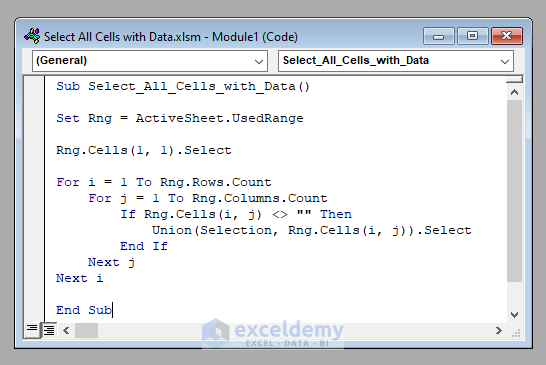
An Overview of the VBA Code to Select All Cells with Data within a Worksheet (Step-by-Step Analysis)
So, let’s go to our main discussion today without further delay. Here we’ve got a worksheet that contains some data in a scattered way.
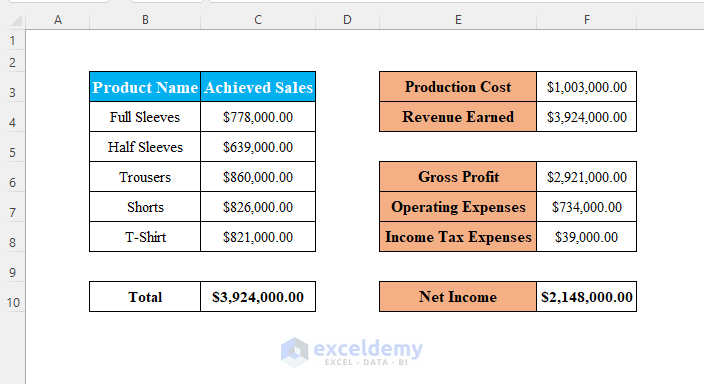
Our objective today is to develop a VBA code that’ll select all the cells that contain data in this worksheet.
Let’s see the step-by-step procedure to execute this.
⧪ Step 1: Accessing VBA Used Range Property
There is a very useful property in VBA called the UsedRange property. It holds the complete range in a worksheet that contains values. At the very outset of our code, we’ll this property to limit our searching within a specified range.
Set Rng = ActiveSheet.UsedRange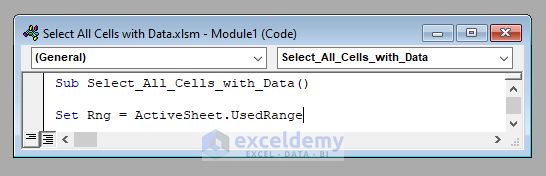
Set Rng =Worksheets("Sheet1").UsedRange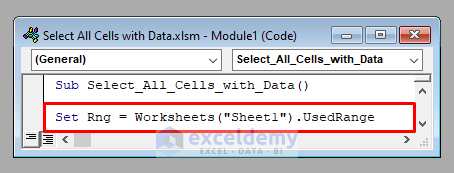
⧪ Step 2: Selecting First Cell of the Used Range
We’ll iterate through a for-loop to check all the cells of the used range if it’s empty or not. If it’s not empty, we’ll include it in our selection.
But the first cell of the used range is definitely non-empty. So before starting the iteration, we’ll select it.
Rng.Cells(1, 1).Select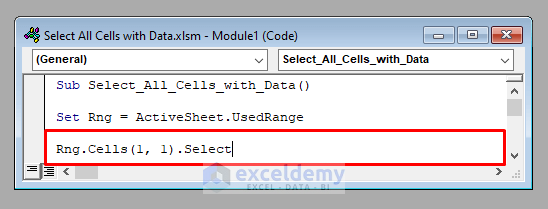
⧪ Step 3: Iterating Through Each Cell of the Used Range to Select Non-Blank Cells
This is the most important portion of our code. We’ll iterate through each cell of the used range and check whether it’s non-blank or not.
If it’s non-blank, we’ll include it in our selection. We’ll use the Union method of VBA for this purpose.
It would have been better if we could start our iteration from the cell (1,2) of the used range, as the cell (1,1) is already selected. But that will make the code more complicated. To avoid complications, we are starting from the cell (1,1).
It really doesn’t matter.
For i = 1 To Rng.Rows.Count
    For j = 1 To Rng.Columns.Count
        If Rng.Cells(i, j) <> "" Then
            Union(Selection, Rng.Cells(i, j)).Select
        End If
    Next j
Next i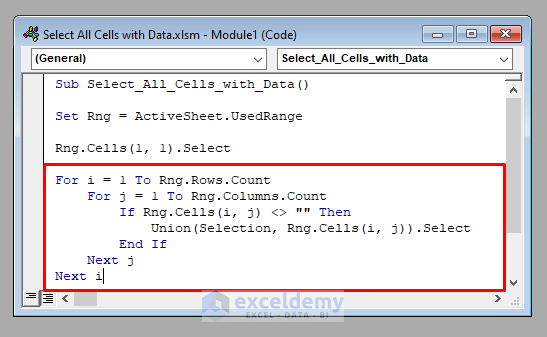
These few lines of code are enough to select all the cells within the worksheet that contain any data.
The complete VBA code will be:
⧭ VBA Code:
Sub Select_All_Cells_with_Data()

Set Rng = Worksheets("Sheet1").UsedRange

Rng.Cells(1, 1).Select

For i = 1 To Rng.Rows.Count
    For j = 1 To Rng.Columns.Count
        If Rng.Cells(i, j) <> "" Then
            Union(Selection, Rng.Cells(i, j)).Select
        End If
    Next j
Next i

End Sub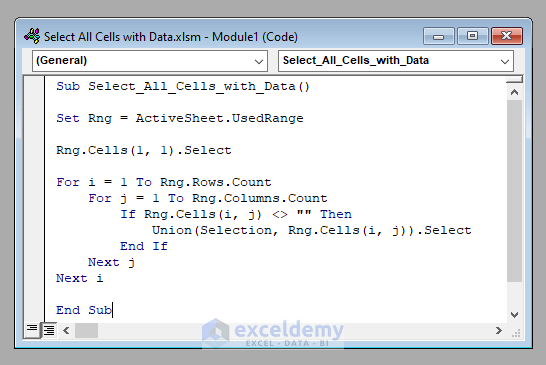
Developing the Macro to Select All Cells with Data within a Worksheet Using Excel VBA
We’ve seen the step-by-step analysis of the code to open all Excel files in a folder and copy data from them.
Now we’ll see the step-by-step procedure to develop a Macro using the code.
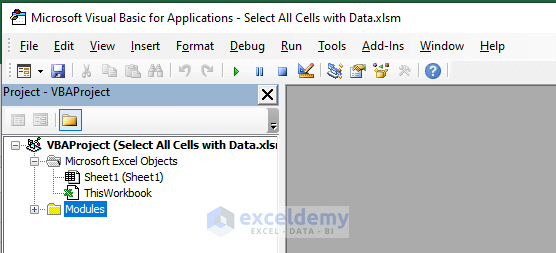
⧪ Step 1: Opening the Visual Basic Window
Press ALT + F8 on your keyboard to open the Visual Basic window.
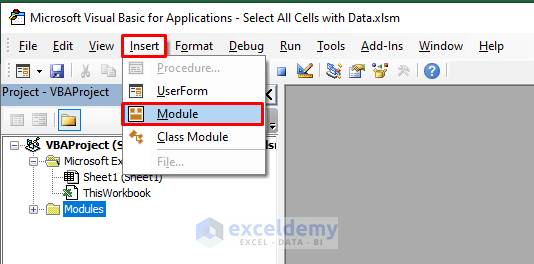
⧪ Step 2: Inserting a New Module
Go to the Insert > Module tool in the toolbar to insert a new module (Module1).
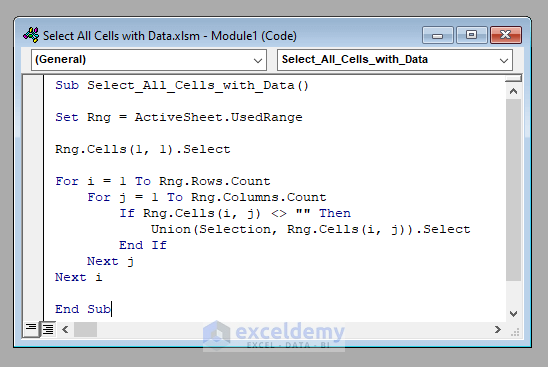
⧪ Step 3: Putting the VBA Code
Next, copy and paste the given VBA code into the new module.
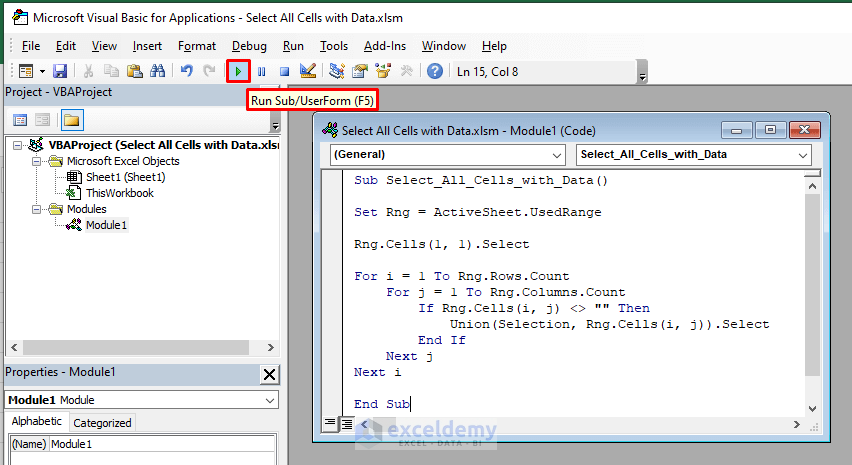
⧪ Step 4: Running the Code
Run the code from the Run Sub / UserForm option in the toolbar.
⧪ Step 5: The Output
The moment you run the code, all the cells within the worksheet that contain any sort of data will be selected.

Read More: How to Select Visible Cells in Excel with VBA
Things to Remember
If you don’t want to select the scattered cells distinctly, only the full range of cells that have been used, use the UsedRange property only. No need to iterate through each cell of the range.
Download Practice Workbook
Download this practice workbook to exercise while you are reading this article.
Conclusion
Therefore, this is the process of selecting all the cells within a worksheet in Excel that contains data using VBA. Do you have any questions? Feel free to ask us.
Related Articles
- How to Deselect in Excel VBA
- Excel VBA to Select First Visible Cell in Filtered Range
- Excel VBA: Select Visible Cells After Autofilter


