

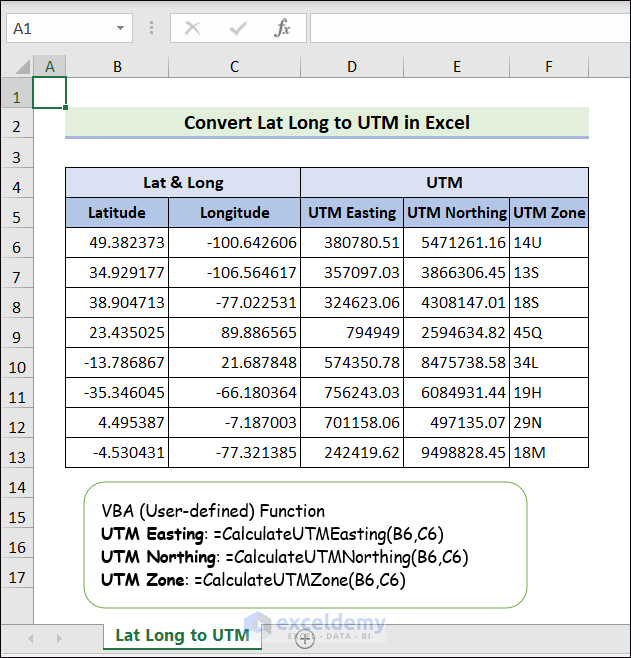
We’ll use the following dataset, which contains several coordinates with their latitude and longitude values, to convert to UTM values.
What Is UTM?
The Universal Transverse Mercator (UTM) is a way to project maps and give coordinates to places on Earth’s surface. The UTM system divides the Earth into 60 zones, each covering 6° of longitude. A grid zone uses both a location and a band of latitude. Sometimes, N or S is added after the zone number to show the North or South hemisphere.
Convert Lat Long to UTM in Excel: Step-by-step Procedures
We will find the UTM Easting, UTM Northing, and UTM Zone from these Lat and Long values.
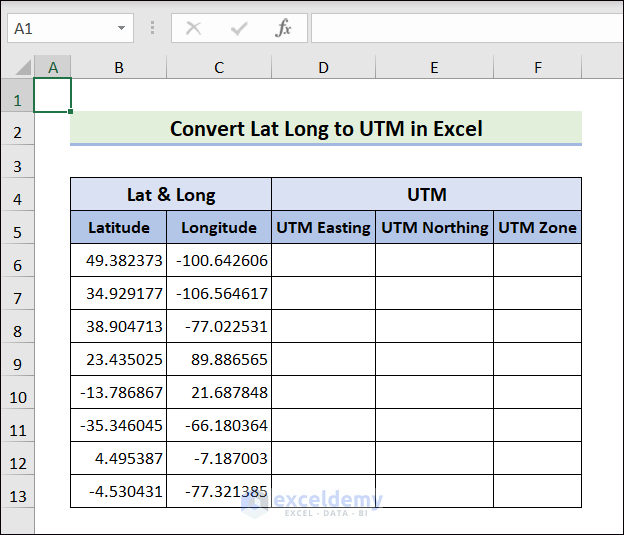
Step 1 – Implement Excel VBA Functions to Find UTM
Part 1.1 – User-defined Function for UTM Easting
- Go to the Developer tab and click on Visual Basic.
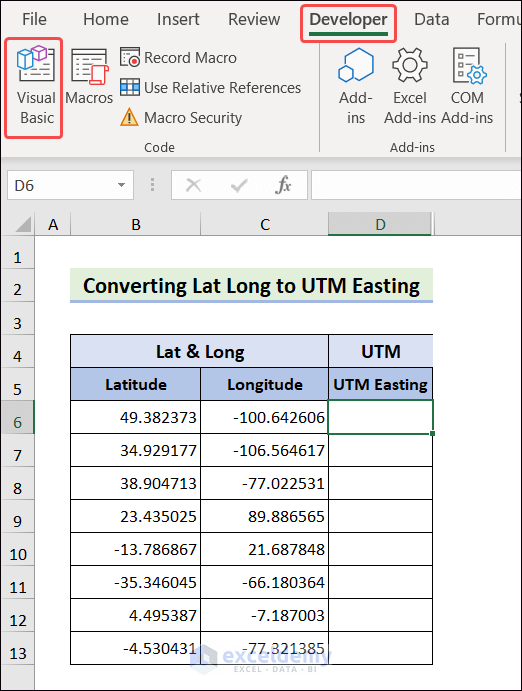
- Choose Insert and click on Module.
- Paste in the following code and Save.
Function CalculateUTMEasting(latitude As Double, longitude As Double) As Double

    Dim utmZone As Integer
    utmZone = Int((longitude + 180) / 6) + 1

    Dim CentralMeridian As Double
    CentralMeridian = (utmZone - 1) * 6 - 180 + 3

    Dim ScaleFactor As Double
    ScaleFactor = 0.9996

    Dim EquatorialRadius As Double
    EquatorialRadius = 6378137#

    Dim EccentricitySquared As Double
    EccentricitySquared = 0.00669438

    Dim N As Double
    N = EquatorialRadius / Sqr(1 - EccentricitySquared * Sin(latitude * 3.14159265358979 / 180) ^ 2)

    Dim T As Double
    T = Tan(latitude * 3.14159265358979 / 180) ^ 2

    Dim C As Double
    C = EccentricitySquared * Cos(latitude * 3.14159265358979 / 180) ^ 2

    Dim A As Double
    A = Cos(latitude * 3.14159265358979 / 180) * (longitude - CentralMeridian) * 3.14159265358979 / 180

    Dim M As Double
    M = EquatorialRadius * ((1 - EccentricitySquared / 4 - 3 * EccentricitySquared ^ 2 / 64 - 5 * EccentricitySquared ^ 3 / 256) * latitude * 3.14159265358979 / 180 - (3 * EccentricitySquared / 8 + 3 * EccentricitySquared ^ 2 / 32 + 45 * EccentricitySquared ^ 3 / 1024) * Sin(2 * latitude * 3.14159265358979 / 180) + (15 * EccentricitySquared ^ 2 / 256 + 45 * EccentricitySquared ^ 3 / 1024) * Sin(4 * latitude * 3.14159265358979 / 180) - (35 * EccentricitySquared ^ 3 / 3072) * Sin(6 * latitude * 3.14159265358979 / 180))

    Dim UTMEasting As Double
    UTMEasting = ScaleFactor * N * (A + (1 - T + C) * A ^ 3 / 6 + (5 - 18 * T + T ^ 2 + 72 * C - 58 * EccentricitySquared) * A ^ 5 / 120) + 500000

    CalculateUTMEasting = Format(UTMEasting, "0.00")

End Function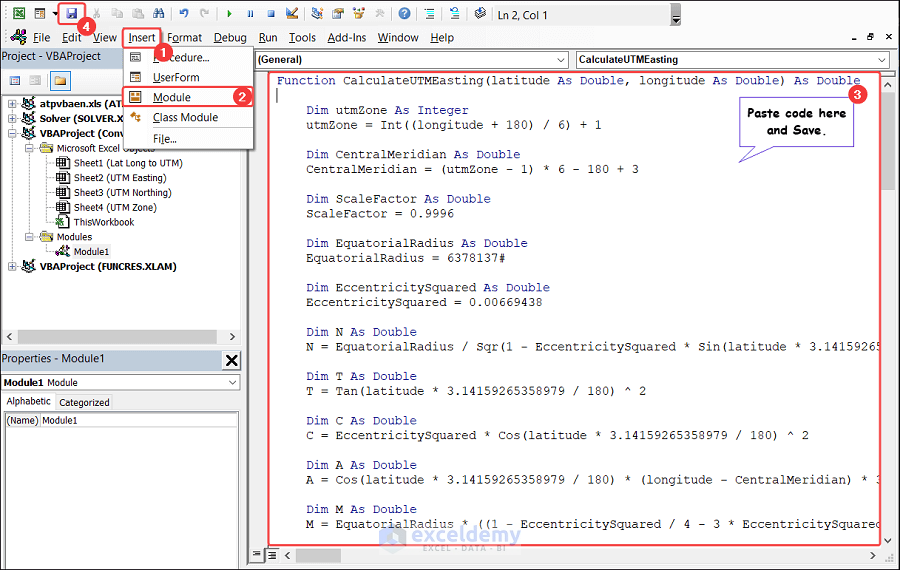
Part 1.2 – User-defined Function for UTM Northing
- Open the VBA Editor.
- Choose Insert and click on Module.
- Paste in the following code and Save.
Function CalculateUTMNorthing(latitude As Double, longitude As Double) As Double

    Dim utmZone As Integer
    utmZone = Int((longitude + 180) / 6) + 1

    Dim hemisphere As Integer
    If latitude < 0 Then
        hemisphere = -1
    Else
        hemisphere = 1
    End If

    Dim CentralMeridian As Double
    CentralMeridian = (utmZone - 1) * 6 - 180 + 3

    Dim ScaleFactor As Double
    ScaleFactor = 0.9996

    Dim EquatorialRadius As Double
    EquatorialRadius = 6378137#

    Dim EccentricitySquared As Double
    EccentricitySquared = 0.00669438

    Dim N As Double
    N = EquatorialRadius / Sqr(1 - EccentricitySquared * Sin(latitude * 3.14159265358979 / 180) ^ 2)

    Dim T As Double
    T = Tan(latitude * 3.14159265358979 / 180) ^ 2

    Dim C As Double
    C = EccentricitySquared * Cos(latitude * 3.14159265358979 / 180) ^ 2

    Dim A As Double
    A = Cos(latitude * 3.14159265358979 / 180) * (longitude - CentralMeridian) * 3.14159265358979 / 180

    Dim M As Double
    M = EquatorialRadius * ((1 - EccentricitySquared / 4 - 3 * EccentricitySquared ^ 2 / 64 - 5 * EccentricitySquared ^ 3 / 256) * latitude * 3.14159265358979 / 180 - (3 * EccentricitySquared / 8 + 3 * EccentricitySquared ^ 2 / 32 + 45 * EccentricitySquared ^ 3 / 1024) * Sin(2 * latitude * 3.14159265358979 / 180) + (15 * EccentricitySquared ^ 2 / 256 + 45 * EccentricitySquared ^ 3 / 1024) * Sin(4 * latitude * 3.14159265358979 / 180) - (35 * EccentricitySquared ^ 3 / 3072) * Sin(6 * latitude * 3.14159265358979 / 180))

    Dim UTMScaleFactor As Double
    UTMScaleFactor = 0.9996

    Dim UTMFalseNorthing As Double
    If hemisphere = 1 Then
        UTMFalseNorthing = 0
    Else
        UTMFalseNorthing = 10000000
    End If

    Dim UTMNorthing As Double
    UTMNorthing = UTMScaleFactor * (M + N * Tan(latitude * 3.14159265358979 / 180) * (A ^ 2 / 2 + (5 - T + 9 * C + 4 * C ^ 2) * A ^ 4 / 24 + (61 - 58 * T + T ^ 2 + 600 * C - 330 * EccentricitySquared) * A ^ 6 / 720)) + UTMFalseNorthing

    CalculateUTMNorthing = Format(UTMNorthing, "0.00")

End Function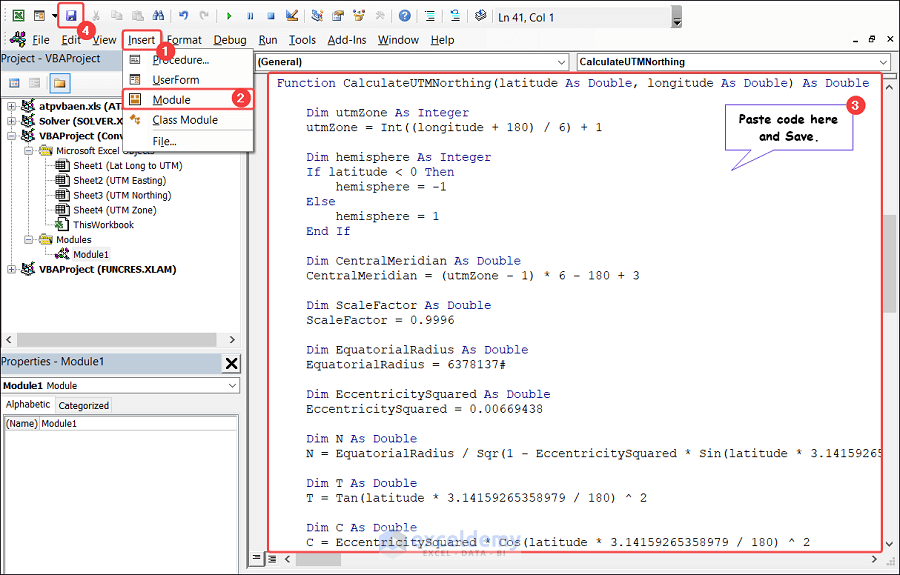
Part 1.3 – User-defined Function for UTM Zone
- Open the VBA Editor.
- Choose Insert and click on Module.
- Paste in the following code and Save.
Function CalculateUTMZone(latitude As Double, longitude As Double) As String

    Dim utmZone As Integer
    Dim LatitudeBand As String

    utmZone = Int((longitude + 180) / 6) + 1

    LatitudeBand = GetLatitudeBand(latitude)

    CalculateUTMZone = utmZone & LatitudeBand

End Function

Function GetLatitudeBand(latitude As Double) As String

    Dim LatitudeBand As String

    If latitude >= 0 Then
        Select Case latitude
            Case 0 To 8: LatitudeBand = "N"
            Case 8 To 16: LatitudeBand = "P"
            Case 16 To 24: LatitudeBand = "Q"
            Case 24 To 32: LatitudeBand = "R"
            Case 32 To 40: LatitudeBand = "S"
            Case 40 To 48: LatitudeBand = "T"
            Case 48 To 56: LatitudeBand = "U"
            Case 56 To 64: LatitudeBand = "V"
            Case 64 To 72: LatitudeBand = "W"
            Case Else: LatitudeBand = "X"
        End Select
    Else
        Select Case -latitude
            Case 0 To 8: LatitudeBand = "M"
            Case 8 To 16: LatitudeBand = "L"
            Case 16 To 24: LatitudeBand = "K"
            Case 24 To 32: LatitudeBand = "J"
            Case 32 To 40: LatitudeBand = "H"
            Case 40 To 48: LatitudeBand = "G"
            Case 48 To 56: LatitudeBand = "F"
            Case 56 To 64: LatitudeBand = "E"
            Case 64 To 72: LatitudeBand = "D"
            Case Else: LatitudeBand = "C"
        End Select
    End If

    GetLatitudeBand = LatitudeBand

End Function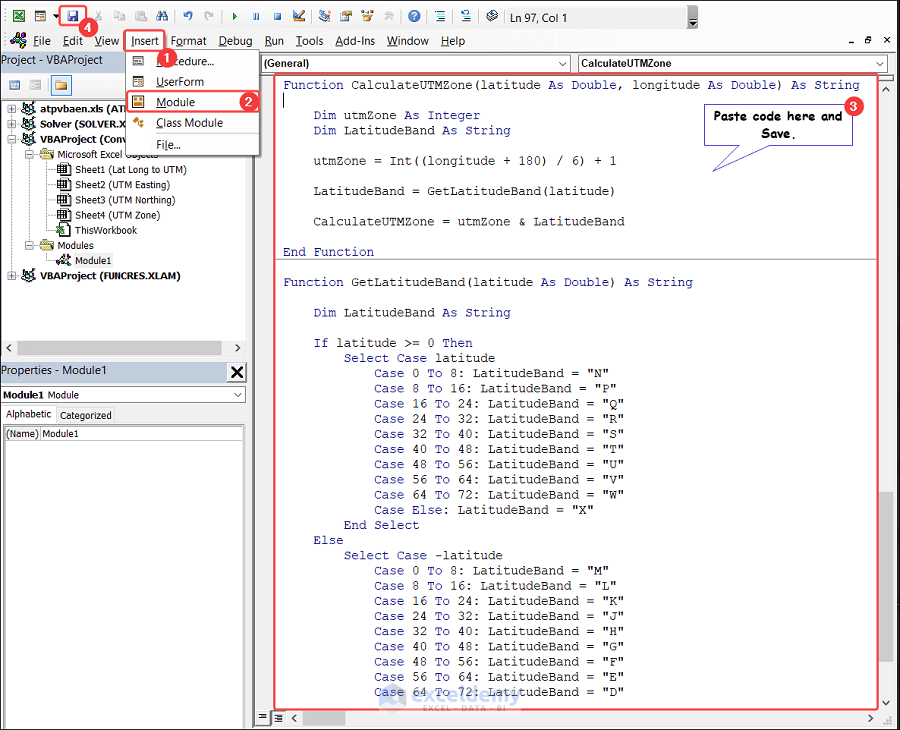
Step 2 – Convert Lat Long to UTM Easting
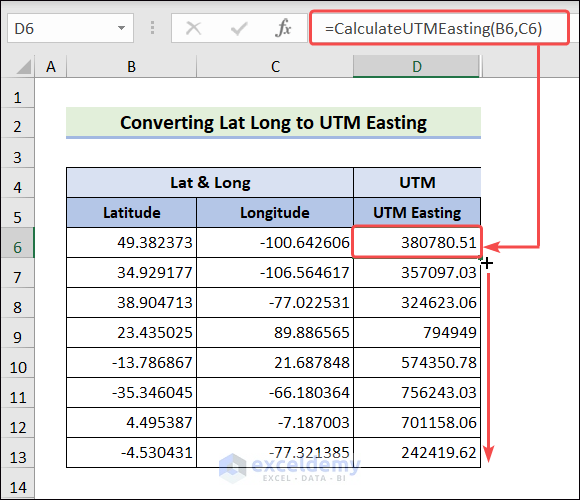
- Choose cell D6.
- Insert the following formula.
=CalculateUTMEasting(B6,C6)
- Hit Enter.
- Drag the Fill Handle icon to D13.
Step 3 – Convert Lat Long to UTM Northing
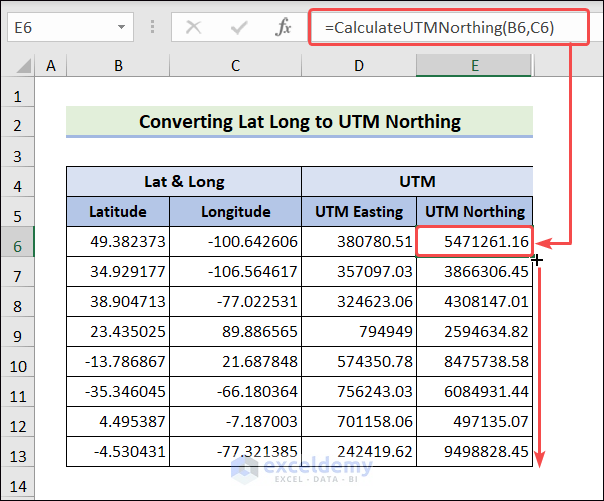
- Choose cell E6.
- Insert the following formula.
=CalculateUTMNorthing(B6,C6)
- Hit Enter.
- Drag the Fill Handle icon to E13.
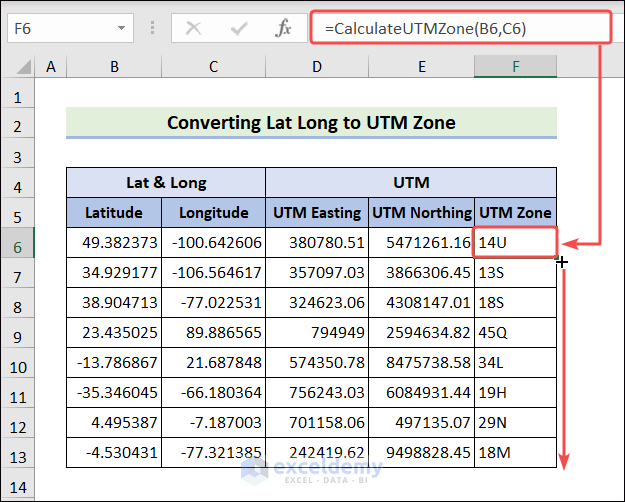
Step 4 – Convert Lat Long to UTM Zone
- Choose cell F6.
- Insert the following formula.
=CalculateUTMZone(B6,C6)
- Hit Enter.
- Drag the Fill Handle icon to F13.
Convert Lat Long to UTM Zone in Excel: 2 Simple Methods
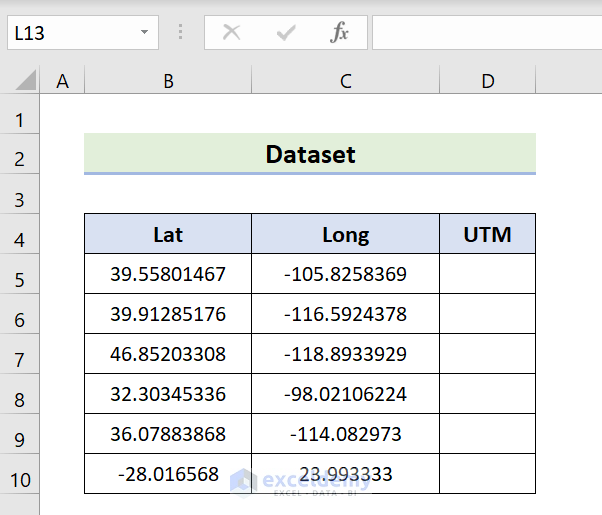
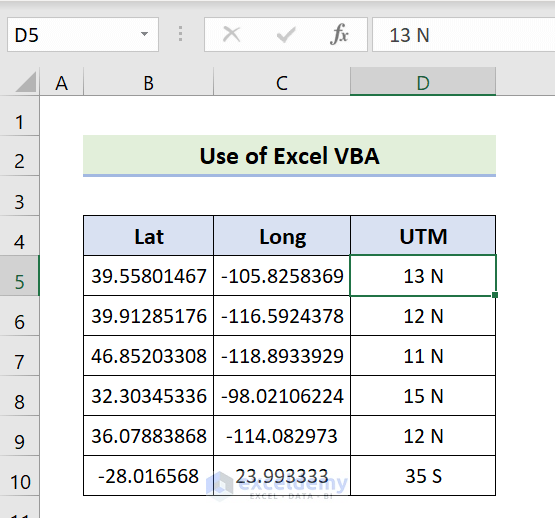
For illustration, the following data set has both latitude and longitude values. We’ll convert latitude and longitude to UTM in Excel.
Method 1 – Combine IF, CONCATENATE, and INT Functions to Convert Lat Long to UTM in Excel
Steps:
- Enter the following Excel formula into cell D5.
- Hit Enter.
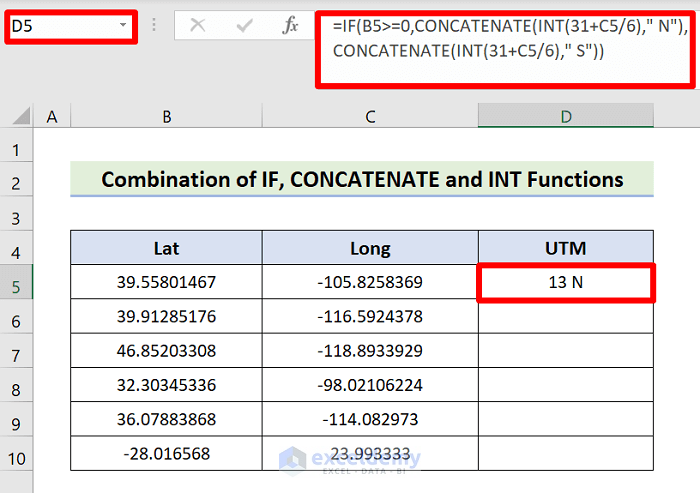
- Drag the Fill Handle to cell D10.
How Does the Formula Work?
- INT(31+C5/6)
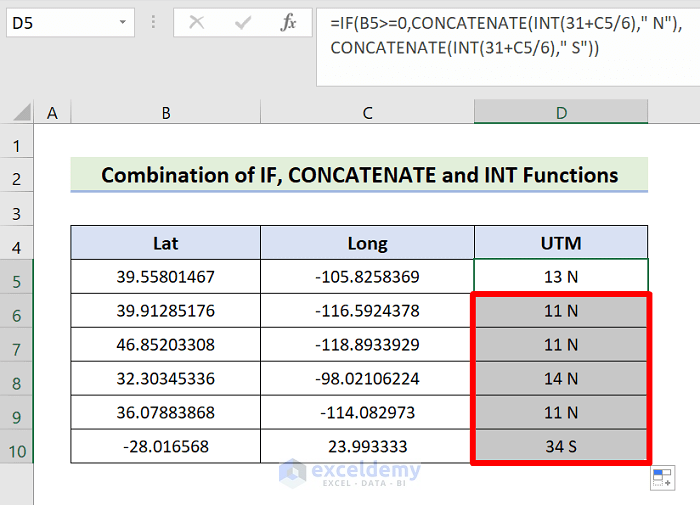
The mathematical expression gives the values – {13.36236052;11.56792704;11.18443451;14.66315629;11.98617117;34.99888883}
By involving the INT function we get – {13;11;11;14;11;34}
- CONCATENATE(INT(31+C5/6),” N”) or CONCATENATE(INT(31+C5/6),” S”)
CONCATENATE(INT(31+C5/6),” N”) joins the output value of INT(31+C5/6) with N. And CONCATENATE(INT(31+C5/6),” S”) merges the output value of INT(31+C5/6) with S. Here, CONCATENATE function concatenates N for true and S for false.
- IF(B5>=0,CONCATENATE(INT(31+C5/6),” N”),CONCATENATE(INT(31+C5/6),” S”))
The IF function evaluates cells B5 to B10 of our specified dataset – {True;True;True;True;True;False}
Therefore, we get – {13 N;11 N;11 N;14 N;11 N;34 S}
Method 2 – Transform Lat Long to UTM Through Excel VBA
Steps:
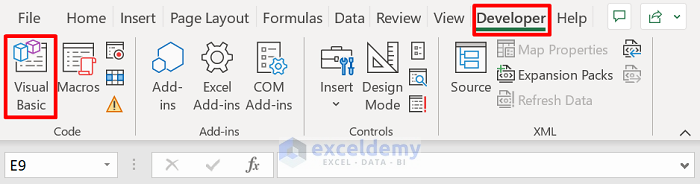
- Go to the Developer tab.
- Click on Visual Basic.
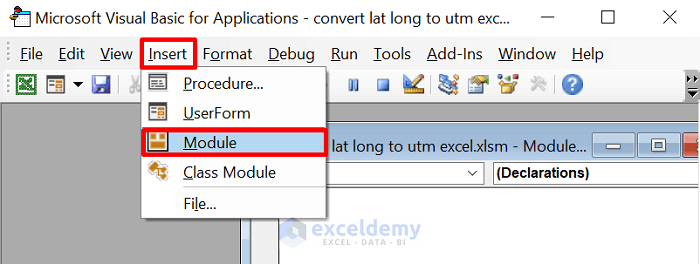
- Select Insert and click Module.
- Put the following code in the Module box.
Sub SOFTEKOlatLongToUtm()
Dim i As Integer
Dim lat As Double
Dim lng As Double
Dim UTM
Dim UTMint
For i = 5 To 10
lat = Cells(i, 2).Value
lng = Cells(i, 3).Value
UTM = 31 + lng / 6
UTMint = CInt(UTM)
If lat >= 0 Then
UTMint = UTMint & " N"
Else
UTMint = UTMint & " S"
End If
Cells(i, 4).Value = UTMint
Next
End Sub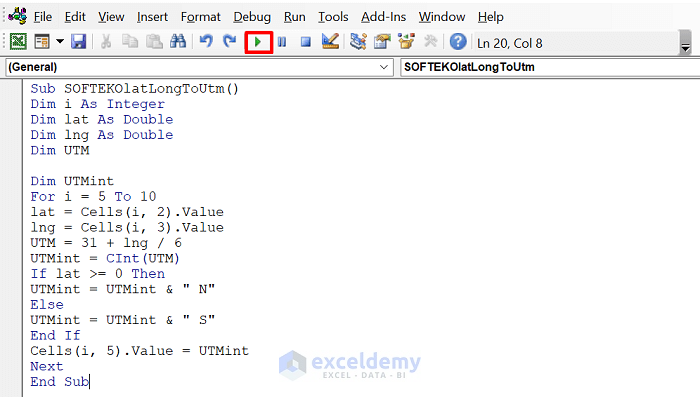
- Press F5 or click the Run button.
Download the Practice Workbook
<< Go Back to Geocoding in Excel | Learn Excel
Get FREE Advanced Excel Exercises with Solutions!


Thank you but this doesn’t convert lat long to utm. Just telling which zone it is.
Dear Amir
Sorry for the late reply. Thanks a lot for bringing the issue to us. I have developed some user-defined functions using Excel VBA. These functions take Lat and Long values and return UTM Easting, Northing and Zone. I also have modified the article accordingly. So, I recommend you to go through the article again. You will not be disappointed, I promise.
Regards
Lutfor Rahman Shimanto
Hello, could you please send me an email? My email address is [email protected]. I would appreciate it if you could write me an email, and I will send you my form so you can take a look and see what the problem is. Thank you very much.
Hello Xu,
Thanks for your message. For your privacy and security, we don’t recommend sharing email addresses here. Instead, you can post your file and full issue description directly in our official forum: ExcelDemy Forum.
This way, our team and community can review your form safely and provide a proper solution.
Regards,
ExcelDemy
Hello, AMIR!
Thanks for your comment.
Yes! The code you provided is a simple implementation for converting latitude and longitude to UTM in Excel VBA. However, it is not the most accurate way to convert coordinates, as it uses a simplified formula for converting latitude and longitude to UTM coordinates.
The formula used in this code only accounts for the UTM zone and hemisphere based on the latitude and longitude values. It does not take into account the curvature of the Earth’s surface, which can lead to inaccuracies in the UTM coordinates. If you need this, then you can use the following code:
To use this code, open a new Excel workbook, press ALT+F11 to open the VBA editor, and insert a new module. Copy and paste the code into the module, and save the module.
Then, in your Excel sheet, you can use the formula =LatLonToUTM(lat, lon) where lat and lon are the latitude and longitude coordinates you want to convert to UTM format.
This code uses the Proj4 library to perform the coordinate transformation. You may need to install this library on your computer if it is not already installed.
And if you don’t want to use this library. you can use the following code instead.
This code converts latitude and longitude coordinates to UTM coordinates and returns the result as a string in the format "Zone Letter X Y". You can call this function by passing the latitude and longitude values as parameters, like this:
Make sure you have the LatLongToUTM function defined in your VBA code module before running the ConvertLatLongToUTM sub.
Hope this will help you.
Good Luck!
Regards,
Sabrina Ayon
Author, ExcelDemy.
Nothing on Eastings and Northing, its all about zoning only.
Hello MOSES
Thanks for reaching out and posting your comment. You are absolutely right. However, I am delighted to inform you that I have modified the article. After going through the article, you must be able to convert Lat Long to UTM Easting, Northing and Zone. I have developed some user-defined functions using Excel VBA to achieve the goal.
Regards
Lutfor Rahman Shimanto
Hi
This article has been extremely helpful, The codes above worked for Easting and Zone but not the Northing UTM…. I can’t seem to find a fix that works at the moment, even with your numbers it wouldn’t work. Any tips?
Dear Faisal
Thanks a ton. Your appreciations mean a lot to us. I am glad you have found the article very helpful.
You mentioned the user-defined functions only work for UTM Zone and UTM Easting on your end. The user-defined function for calculating UTM Northing is not working.
However, the issue you are addressing is unclear to us. On our end, it is working perfectly. I am using Microsoft 365. However, It should not make any difference. The code should work for all versions of Excel.
Please share your workbook containing a dataset with us. You can also post your query and attach the dataset in ExcelDemy Forum. We need more information about your problem, such as if it returns any error or wrong values.
The functions often may return values using scientific notation like 2.34344E+13. To avoid this type of notation, you may use an Event procedure.
Excel VBA Event Procedure:
I am looking forward to receiving your reply. Stay blessed and Good luck.
Regards
Lutfor Rahman Shimanto
Dear
Could you try installing Office 2019 or 2016? I’m using Office 2019, and the Northing calculation is giving incorrect results. Please test it again; the Easting calculation seems to be correct.
Hello XU,
Thanks for the detail. If Easting is correct but Northing is off, it’s almost always one of these:
Latitude still text while longitude is numeric → convert Lat to number (Data → Text to Columns → Finish).
Decimal/comma mix in latitude only → apply the separator fix above or ToDbl() in VBA.
Wrong hemisphere flag in the code/sheet → set Northern; the Southern offset (+10,000,000) would skew Northing only.
Regards,
ExcelDemy
hi ,sir
you table northing cannot use ,it doesnot working ,would you please update it again ,we use the office 2016 or 2019,thanks .
Hello XU
Thanks for reaching out. All the User-Defined functions mentioned in this article calculate UTM Easting, UTM Northing and UTM Zone accurately.
I am comparing the result with an Online UTM Calculator website (LatLong.net) like the image below for demonstration.
If you still have doubts, you can share your dataset in our ExcelDemy Forum. Good luck!
Regards
Lutfor Rahman Shimanto
hi sir ,would u please write UTM convert to Lat long we want to this ,thanks so much.
Hello XU
Thanks for thanking me. Your appreciation means a lot to us. You wanted to convert UTM (UTM Easting, UTM Northing and UTM Zone) to Latitude and Longitude values.
I am presenting some Excel VBA User-Defined functions, and these functions will achieve your goal.
Follow these Steps:
Step 1: Open the VBA Editor window => Paste the following code in a module => Save.
Step 2: Return to the sheet => Choose cell E4 => Insert the following formula => And drag the Fill Handle icon to cell E11.
Step 3: Choose cell F4 => Insert the following formula => And drag the Fill Handle icon to cell F11.
Things to Keep in Mind:
As we cannot use all decimal points for some values (UTM Northing), we may not get the same value (Latitude) like previous one.
Hopefully, the idea will help you. Good luck.
Regards
Lutfor Rahman Shimanto
The CalculateUTMNorthing function is simply giving a #VALUE! error on Excel. Not really sure how to debug this because it is very generic
Hello CHRISTOF
Thanks for sharing your queries. Depending on your OS Version, the User-defined functions may give this type of error. Ensure you run a 64-bit Windows, and let us know if you still face the error.
Regards
Lutfor Rahman Shimanto
ExcelDemy
Hello, thank you for the codes. Extremely helpful. However, when I entered the codes and then calculate the Northing, I got “#value” as an output. Wonder if you can help.
Hello! DIANA. Thanks for sharing your queries. Depending on your OS version, the user-defined functions may cause this error. Ensure you run 64-bit Windows, and let us know if you are still facing the error.
Regards
Lutfor Rahman Shimanto
ExcelDemy
Hi I have a question. I am trying to use your code and it worked for UTM Easting and UTM zone but I am getting a “#VALUE!” error for northing. Please contact me and I can send you my dataset if you are able to help. Thank you.
Hello ALAN
Thank you for reaching out. Please ensure that you’re using a 64-bit Windows system. Let us know if the issue persists.
You can share your dataset by creating a Conversation with my forum account in the ExcelDemy Forum.
Best regards
Lutfor Rahman Shimanto
ExcelDemy
I’ve already done every step, UTM to Easting and UTM Zone is done but it didn’t work on UTM to Nothing (Excel shown as “#VALUE!).
Hello Chansokong,
Thank you for your comment! The #VALUE! error often occurs if there’s an issue with the formula or input data. Please double-check that all cell references are correct and that your latitude and longitude values are formatted properly. Ensure the cells don’t contain extra spaces or invalid characters.
If the issue persists, feel free to share more details about your setup, and we’ll be happy to assist further!
Regards
ExcelDemy
UTMNorthing hatasını bende de veriyor. UTMEasting veya UTMZone hatası yok
Hello Emre Çakır,
The “UTMNorthing” error usually occurs due to an issue with the Latitude value or the cell reference used in the formula. Since UTMEasting and UTMZone are working correctly, the problem is most likely related to the input format or reference used for the latitude.
Please check the following:
1. Make sure the Latitude and Longitude values are formatted as Number, not Text.
2. Verify that the cell references in the UTMNorthing formula point to the correct cells.
3. Check if there is any issue with the decimal separator (dot vs comma) depending on your regional settings.
4. In some regional settings, you may need to use semicolon (;) instead of comma (,) in the formula.
After checking these points, the issue is usually resolved. If the problem persists, please share a sample Latitude and Longitude value you are using so I can help you troubleshoot further.
Regards,
ExcelDemy
I’m using Office 2019 and am experiencing the same issue; the Northing data is incorrect. Is this an Office problem, or something else? Could you please install Office 2019 to verify this and then modify the VBA code and send it to us? Thank you.
Hello Xu,
Office 2019 itself is fine—the mismatch in Northing usually comes from regional settings or input format. Please try:
Decimal separators: Go to File → Options → Advanced → uncheck Use system separators → set Decimal to . and Thousands to , (or keep your system separators and use the locale-safe VBA tip below).
Convert text to numbers: Select your Lat/Long → Data → Text to Columns → Finish. Remove degree symbols or spaces.
Radians: Ensure the formulas/VBA convert degrees to radians (e.g., RADIANS(latitude) or lat * WorksheetFunction.Pi / 180).
Zone/Hemisphere: Pick the correct UTM zone (China is typically 48–50 N) and “Northern Hemisphere” (no 10,000,000 m offset).
If you prefer VBA to auto-handle locales, wrap inputs with:
Then use ToDbl(Lat) / ToDbl(Lon) inside the UTM routine.
Hello Shamima Sultana,
I am trying to double check everything and it worked for UTM Easting and UTM zone but I am getting a “#VALUE!” error for northing.
Best regards
Chansokong
Hello Chansokong,
Thank you for the update! The #VALUE! error for Northing might be due to incorrect references, data format, or an issue with the latitude values. Make sure the formula is correctly applied, the latitude and longitude are in decimal degrees, and there are no extra spaces or non-numeric characters. Additionally, ensure the latitude falls within the valid range for UTM zones.
In our end everything is working perfectly.
If everything seems correct, feel free to share your formula or more details, and I’d be happy to assist further!
Regards
ExcelDemy
please how do i donwnload this datasheet
Hello Narol Jnr Akis,
To download the practice workbook or datasheet go to the Download the Practice Workbooksection. You can download the Excel file from there.
Regards
ExcelDemy
This worked like an absolute charm for me! Even compared it to some PPP processed coordinates and found it accurate to 0.005m! Thanks!
Hello James,
You are most welcome. Thank you for the wonderful feedback! We’re thrilled to hear that it worked so well for you and provided such impressive accuracy. Happy analyzing!
Regards
ExcelDemy
When I run this in my Chinese version of Office 2019, the calculated value for Northing shows as #VALUE!. What could be causing this problem? Is it an issue with the Office version, or something else?
Hello XU,
The #VALUE! error points to input parsing, not the Office edition. Please:
Unify separators: If your lat/long use , as decimal, keep system separators, but replace any thousands separators and extra spaces. Or set File → Options → Advanced to decimal . temporarily.
Clean characters: Remove °, ‘, “, non-breaking spaces.
Force numbers: Select the column → Data → Text to Columns → Finish.
Localized formulas: If you use worksheet formulas, ensure they’re valid in your Excel language (but VBA WorksheetFunction uses English names).
If you’re using my VBA, replace inputs with ToDbl() as shown above—this eliminates locale issues and clears #VALUE!
Regards,
ExcelDemy