


When an Excel workbook starts freezing, recalculating forever, or lagging every time you scroll, most people blame complex formulas or too much data. Sometimes that is true. But just as often, the real cause is a handful of Excel settings working against you in the background. Large Excel workbooks can become sluggish because of hidden settings and features that consume resources unnecessarily. If you’re dealing with massive datasets, complex formulas, or multiple sheets, tweaking these settings can significantly improve performance.
In this tutorial, we will show you seven Excel settings that can secretly slow down large workbooks, along with practical steps to identify and fix them. We’ll cover calculation modes, add-ins, conditional formatting, and more.
1. Automatic Calculation Mode – Recalculating Everything, Always
By default, Excel usually runs in Automatic Calculation mode. That means every time you edit a value, Excel recalculates all dependent formulas immediately. In a small workbook, that is convenient. In a large workbook, it can make every keystroke feel expensive.
If your file includes thousands of formulas, lookups, dynamic arrays, pivot-based summaries, or volatile functions, automatic recalculation can trigger a chain reaction after even a tiny edit. Change one input cell, and Excel may start recalculating half the workbook.
Why It Slows Things Down:
Large models often have deep formula dependencies. Automatic calculation forces Excel to refresh them constantly, even while you are still in the middle of making edits. In big files, even minor changes can trigger full recalculations and spike CPU usage.
Fix:
- Go to the File tab >> select Options >> select Formulas
- Under Calculation options, switch from Automatic to Manual >> click OK

- Or from the ribbon:
- Go to the Formulas tab >> select Calculation Options >> select Manual
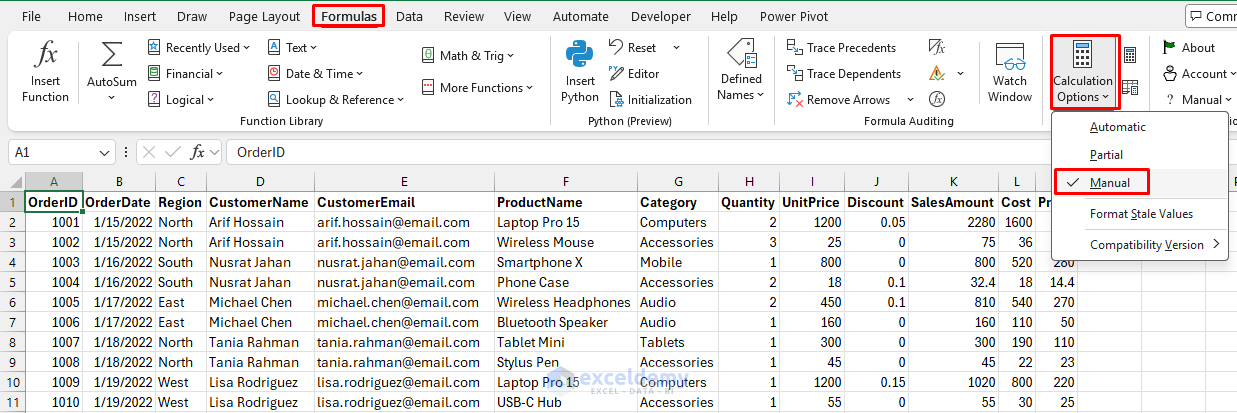
- To recalculate manually when needed:
- F9 recalculates all open workbooks
- Shift + F9 recalculates the active worksheet
- Ctrl + Alt + F9 forces a full recalculation
This change alone can cut lag by 50% to 80% in formula-heavy files.
Remember: Don’t leave Manual mode on permanently if other people use the file, because it can cause serious errors. Add a prominent note or remember to switch back to Automatic before handing the file to someone else, or they may see outdated results.
Pro Tip: For more selective control, use Automatic Except for Data Tables if you have data tables that do not need constant updates.
2. Unnecessary Add-Ins – Running in the Background That You Never Use
Excel add-ins are one of the most overlooked causes of slow performance. Add-ins load with the application and can hook into events like workbook open, cell change, recalculation, and save. Even add-ins you’ve forgotten about can intercept these events and do work silently in the background every time you interact with your data.
Common add-ins include legacy company tools, Power Pivot COM add-ins, the Analysis ToolPak (if unused), Solver, third-party charting libraries, and third-party tools such as PDF converters.
Why It Slows Things Down:
Even if you are not actively using them, add-ins can still consume memory and interfere with workbook performance. They can increase Excel startup time, use RAM in the background, hook into workbook events, and interact with formulas, data connections, or the ribbon, causing delays even when they are idle.
In a lightweight workbook, you might never notice. In a heavy workbook, the extra overhead becomes obvious.
Fix:
- Open File >> select Options >> select Add-ins
- Expand the Manage dropdown >> select COM Add-ins or Excel Add-ins >> click Go

- Inspect all add-ins and uncheck anything you do not actively use
- Disable the Analysis ToolPak if you are not using its statistical tools

- You can always re-enable them later; unchecking does not uninstall them
- Restart Excel and test performance
- If an add-in is crucial, check for updates
- Open File >> select Account >> select Update Options, since outdated versions are often buggy

Disabling just one bloated add-in can shave seconds off load times.
3. Overused Conditional Formatting – Rules Applied to Entire Columns
Conditional formatting is one of Excel’s best features, but it is also one of the most common causes of workbook slowdowns. It is easy to create a few rules, copy a sheet, duplicate those rules several times, and end up with a workbook that constantly reevaluates formatting logic across entire ranges. The issue is not the formatting rules themselves; it is where they are applied.
Why It Slows Things Down:
Excel may need to recheck formatting rules whenever data changes, sheets are redrawn, or formulas are recalculated. When you apply a rule to a full column, Excel evaluates that rule for more than a million cells every time the sheet recalculates, even if most of those cells are empty. Conditional formatting often causes lag during scrolling, filtering, and editing, even when the formulas themselves are not especially complex.
Fix:
- Select the range with formatting
- Go to the Home tab >> select Conditional Formatting >> select Manage Rules
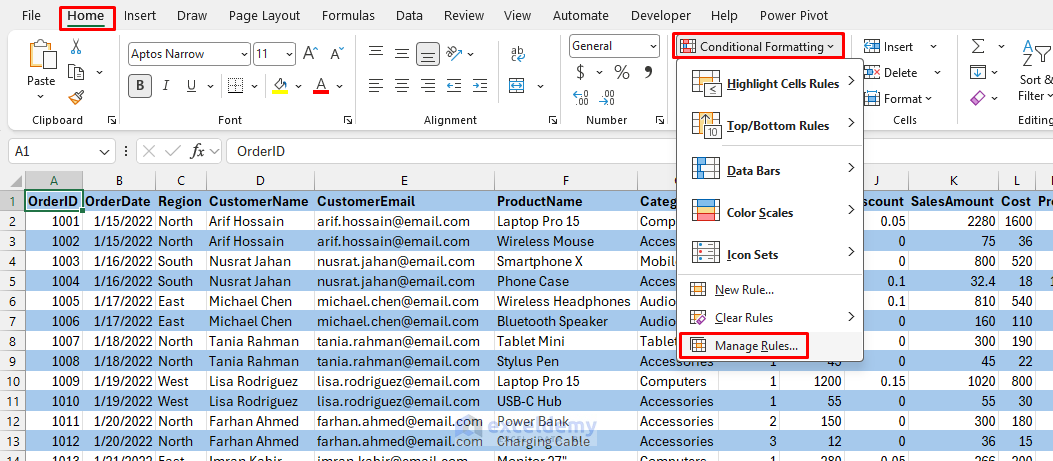
- Review and delete redundant rules or combine similar ones
- Limit rules to specific ranges instead of entire sheets or columns
- Check the Applies To column for each rule
- Replace whole-column ranges like =$A:$M with bounded ranges like =$A$2:$M$5000
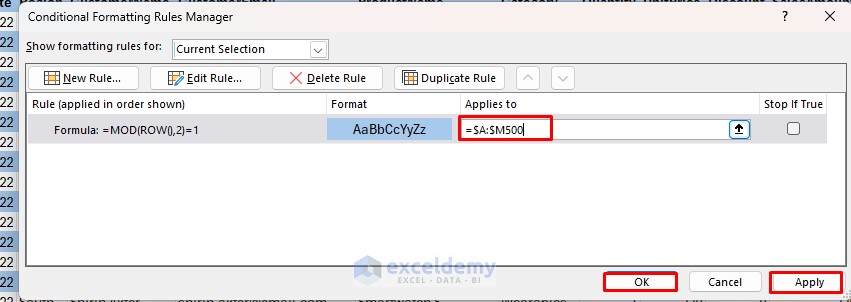
- If your data grows dynamically, use an Excel Table. Conditional formatting applied to a table column automatically stays scoped to the table’s actual size
- Avoid formula-based rules when possible; use built-in options like Greater Than or Duplicate for faster processing
- For example, a rule like =COUNTIF($B:$B,A1)>1 is evaluated cell by cell and can be significantly heavier than a value-based rule

- To clear all rules:
- Go to the Home tab >> select Conditional Formatting >> select Clear Rules >> select Clear Rules from Entire Sheet
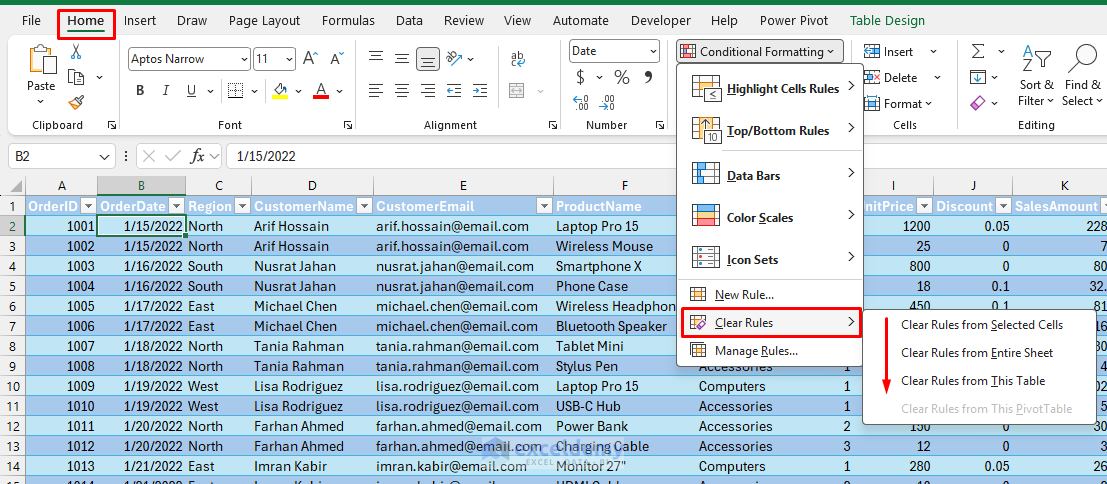
Common Trap: Copying and pasting cells that already have conditional formatting is one of the most common ways rules accidentally multiply. Over time, workbooks can accumulate dozens of near-duplicate rules applied to slightly different ranges. Periodically audit and consolidate them; it is not unusual to find 200 or more redundant rules in a mature workbook.
Also consider simplifying rule logic or moving complex logic into helper columns, then formatting based on those results. Auditing and reducing the number of rules can dramatically improve workbook responsiveness.
4. Volatile Functions in Formulas – Triggers a Full Recalculation on Every Edit
Certain Excel functions are classified as volatile, which means they recalculate every time anything in the workbook changes, regardless of whether their inputs have changed. Functions like TODAY(), NOW(), RAND(), OFFSET(), and INDIRECT() all fall into this category.
The most common offenders:
- NOW() and TODAY(): update on every recalculation
- RAND() and RANDBETWEEN(): generate new values constantly
- OFFSET(): common in dynamic range formulas
- INDIRECT(): flexible but brutally slow at scale
- CELL() and INFO(): rarely needed and often costly
Why It Slows Things Down:
These functions can force recalculation repeatedly, even for small edits that seem unrelated. That makes them especially dangerous in workbooks that are already under pressure from large formula chains. One INDIRECT() formula referencing a range with 10,000 rows, copied across 50 columns, can single-handedly make a workbook feel painfully slow.
Fix:
- Go to the Formulas tab >> select Show Formulas (Ctrl + `)

- Press Ctrl + F to search for volatile functions in formulas
- Replace them where possible:
- Use static dates instead of TODAY()
- Replace OFFSET()-based dynamic ranges with structured table references such as Table1[Column]
- Replace INDIRECT() with direct references or INDEX() when the range does not need to be text-driven
- If they are unavoidable, isolate them in a single cell and reference that cell elsewhere
- For RAND(), consider generating values once and pasting them as static numbers
- Copy >> Paste Special >> Values
Minimizing volatile formulas can prevent constant recalculation and make your workbook feel much snappier.
5. Unused Formatting in Entire Worksheets
Excel tracks formatting across the entire worksheet. Applying formatting such as fonts, colors, or borders to entire rows, columns, or sheets can bloat file size and slow rendering, even when those cells are unused. If formatting extends far beyond your actual dataset, both file size and recalculation overhead can increase.
Why It Slows Things Down:
Excel may end up tracking formatting for millions of cells, which increases memory usage and slows save and load times.
Fix:
- Identify formatted areas:
- Press Ctrl + End to jump to the last used cell. Excel includes formatted cells here, even if they are empty
- Select unused rows and columns beyond your data
- Right-click the rows below your last data row and choose Delete
- Clear formatting:
- Select the unused ranges
- Go to the Home tab >> select Editing >> select Clear >> select Clear Formats

- To reset a sheet’s used range, save, close, and reopen the workbook after deleting excess rows and columns
- For multiple sheets, use VBA if you are comfortable with it:
- Press Alt + F11, insert a module, and run code to remove formatting from unused areas
ActiveSheet.UsedRange.ClearFormats
Removing unused formatting can shrink file size significantly and speed up opening and saving.
6. External Links and Data Connections
Links to other workbooks or external sources, such as databases, can refresh data automatically and query information in the background.
Why It Slows Things Down:
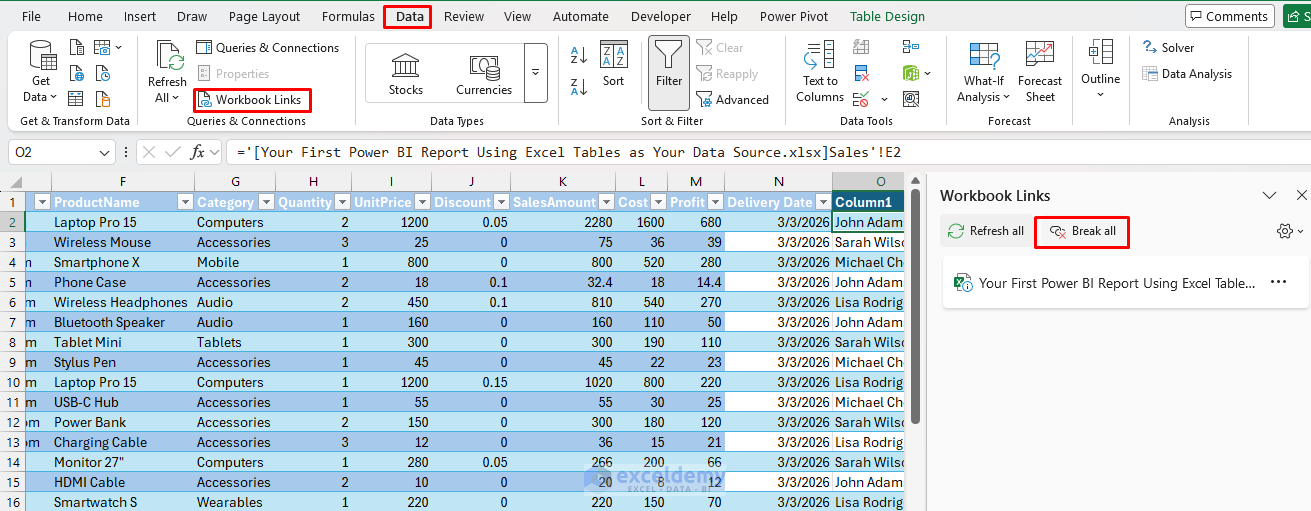
Workbooks linked to other files force Excel to check external references, refresh connections, and recalculate dependencies. External formulas like ='[Sales2024.xlsx]Sheet1′!A2 can slow performance dramatically if the linked file is large or stored on a network drive. Broken or slow links can also cause timeouts, and auto-refreshes can interrupt your work in large files.
Fix:
- Go to the Data tab >> select Queries & Connections >> select Edit Links
- Break unnecessary links by clicking Break All
- For data connections:
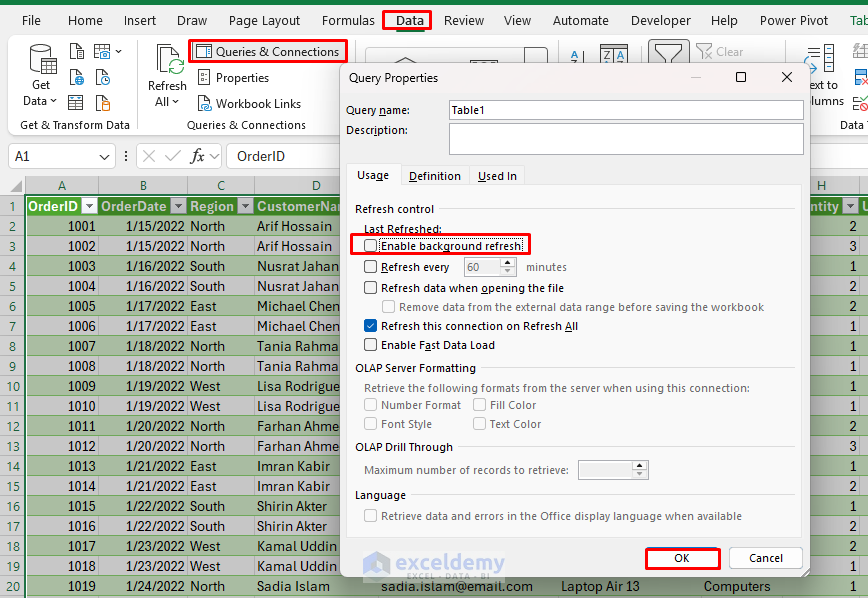
- Go to the Data tab >> select Queries & Connections
- Right-click a query >> uncheck Enable background refresh
- Convert external data to static values:
- Refresh once, then Copy >> Paste Special >> Values
- Avoid linking to network drives when possible; copy the source data locally instead
Breaking unnecessary links can eliminate random freezes, especially in shared environments.
7. Save and Open Settings – Make Large Files Feel Heavier Than They Are
Not all slowdowns happen while editing. Sometimes the real frustration appears when opening, saving, or closing a workbook. That usually points to file-handling settings rather than formula logic.
Common Culprits: A few things often contribute:
- Overly frequent AutoRecover saves
- External links updating on open
- Old named ranges and hidden objects
- Compatibility mode in legacy .xls files
- Inefficient file format choices
Why It Slows Things Down:
Large workbooks take longer to write to disk. If Excel is also creating frequent recovery snapshots, checking external links, or maintaining old compatibility behavior, save and open times can become painfully long.
Fix:
- Check AutoRecover frequency:
- Go to the File tab >> select Options >> select Save
- If AutoRecover is set too aggressively, Excel may pause more often than necessary while you work in a very large file
- Check external links. If your workbook contains linked files, decide whether those links still need to update automatically
- Check file format. If you are still working in .xls, you are almost certainly making Excel work harder than necessary
- For large internal workbooks, consider saving as .xlsb instead of .xlsx. The binary format often:
- Opens faster
- Saves faster
- Uses less disk space
- Handles large workbooks more efficiently

It is not always the right choice for every workflow, but for performance-sensitive internal files, it can make a real difference. Binary workbooks often open and save faster while using less disk space. The main trade-off is slightly reduced portability with some non-Microsoft tools.
Final Tips for Peak Performance
- Monitor recalculation time with Formulas > Calculation > Calculate Now before and after changes
- Use File > Info > Check for Issues > Inspect Document to remove hidden data such as personal information or unused styles
- For extremely large files, consider splitting the workbook into multiple files or using Power BI for analysis
- Test changes on a copy of the workbook first to avoid data loss
Conclusion
These are seven Excel settings that can secretly slow down your large workbooks. When Excel slows down, many people start rewriting formulas immediately. That is not always the best first move. Large-workbook performance is often shaped by settings that sit quietly in the background: calculation behavior, add-ins, conditional formatting scope, external links, and save options. These things rarely matter in a tiny file. In a large one, they matter a lot. That is why performance tuning in Excel is not only about smarter formulas. It is also about removing silent overhead. By addressing these settings, you can turn sluggish spreadsheets into much more efficient tools.
Get FREE Advanced Excel Exercises with Solutions!

