


Excel is one of the most popular tools used by human resources (HR) teams. HR professionals manage dates, deadlines, employee records, leave tracking, and hiring workflows every day. Excel’s built-in functions can streamline these tasks by automating calculations and reducing errors. When you know the right functions, you can automate repetitive work and save hours.
In this tutorial, we will show seven Excel functions for effective human resources management. We will focus on NETWORKDAYS, NETWORKDAYS.INTL, WORKDAY, WORKDAY.INTL, DATEDIF, EDATE, and YEARFRAC. These functions are particularly useful for handling dates while excluding weekends and holidays.
Let’s consider a sample HR dataset to explore these seven Excel functions for effective human resources management.
1. NETWORKDAYS: Count Working Days Between Two Dates
NETWORKDAYS returns the number of working days between a start date and an end date, excluding Saturdays, Sundays, and optional holidays. It is ideal for tracking leave balances or measuring time in a recruitment pipeline.
Syntax:
=NETWORKDAYS(start_date, end_date, [holidays])
- start_date: The beginning date
- end_date: The ending date
- [holidays] – optional: A range of holiday dates
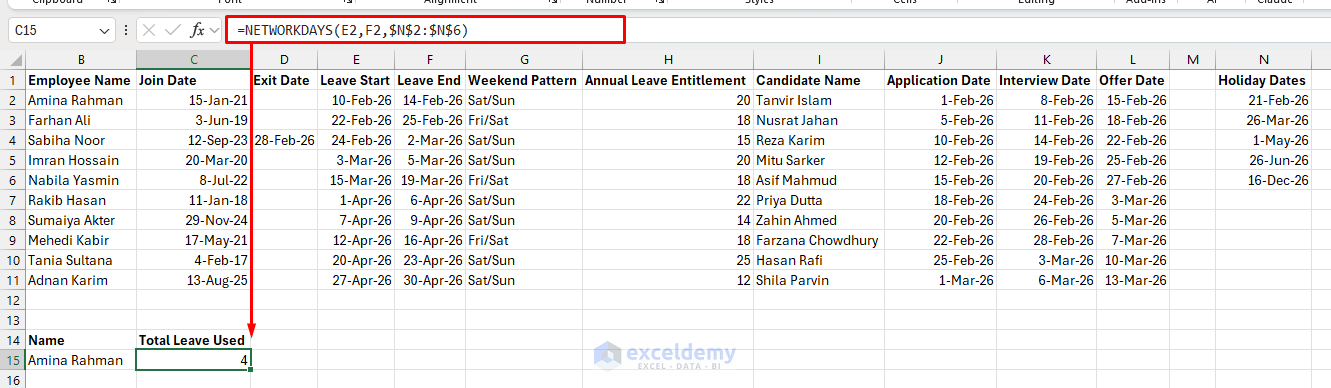
HR use case: Calculate leave days used from 10-Feb-2026 to 14-Feb-2026, excluding holidays.
- Select a cell and enter the following formula
=NETWORKDAYS(E2,F2,$N$2:$N$6)
This formula calculates the number of working days an employee is absent, excluding weekends and official holidays.
Tip: NETWORKDAYS assumes the weekend is Saturday and Sunday. If your organization uses a different weekend pattern, use NETWORKDAYS.INTL instead.
2. NETWORKDAYS.INTL: Count Working Days with Custom Weekend Settings
This function is similar to NETWORKDAYS, but it allows custom weekend definitions, such as Friday-Saturday in some regions. Some organizations do not follow the standard Saturday-Sunday weekend. NETWORKDAYS.INTL lets you define custom weekends, which makes it useful for global HR teams managing different workweeks.
Syntax:
=NETWORKDAYS.INTL(start_date, end_date, weekend, [holidays])
- start_date and end_date: Same as above
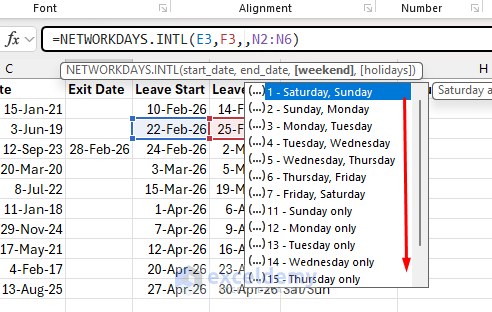
- weekend: A number or string defining non-working days (for example, 1 = Sat-Sun, 7 = Fri-Sat)
- [holidays] – optional: A range of holiday dates
The weekend argument can be a code, such as:
- 1 = Saturday, Sunday
- 7 = Friday, Saturday
- Or a 7-character pattern such as “0000110”
HR use case: Leave tracking for regional offices
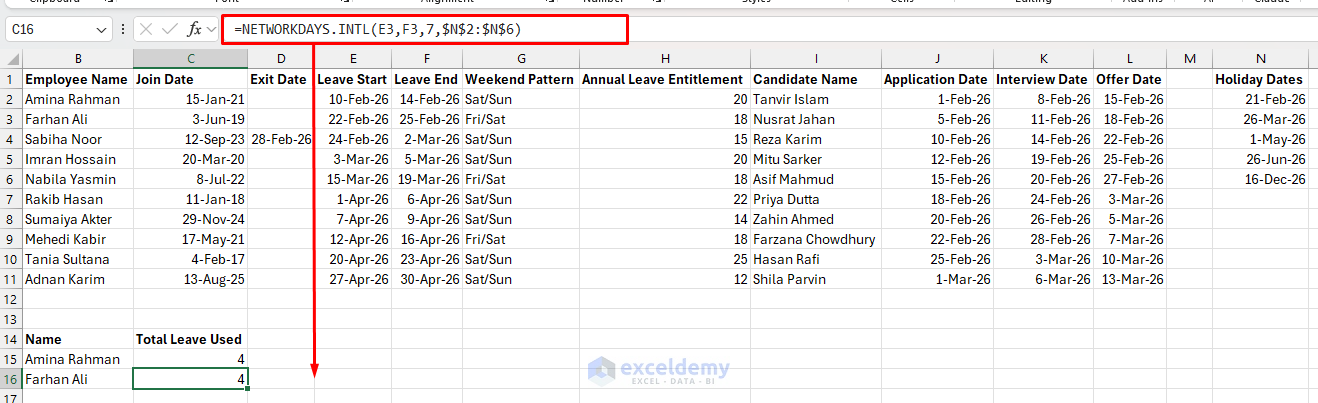
Suppose an employee follows a Friday-Saturday weekend schedule. Calculate the total leave days.
- Select a cell and enter the following formula
=NETWORKDAYS.INTL(E3,F3,7,$N$2:$N$6)
This counts the working days of leave while respecting a different weekend pattern.
Practical HR value: Without this function, leave balances may be calculated incorrectly for employees working under nonstandard schedules.
3. WORKDAY: Find a Future or Past Business Date
WORKDAY returns a date that is a given number of working days before or after a start date, excluding weekends and holidays. It is useful for projecting end dates in recruitment or probation periods.
Syntax:
=WORKDAY(start_date, days, [holidays])
- start_date: The base date
- days: The number of working days to add (positive) or subtract (negative)
- [holidays] – optional: A range of holiday dates
HR use case: Set onboarding or probation checkpoints
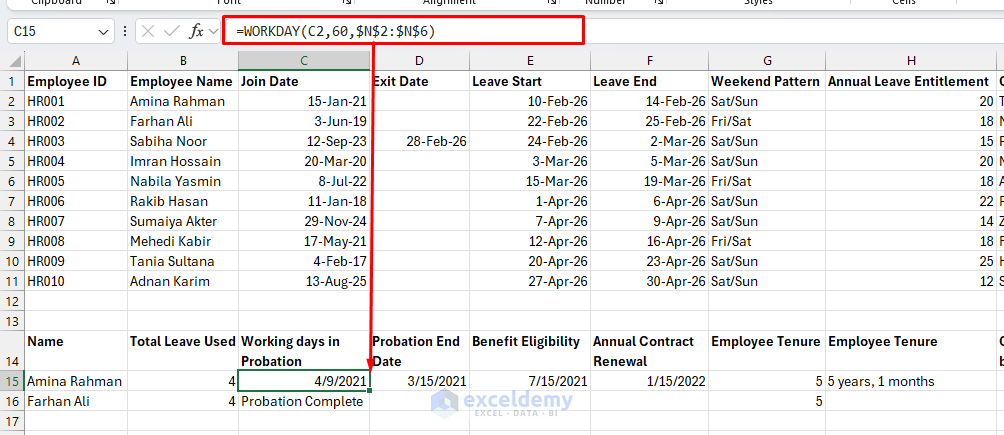
Suppose HR wants to calculate the date that falls 60 working days after an employee’s join date for a probation milestone.
- Select a cell and enter the following formula
=WORKDAY(K2,60,$N$2:$N$6)
This gives the date after 60 business days, skipping weekends and holidays. The formula returns the business-date milestone rather than simply adding 60 calendar days.
Another Use:
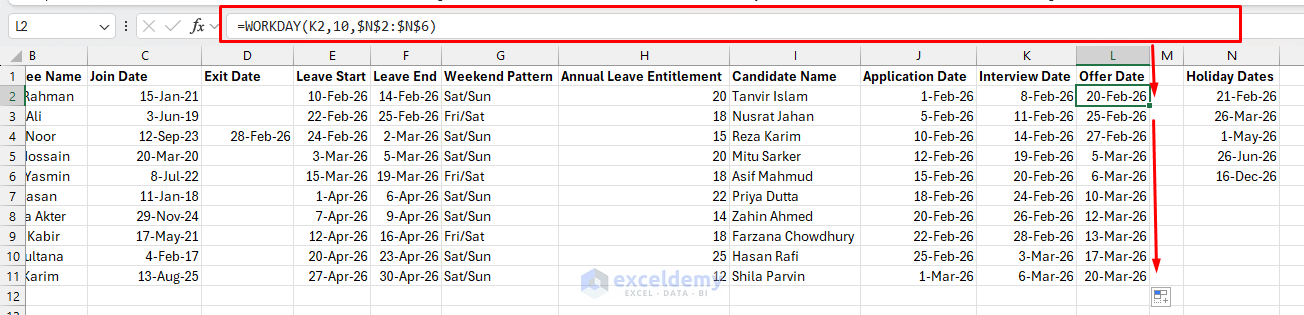
Recruitment teams can use it to set a target such as:
“The candidate should receive the offer letter within 10 business days of the final interview.”
Formula:
=WORKDAY(K2,10,$N$2:$N$6)
Here, K2 contains the interview date. This returns the deadline for sending the offer letter.
4. WORKDAY.INTL: Find Business Dates with Custom Weekends
WORKDAY.INTL works like WORKDAY, but it lets you define a different weekend structure. It is especially useful for international HR operations, cross-country recruitment coordination, and local onboarding schedules.
Syntax:
=WORKDAY.INTL(start_date, days, weekend, [holidays])
HR use case: Recruitment deadlines across locations
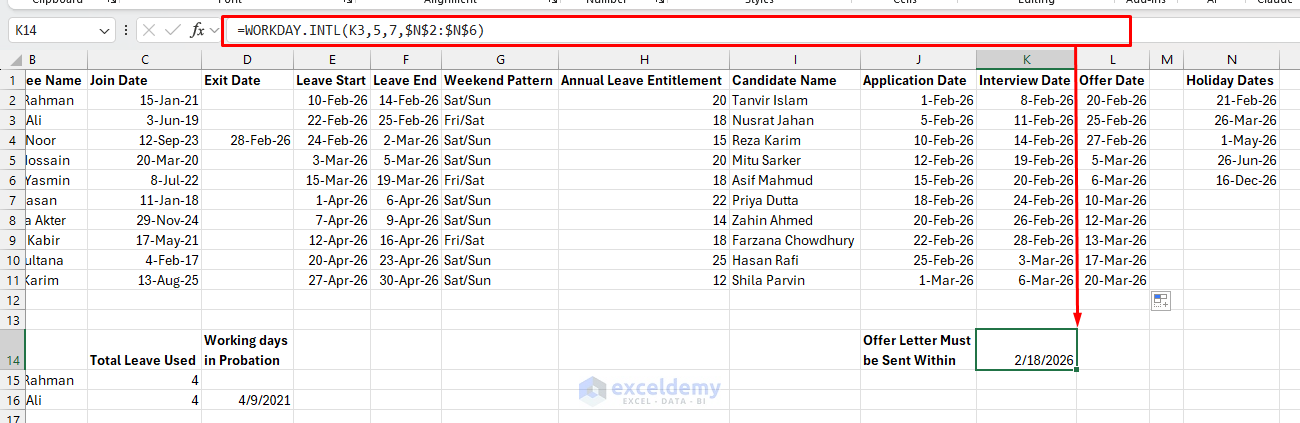
Suppose a regional HR office follows a Friday-Saturday weekend and wants to schedule an offer date five business days after the interview.
Formula:
=WORKDAY.INTL(K3,5,7,$N$2:$N$6)
This returns the offer deadline based on the office’s actual working calendar. A candidate interviewed on 11-Feb-2026 may have a different five-business-day deadline depending on the weekend model used.
HR insight: This function avoids the common mistake of applying the headquarters’ calendar rules to every branch office.
5. DATEDIF: Measure Employee Tenure or Service Length
DATEDIF calculates the difference between two dates in years, months, or days. It is one of the most useful functions for HR reporting and is especially helpful for service awards, promotion eligibility, gratuity, and benefit eligibility.
Syntax:
=DATEDIF(start_date, end_date, unit)
Common units:
- “Y” = complete years
- “M” = complete months
- “D” = complete days
- “YM” = months excluding years
- “MD” = days excluding months and years
HR use case: Calculate employee tenure
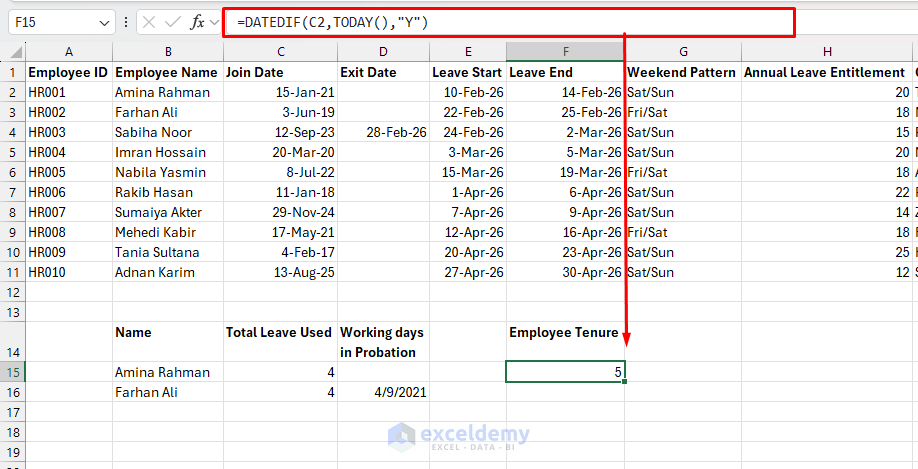
Calculate an employee’s tenure in years from the hire date 05/15/2020 to today by using TODAY() as the current date.
Formula:
=DATEDIF(C2,TODAY(),"Y")
This formula calculates the total tenure from the joining date.
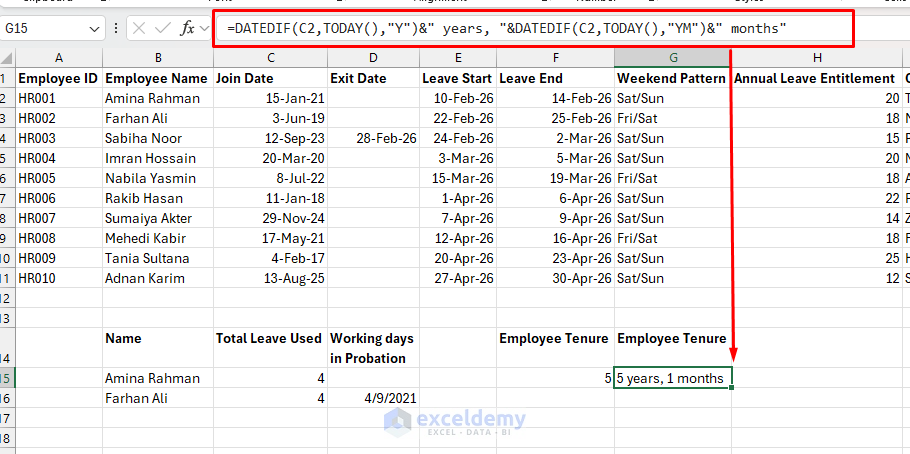
To show tenure in years and months:
=DATEDIF(C2,TODAY(),"Y")&" years, "&DATEDIF(C2,TODAY(),"YM")&" months"
This gives a cleaner and more realistic tenure result than subtracting dates manually.
Important note: DATEDIF is supported in Excel, but it may not appear in formula suggestions as you type. It still works.
6. EDATE: Tracking Month-Based HR Milestones
EDATE returns the date that is exactly a specified number of months before or after a given date. Unlike adding 30 days, which can drift over time, EDATE lands on the same day of the month, making it ideal for recurring HR events.
Syntax:
=EDATE(start_date, months)
- Use a positive number for future dates
- Use a negative number for past dates
HR use case: Probation and confirmation dates
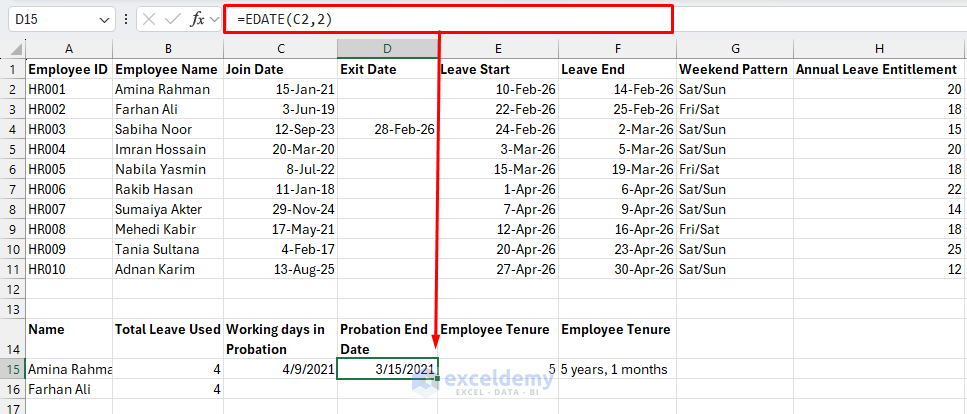
If C2 contains the employee’s join date and probation lasts 3 months:
=EDATE(C2,3)
This returns the employee’s probation end date.
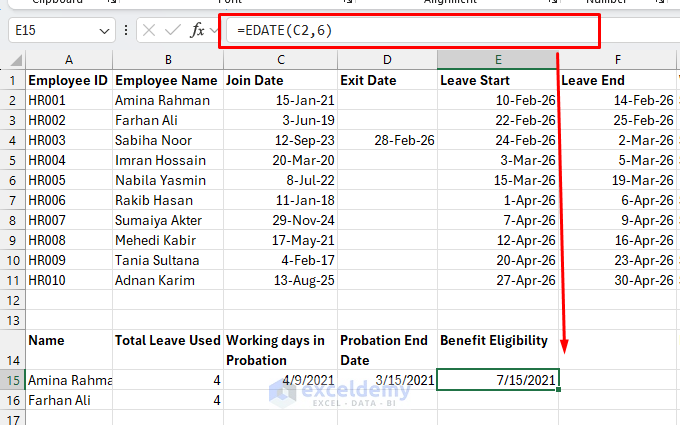
HR use case: Benefit eligibility after 6 months
=EDATE(C2,6)
HR use case: Annual contract renewal
=EDATE(C2,12)
Combine with TODAY() for live tracking:
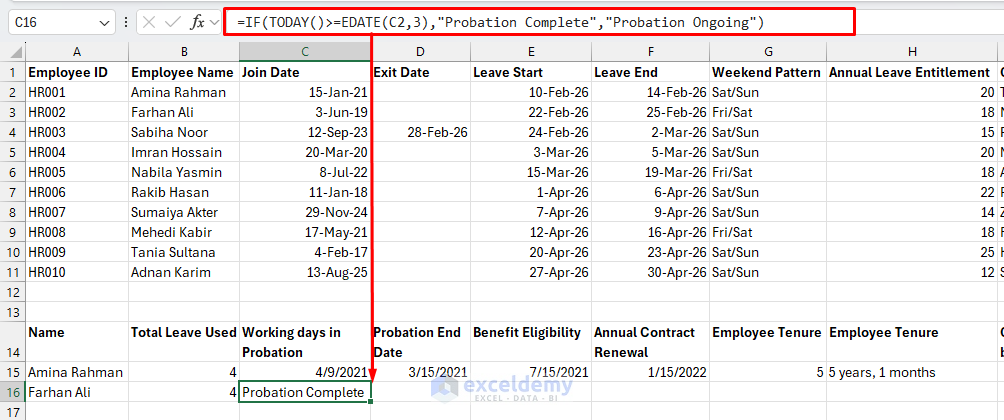
To check whether probation is complete:
=IF(TODAY()>=EDATE(C2,3),"Probation Complete","Probation Ongoing")
7. YEARFRAC: Calculate Length of Service as a Decimal Number of Years
YEARFRAC returns the fraction of a year between two dates. This is useful in HR when you want a more precise tenure value than whole years or months.
Syntax:
=YEARFRAC(start_date, end_date, [basis])
- start_date and end_date: Same as above
- [basis] – optional: Day-count method (0 = US 30/360, 1 = actual/actual, and so on)
HR use case: Precise employee tenure
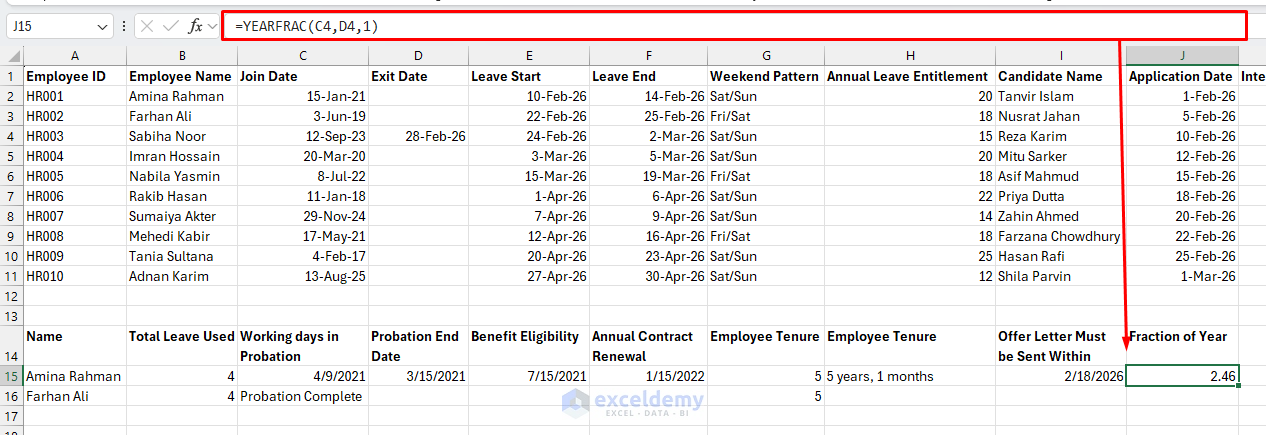
Formula:
=YEARFRAC(C4,D4,1)
This formula returns total tenure as a decimal number. For example, it may show that an employee has completed about 5.14 years of service.
Tip: TODAY(): Make HR Trackers Dynamic
TODAY() returns the current date and updates automatically whenever the workbook recalculates. Instead of manually updating reporting dates every day, TODAY() keeps the file current automatically.
Syntax:
=TODAY()
HR use case: Live status calculations
You can combine TODAY() with other functions to make trackers self-updating.
=DATEDIF(B2,TODAY(),"Y")
The tenure updates automatically every day without manual changes.
Tips for Effective Use in HR
- Build a Holiday Table: Keep all official holiday dates in one range and reference that range in formulas. This makes your workbook easier to maintain. Update it once, and all formulas update automatically.
- Use Named Ranges: =NETWORKDAYS(HireDate, TODAY(), CompanyHolidays) is easier to read than =NETWORKDAYS($C$4, TODAY(), $N$2:$N$45). It also helps prevent formula errors when rows shift.
- Validate Date Inputs: Date-based formulas can fail silently when cells contain text that looks like a date but is not stored as one. Use Data → Data Validation → Date on any column that feeds into these formulas.
- Make Regional Adjustments: Test formulas using your locale’s date format and weekend norms.
- Combine Functions: Use DATEDIF with IF for eligibility checks.
- Handle Errors: Wrap formulas in IFERROR, for example, =IFERROR(NETWORKDAYS(E2, F2), “Invalid Dates”).
- Use Dynamic Dates: Pair formulas with TODAY() for real-time updates.
Conclusion
Mastering these seven Excel functions can make human resources management more efficient and accurate. A strong HR workbook does more than store employee data. It helps answer operational questions quickly, consistently, and accurately. Practice with a sample spreadsheet and explore how these functions can automate your day-to-day work. Together, they make Excel far more effective for HR operations without requiring complex systems or advanced automation.
Get FREE Advanced Excel Exercises with Solutions!

