


PivotTables are one of the most powerful features for data analysis and reporting. Instead of scanning hundreds of records, a PivotTable can summarize totals, compare categories, and reveal patterns in seconds without requiring complex formulas. Whether you’re managing sales records, tracking expenses, or analyzing survey results, PivotTables allow you to summarize, analyze, and present large amounts of data quickly and efficiently.
In this tutorial, we will explain 3 ways to use Excel PivotTables to better understand your data.
Create Your PivotTable
Consider a sample sales dataset to demonstrate the ways to use an Excel PivotTable to better understand data.
- Select your data
- Go to the Insert tab >> select PivotTable
- Choose New Worksheet >> click OK
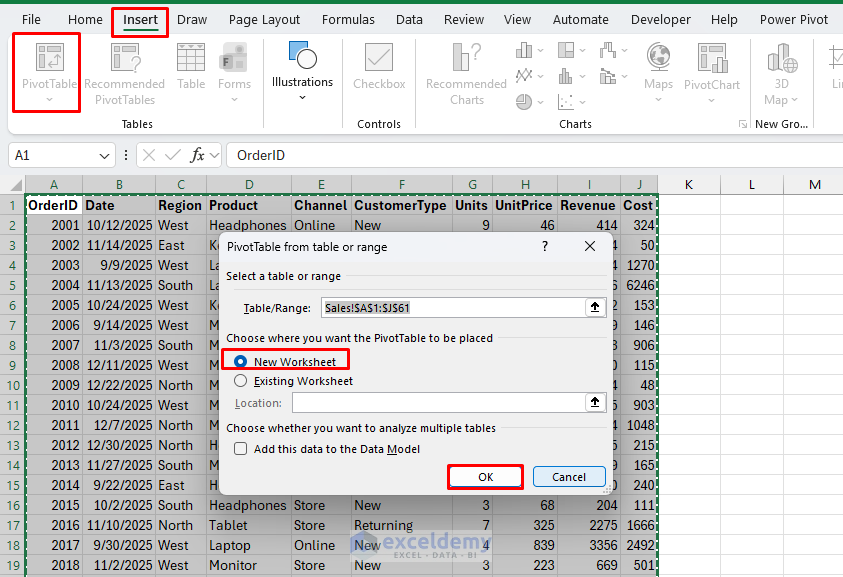
Now, you can use this PivotTable for further analysis.
1. Detail & Quick Summary (Revenue, Cost, and Profit)
You can quickly understand your data from a summary report. A PivotTable can quickly summarize your data and answer: “Which region or product is actually best, not just busiest?” It’s ideal when you want a fast overview of performance.
- Drag the Region to Rows area
- Drag Revenue to the Values area
- Drag Cost to the Values area
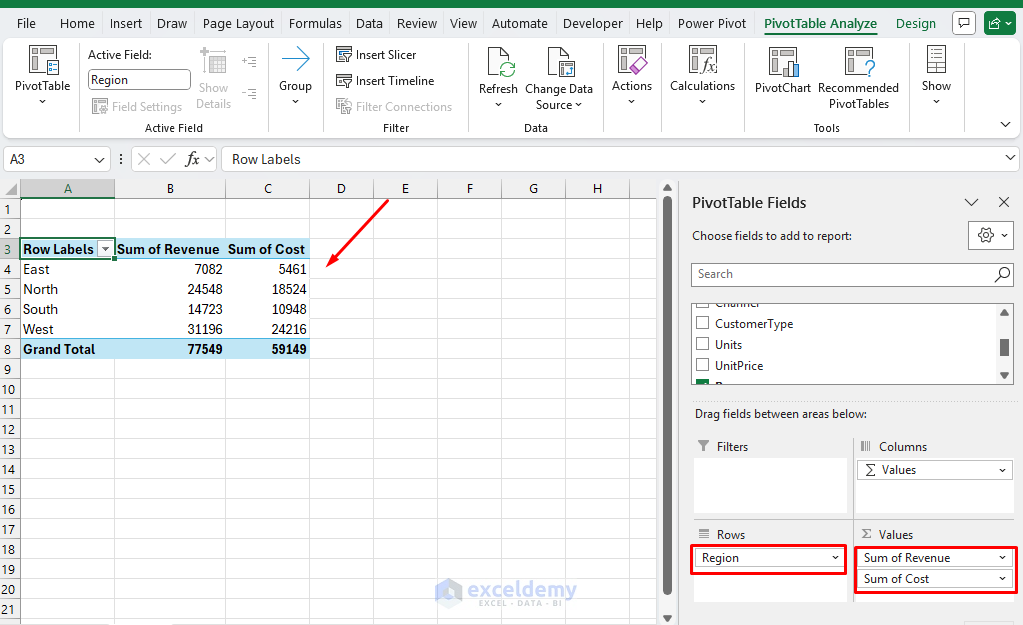
Let’s add Profit as a Calculated Field so we can compare real performance.
- Click inside the PivotTable
- Go to the PivotTable Analyze tab >> select Fields, Items & Sets >> select Calculated Field
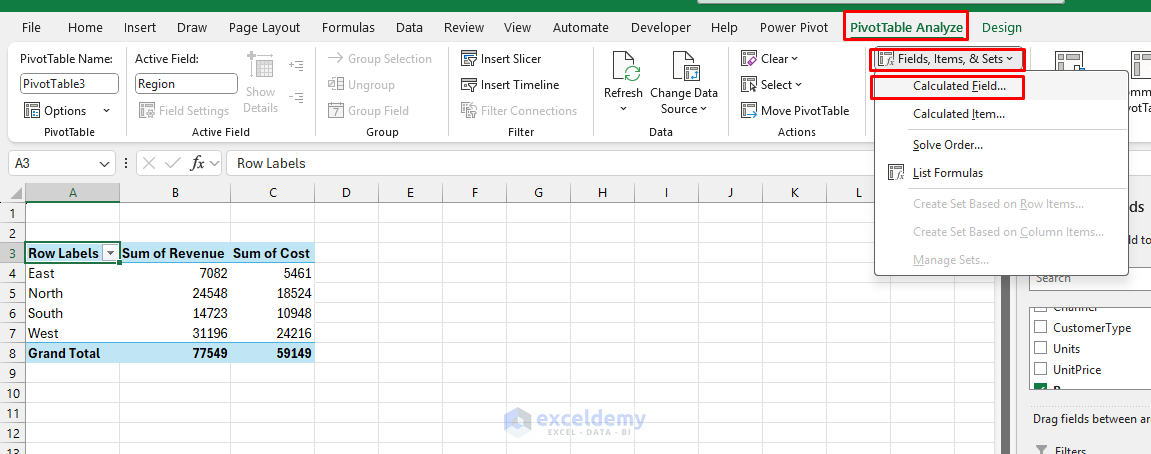
- Name it Profit and enter the following formula.
= Revenue - Cost
- Click Add >> click OK
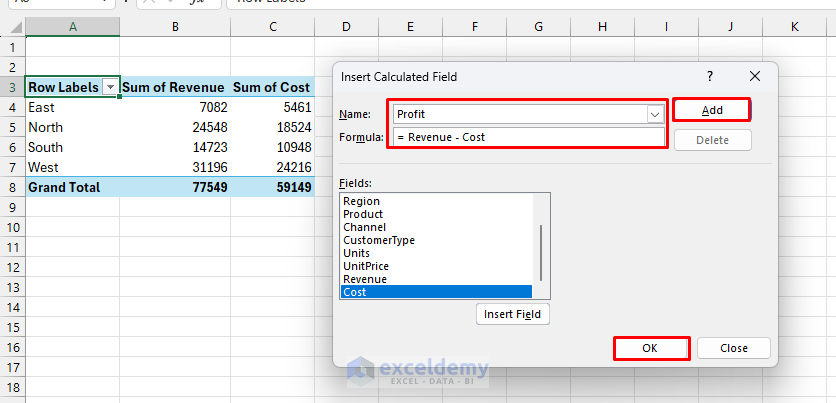
At this point, you have a clean scorecard by region.

You can switch Region to Product (or Channel) anytime to answer a different question using the same layout.

To improve readability:
- Right-click any number >> select Number Format >> choose Currency or Number

2. Compare Categories with Percentages (Share-of-Total Insights)
One of the most common uses of PivotTables is categorizing large datasets. A category might look small in dollars but represent a large share within its group. A PivotTable can answer: “What is the mix?” and “Who dominates the total?”
- Create another PivotTable
- Drag the Region to Rows area
- Drag Product to the Columns area
- Drag Revenue to the Values area

Now, convert the values to percentages.
- Right-click any value in the Revenue area >> select Show Values As >> choose a percentage option

- % of Grand Total to see overall contribution across the whole dataset

- % of Column Total to see which Region dominates each Product

- % of Row Total to see product mix within each Region

This view helps you spot patterns like “Laptops are the biggest share in the East,” even if another region has larger absolute revenue.
3. Reveal Sales Trends by Grouping Dates (Monthly or Weekly)
Time-based analysis is important for understanding overall business performance. PivotTables make it easy to group dates and identify seasonal patterns, growth trends, or declining performance. It can answer: “Are results improving or declining?” and “Do Online and Store behave differently over time?”
- Create another PivotTable
- Drag Date to the Rows area
- Drag Revenue to the Values area
- Right-click any date >> select Group

- Choose Months and Quarters >> click OK

Sales Trend:

To compare channels over time:
- Drag the Channel to the Columns area

Now you can read the PivotTable like a trend report: month-by-month and quarter-by-quarter totals, split by Online vs Store.
If you prefer weekly trends, use Group >> Days and set Number of days: 7.
Create a Pivot Chart:
Transform your PivotTable into a visual representation to better communicate trends.
- Click anywhere in your PivotTable
- Go to the PivotTable Analyze tab >> click PivotChart
- Select Line Chart

The resulting chart clearly shows how revenue trends upward or downward over time, making it perfect for presentations and reports.
Bonus: Drilling Down with Filters and Slicers
Raw data often contains too much information at once. PivotTables let you filter your view to focus on what matters for a specific question or audience, and slicers make this process more interactive and visual.
Use Built-in Filters: Every field you add to your PivotTable comes with a filter option. Click the dropdown arrow next to any row or column label to filter which items appear.
Add Report Filters
Report Filters sit above your PivotTable and allow you to filter the entire report by specific criteria.
- Drag the CustomerType to the Filters area
- A filter dropdown will appear above your PivotTable

- Click the dropdown to select a specific type, New, or view All

Add Slicers for Interactive Analysis
Slicers take filtering to the next level by adding visual buttons that make your PivotTable interactive. Slicers appear as floating panels with buttons for each value in your chosen field. Click any button to instantly filter your PivotTable to show only that selection. Click multiple buttons while holding Ctrl to see combined data.
- Click anywhere in your PivotTable
- Go to the PivotTable Analyze tab >> click Insert Slicer
- Check the fields you want to filter by (Region, Product, Salesperson)
- Click OK

The beauty of slicers is that anyone can explore your data without understanding Excel’s filtering mechanics; they just click what they want to see.

Bringing It All Together: How These 3 Ways Work Together
The real power of PivotTables emerges when you combine these three approaches. Using these three PivotTables together gives a full picture.
- The summary PivotTable (Way 1) shows where profit is strongest
- The percentage PivotTable (Way 2) shows whether the results are concentrated in a few categories or balanced across many
- The time grouping PivotTable (Way 3) shows whether performance is stable, seasonal, rising, or falling, and whether patterns differ by channel
- Add slicers to let users explore different slices of the data

Final Thoughts
By following this tutorial, you will learn three ways to use Excel PivotTables to better understand your data. PivotTables are not just a reporting tool; they are a way to think more clearly about data. By summarizing large datasets, comparing categories, and analyzing percentages and trends, you can move from raw data to a real understanding. Mastering these three techniques will provide a strong foundation for more advanced data analysis in Excel and help you make better, data-driven decisions with confidence.
Get FREE Advanced Excel Exercises with Solutions!


So where is the original excel sheet to practice. The first picture
Hello Sama Salim,
Attaching the practice file, download it from here and practice all the ways.
Excel Pivot Tables to Better Understand Your Data
Regards,
ExcelDemy
can excels be made to graph
Hello Yames Hellegon,
Yes, absolutely! Excel can create many types of graphs and charts, such as column, bar, line, pie, and scatter charts. If you are working with a PivotTable, you can also create a PivotChart by following these steps:
1. Select the PivotTable
2. Go to the PivotTable Analyze tab >> select PivotChart
3. The chart will update as you filter or change the PivotTable data
You can also check out this tutorial to know more about PivotChart: How to Use Pivot Chart in Excel
Regards,
ExcelDemy