

In this Excel article, we will share some money management templates in Excel through which you can gain better control over your financial health.
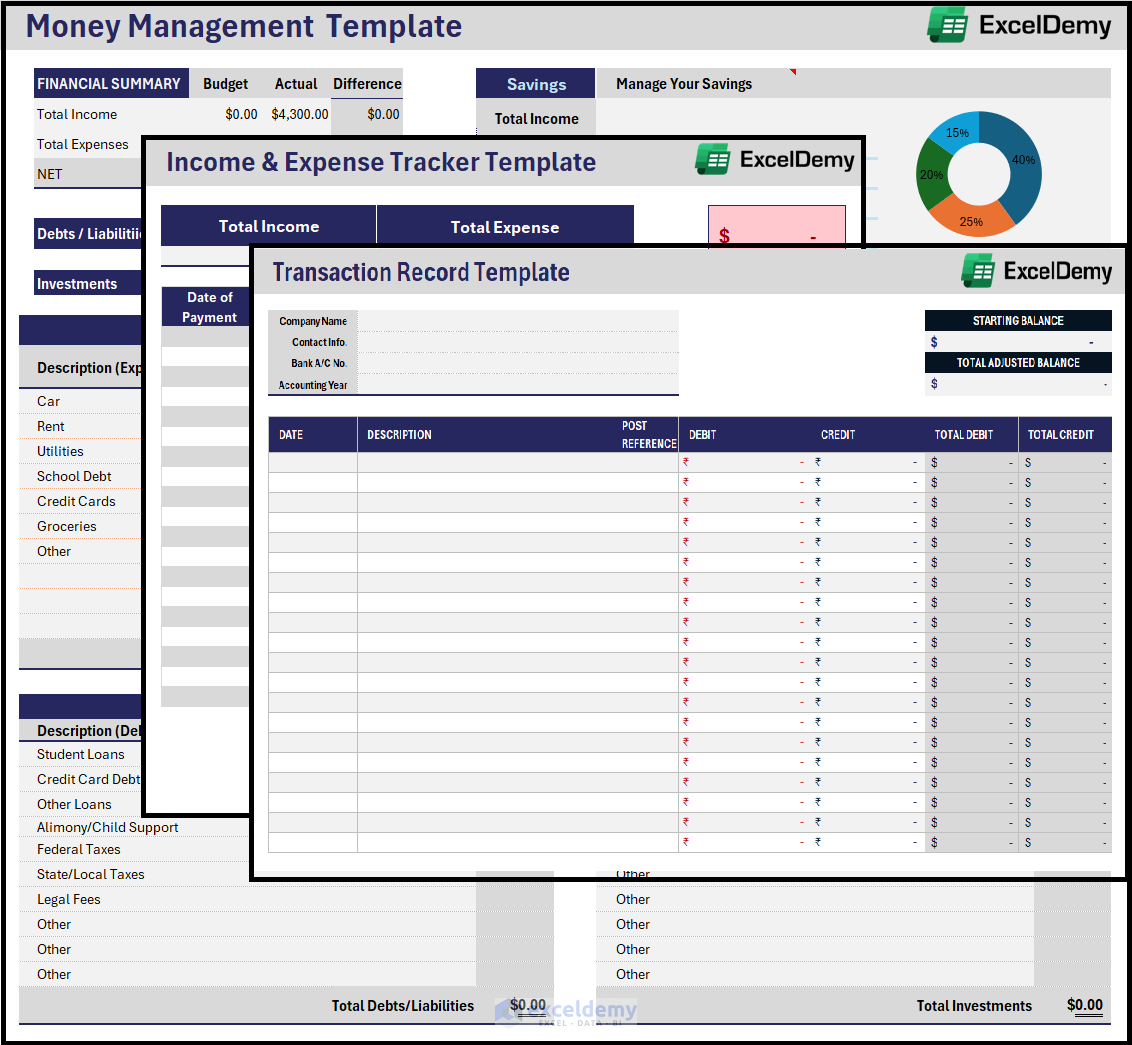
Download the Excel Money Management Template
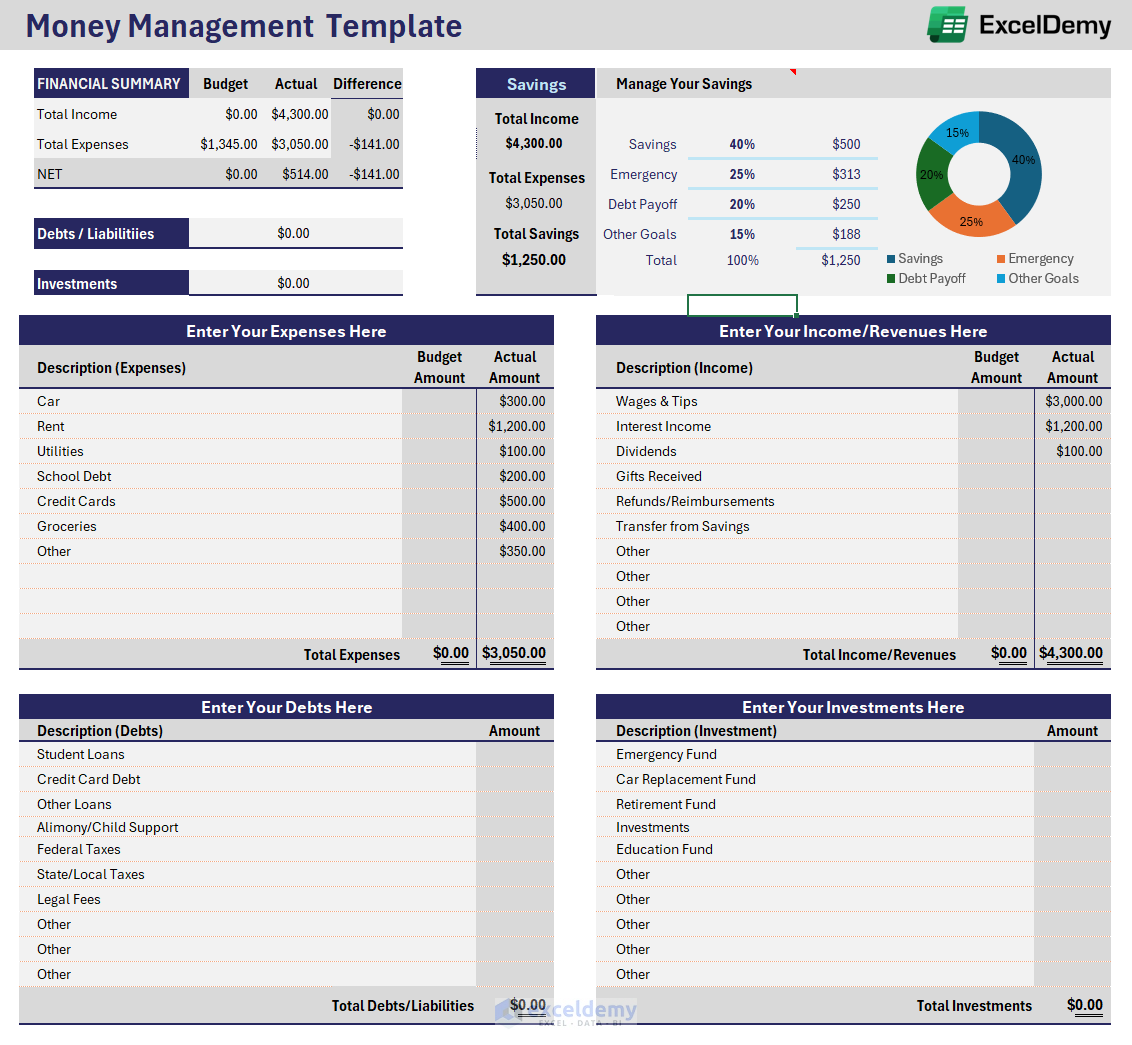
Click on the button below to download the money management template in Excel for free. Our simple template will provide you with a financial overview, actual and budgeted income and expense categorization, debts, and savings plans.
Download Excel Money Management Template
For: Excel 2007 or later
License: Private Use
You can use this template for personal money management purposes, and also, you may customize it for corporate purposes. These money management templates in Excel are very useful for efficient money management and better planning, monitoring, and control of financial matters.
What Is Money Management?
In the corporate finance domain, money management is a broad and generalized term, and it is used for all the services and solutions across the entire investment and corporate finance industry. This term is frequently referred to budgeting, saving, investing, and spending money. It is sometimes used to define the supervision task of fund users and financial managers.
Excel Money Management Template
Common Features of Excel Money Management Template
- A typical money management template in Excel should have a system of recording transactions.
- The template should separate sections for monitoring income and tracking expense patterns, planning and strategizing savings and investments and keeping track of expenses.
- Keep in mind that the primry objective of the Excel money management template is to enhance or maximize wealth.
- Besides a basic money management template in Excel, we will explore some widely used money management templates, like a transaction record template, income and expense tracker template, etc. The templates are included in the other sheets in the downloadable Excel money management template.
Transaction Record Template
Here’s a simple transaction record template in Excel. You can customize this template according to your preferences.
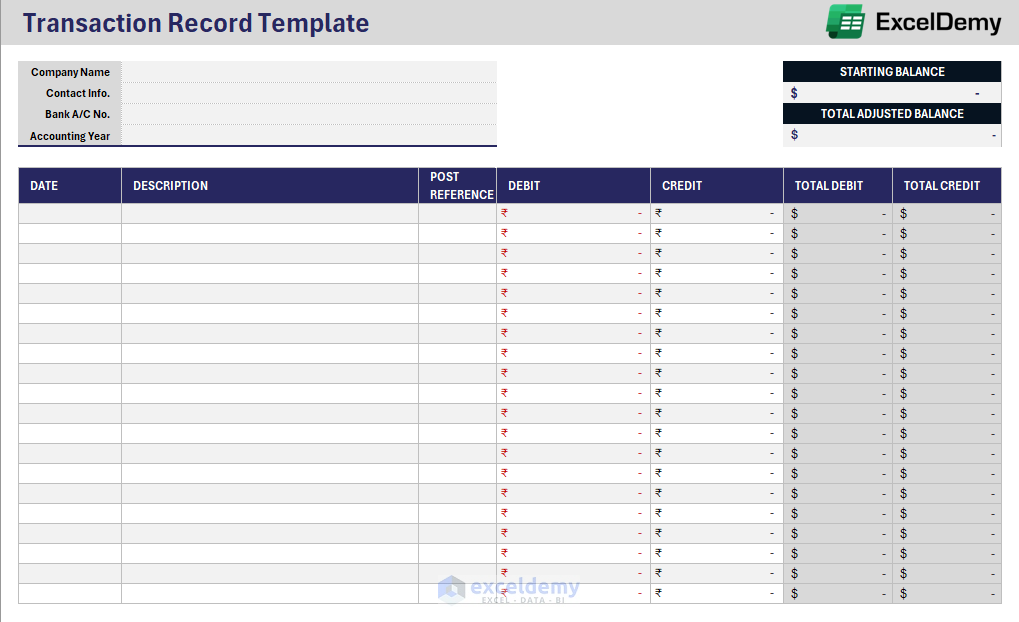
The above template includes columns for the date, description, post reference, debit and credit amounts, and their totals. At the top, some spaces (on the left) are reserved to put your company information, and on the right a quick balance of your fund. You can add more columns or rows as necessary.
Income and Expense Tracker Template
The income and expense tracker template has columns for date, selection of income or expense, payment types (cash or credit), and amounts.
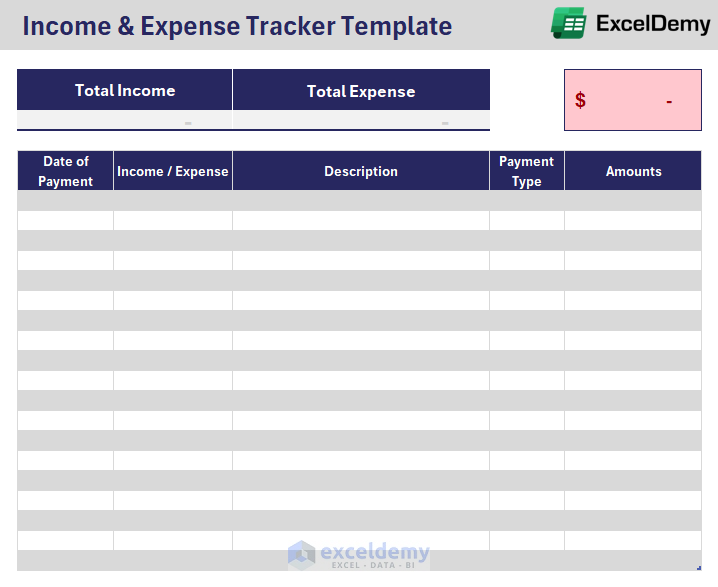
Add more columns or rows if you need them.
Excel Money Management Template: Knowledge Hub
<< Go Back to Finance Template | Excel Templates
Get FREE Advanced Excel Exercises with Solutions!


The amount of the Income & Expense Tracker Template has a data validation referring to INDIRECT(“Budget[Budget Lists]”). May I know what the purpose of that is? Where is the Budget[Budget Lists]? Is it also in the template file?
Hello Julian,
Thank you for your question! The formula INDIRECT(“Budget[Budget Lists]”) is used in data validation to create a dropdown list based on the entries in the “Budget Lists” column of the “Budget” table.
This allows you to easily select from predefined budget categories when entering income or expenses.
The Budget[Budget Lists] refers to a structured reference to a table named “Budget” and its column “Budget Lists” within the same Excel template file.
Regards
ExcelDemy
Hi Shamima,
Sorry for the late reply, I have checked the name manager several times. Only one table named Table1 exists in the file. No budget was found, and there is no hidden spreadsheet.
Best regards,
Julian
Hello Julian,
Thank you for sharing the details! The data validation formula =INDIRECT(“Budget[Budget Lists]”) is not required for the “Amounts” column. The “Amounts” field is meant for entering numbers (income or expense amounts), not selecting from a dropdown list.
This looks like it may have been applied by mistake or carried over from another column. You can safely remove this data validation from the “Amounts” column. Instead, you might want to use data validation to restrict entries to numbers only, or just leave it open for free numeric entry.
Regards
ExcelDemy
Hi Shamima,
You are right. I have removed that data validation from the “Amounts” column to accept any values entered.
Best regards,
Julian
Hello Julian,
Glad to hear that you removed the data validation. Hopefully the template will work properly now.
Keep exploring Excel with ExcelDemy!
Regards
ExcelDemy