
[Solved] Returning value from adjecent cell

Dear all,

Please find the attachment.

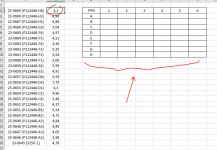
So, I have a list with 1 column sample names (A) and 1 column (B) their measured values.
Next to these columns I have a grid. I need to have the corresponding values in the exact place of the grid.
So far, I have been able to let Excel identify the text and put a value (in this case limited to B2) in the right position of the grid, but the only thing I cannot achieve is to have the correct measured value (in the corresponding adjecent cell) on that right spot in the grid in the right.

Please see the Excel sheet in the attachment and hope someone is able to help me out, this could save me a lot of data processing work.

Thanks a lot in advance!
 

Attachments

Dear all,

Please find the attachment.

So, I have a list with 1 column sample names (A) and 1 column (B) their measured values.
Next to these columns I have a grid. I need to have the corresponding values in the exact place of the grid.
So far, I have been able to let Excel identify the text and put a value (in this case limited to B2) in the right position of the grid, but the only thing I cannot achieve is to have the correct measured value (in the corresponding adjecent cell) on that right spot in the grid in the right.

Please see the Excel sheet in the attachment and hope someone is able to help me out, this could save me a lot of data processing work.

Thanks a lot in advance!
Hi ikweethetnietmeer,
Thanks for sharing your problem with us. you can use the following formula in cell E3 and drag the fill handle down and right till the last cell to apply the same formula:
Code:
=IFERROR(INDEX($B$2:$B$26,MATCH(CONCAT("*",$D3,E$2,"*"),$A$2:$A$26,0)),"")
1702200879295.png

I am attaching the workbook for your convenience.

Best Regards,
ExcelDemy Team
 

Attachments

Thanks so much Ridwan, amazing! There is one problem though, when I change anything in the file at all, the values in the entire table disappear.. could you please check? Any idea what the reason for this could be? Thanks in advance! Best regards, Marc
 
Thanks so much Ridwan, amazing! There is one problem though, when I change anything in the file at all, the values in the entire table disappear.. could you please check? Any idea what the reason for this could be? Thanks in advance! Best regards, Marc
Welcome, Marc.
May I know which version of Microsoft Excel you use? From my end, the file is working fine in the Microsoft 365 version.
The formula is created based on cell range A2:B26 with absolute reference. So if you shift the dataset, the formula will result in blank values.
You can share a screenshot or workbook of your situation so I can hopefully give you a better solution.

Regards,
Ridwan
 
Dear Ridwan,
Thanks for your prompt reply. The version is Professional Plus 2016.. (work computer).
I am not sure if it makes sense to share a workbook, but as soon as I make any change, whatsoever, the entire table is cleared out (please see screenshot, where I only changed a value or sample name.
In the end, I want to overwrite the columns I have in A and B with new data, and let the formula's do its work in order to get the data at the right spots in the grid/table on the right.
 

Attachments

  • Capture.PNG
    Capture.PNG
    40.2 KB · Views: 4
Dear Ridwan,
Thanks for your prompt reply. The version is Professional Plus 2016.. (work computer).
I am not sure if it makes sense to share a workbook, but as soon as I make any change, whatsoever, the entire table is cleared out (please see screenshot, where I only changed a value or sample name.
In the end, I want to overwrite the columns I have in A and B with new data, and let the formula's do its work in order to get the data at the right spots in the grid/table on the right.
Hi Marc,
As far I know, this happens when Excel faces any function of updated versions. You can try these possible solutions.
Try the Ampersand (&) or CONCATENATE function instead of the CONCAT function as it was first introduced in the 2016 version.
i. For using Ampersand (&) formula in cell D3 :
Code:
=IFERROR(INDEX($B$2:$B$26,MATCH("*"&$D3&E$2&"*",$A$2:$A$26,0)),"")
ii. For using the CONCATENATE formula in cell D3 :
Code:
=IFERROR(INDEX($B$2:$B$26,MATCH(CONCATENATE("*",$D3&E$2,"*"),$A$2:$A$26,0)),"")

Wildcards, IFERROR, and INDEX-MATCH are available from very early versions of Excel.

Please inform me of the outcome. Thanks and regards.
 

Online statistics

Members online
1
Guests online
170
Total visitors
171

Forum statistics

Threads
460
Messages
2,044
Members
2,321
Latest member
tt88faith
Back
Top