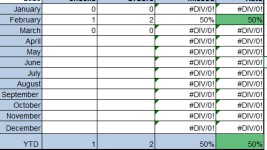
I have multiple charts with monthly compliance data (N/D) that then creates a column with the %compliance for that month. As I enter the data I want to automatically change the column with %compliant to a specific color. 90% and greater to green, 80% to 89% yellow and 0% to 79% red. I tried the conditional formatting for 3 colors and it gave me variant shades of colors rather than the 1 specific color and I had one entry for the year and it kept it green but it was only 50% compliant. So then I tried entering it as a formula rather than the other way. That did not work either. I know it can be done because I did this years ago using a formula in an older version of Excel.
Can someone assist and help guide me in the right direction please.
Hello BecJ,
You can easily achieve exactly what you want with Conditional Formatting using separate rules (instead of the 3-Color Scale, which creates gradients/shades).
Step-by-step solution:
Select the range of cells containing your % compliance values (e.g. the whole column or specific cells like D2100).
Go to Home → Conditional Formatting → New Rule.
Choose "Use a formula to determine which cells to format".
Create these three rules in this exact order (top to bottom):
Rule 1 – Green (90% and above):
Formula: =A2>=0.9
(replace A2 with the top-left cell of your selected range)
Click Format → Fill → Choose a solid Green color → OK
Rule 2 – Yellow (80% to 89%):
Formula: =AND(A2>=0.8, A2<0.9)
Click Format → Fill → Choose a solid Yellow (or orange) color → OK
Rule 3 – Red (below 80%):
Formula: =A2<0.8
Click Format → Fill → Choose a solid Red color → OK
In the Conditional Formatting Rules Manager, make sure the rules are listed in the order above and that "Stop If True" is checked for the first two rules (especially important for the Green one).


 100).
100).